Updated
Short answers to the questions hosts ask most about their Nowistay website, from creating it to taking bookings. Each answer links to the article with the full details. If your question isn’t here, click Help in the … menu of the editor to write to us.
In the Properties step of Create my website, a greyed-out property with Already on the website followed by a name is already on another of your websites. A property can only be on one website at a time. To move it, open that other website, go to Site settings > Properties and click Remove next to it. If that website is online, publish it: the property is free once the website without it is online. A website keeps at least one property: if this is its only one, add another property to it first, or delete that website.
The other properties are also greyed out once you have ticked 25, the maximum for one website. See Website settings.
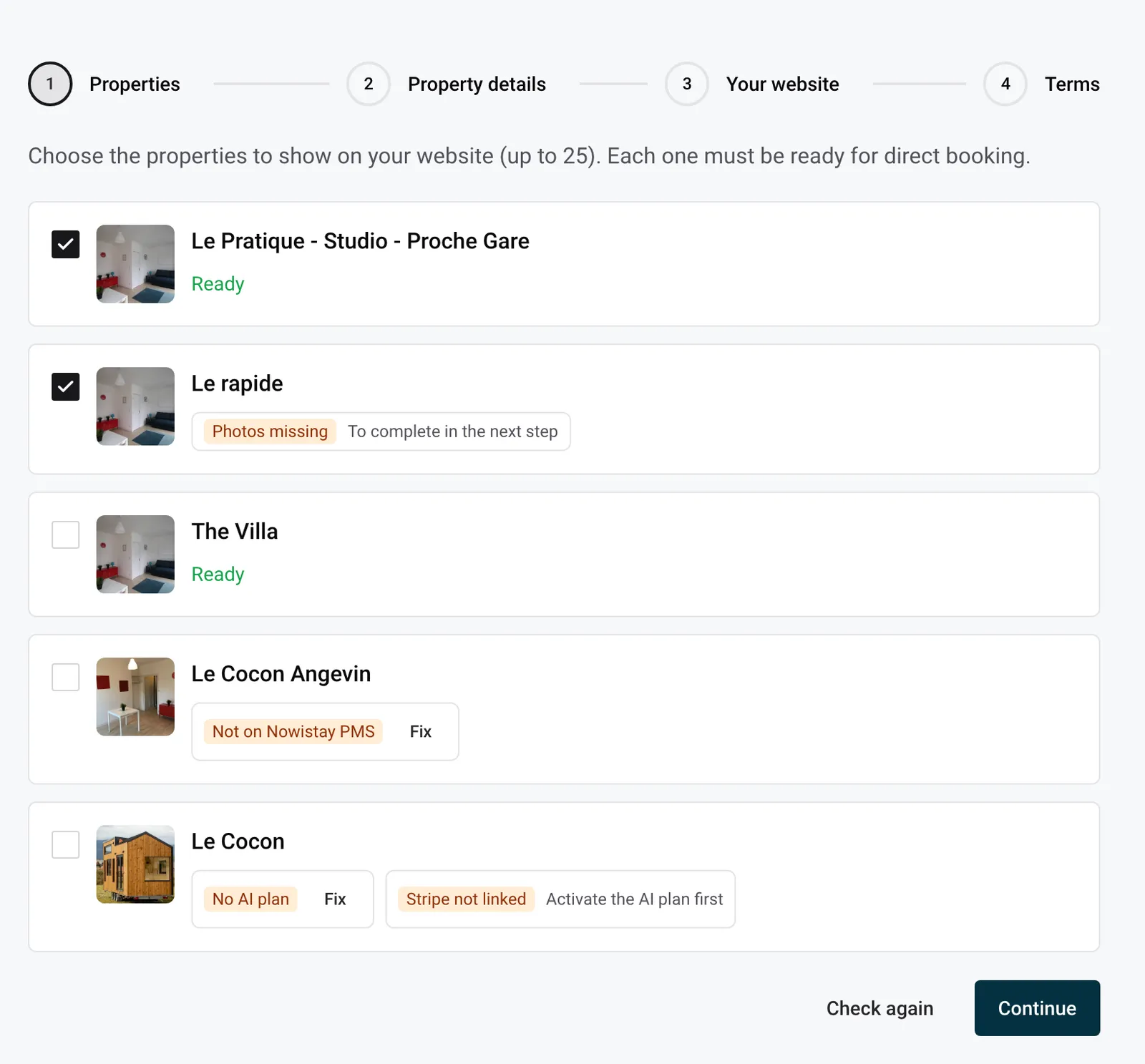
These tags say what the property still needs before it can be on a website: No AI plan, Not on Nowistay PMS, Stripe not linked, Details missing (bedrooms, beds or bathrooms) or Photos missing (at least 5). Click Fix next to a tag to solve it, then Check again. Missing details and photos can be completed in the next step of the creation. See Get your properties ready for your website.
The address of your website (yourname.nowistay.page) must:
villa-booking and my-b00king-villa are both refused;When an address is taken or reserved, Nowistay suggests a free one after Available:. Click it to use it. See Your website address and your own domain name.
A website photo must be a JPEG, PNG or WebP file, at least 800 px on its long side and up to 10 MB. The messages tell you which rule is not met: This image is too small., This file is too large. or This file format is not supported. Export the photo again from your phone or computer in a larger size or as a JPEG. For the icon, The icon must be square. means the image needs the same width and height. See Edit texts, links and photos on your website.
If you see Something went wrong while writing your website., click Try again. A website can be written 4 times in total, and the page shows how many tries are left. Check the list of properties under the message: if a property is no longer ready, fix it first. When No tries left. Contact us and we will look into it. appears, write to us. See Create your first website, step by step.
The message under The preview could not be built. gives the reason:
Your manual edits still work: texts, photos, blocks, style and publishing never use credits. Your credits come back on the 1st of each month: 100 per website, shared between your websites. See Website subscription, AI credits and limits.
Some parts of the website stay in your hands only: the legal pages, your public contact details, the website name, tagline, logo and icon, adding or removing properties and languages, page addresses, the address a button leads to, photo approval, publishing and your domain name. Change them yourself in the editor. See Edit your website with AI.
Photos imported from your Airbnb listing and placed on your website by the AI need your confirmation that you may use them. Click a photo marked To approve to approve it, or approve them all at once in Site settings > Photos to approve. Photos you pick yourself are approved by that choice. Every photo shown must be approved before you can publish. See Edit texts, links and photos on your website.
No, a section is either on the page or removed. To take one off, select it and click Remove this section. You can bring it back with the undo button, or from Versions in the … menu. See Website blocks: every block explained.
No. The main language is set when you create the website and stays the same. You can add up to 2 other languages, or remove them, in Site settings > Languages. See Website languages and translations.
Your website pages have no map: the property cards and the footer show the location of your properties, and the full address isn’t shown. To help guests find you, add a link to a map in a text (with Link in the formatting bar) or on a button (with A link of my choice). Example: a “Getting here” page with a button to the map of your street. See Website pages.
No. Guest reviews are quoted word for word with the guest’s first name, the platform and the month, without stars or scores. In a Reviews block you choose up to 6 reviews. On a property page, ask the AI to change which reviews appear. See Website blocks: every block explained.
Your edits change the draft and the preview, not the live website. To put them online, click Publish, then Publish the changes (Publish the first time). Every item of the Before publishing list must be ticked first. Publishing takes a few minutes; if it fails, your live website stays as it was and the panel says why.
A few things go online without you: changes to your properties’ listing details (amenities, beds, rooms, registration number), and approved articles on their date, provided you published after approving them. See Publish your website and put changes online.
Visitors see this page when:
See Website subscription, AI credits and limits.
Your private preview is always hidden from search engines. Only the published website can appear on Google, and Google decides when it visits a new website, which can take some time. Nowistay prepares every published page for search engines: page titles and descriptions, a list of all your pages in every language, and the link between the language versions of each page.
What helps: write a title and a description for each page in Site settings > Search engines (Google), publish blog articles about your area, and share your website address where people already find you (your social pages, your e-mails to guests). The legal pages, the thank-you page and the “page not found” page are kept out of search results on purpose. See Website settings and Write a blog for your website with AI.
Yes, you must. In Legal pages, fill in Who publishes the site, then write Your text on each page: Legal notice, Privacy policy and Booking terms, at least in your main language. Nowistay adds at the top of each page a block with what it already knows (you as publisher, the hosting provider, the seller of each property, payment by card). Start from an example gives you a starting text in English or French, with parts to complete. The AI never writes or changes your legal pages. See Legal pages of your website.
No. Your own tracking codes, such as Google Analytics, Google Tag Manager or an advertising pixel, are not supported for now. Use Statistics in the … menu to see your visits, top pages, where visitors come from, bookings and contact requests. See Website statistics.
Waiting for your DNS records means Nowistay can’t see the two records at your registrar yet. Check that you added both, exactly as shown in Domain name, and that the name is written the way your registrar wants it (many want only “www”). Changes can take a few hours to show. Nowistay checks by itself for 14 days, and Check now checks at once. If the panel mentions a CAA record, follow its instructions. After 14 days without the records, you see Your records were not found within 14 days and can try again. See Your website address and your own domain name.
No, your website opens on a www address, such as www.les-gites-du-moulin.com. Ask your registrar to forward les-gites-du-moulin.com to it, so visitors who type the bare domain still arrive on your website. See Your website address and your own domain name.
A booking is created once the guest has paid on the payment page. It then appears in Bookings like your other direct bookings, and its detail shows Booked on: Your website. If the guest left before paying, there is no booking. The payment goes to the Stripe account linked to the property. See Bookings and messages from your website.
Messages from your contact form go to the e-mail address you sign in to Nowistay with, not to the contact e-mail shown on your website. They come from Nowistay (hello@nowistay.com) and their subject starts with “New message from your website”. Check your spam folder. Every message is also in Enquiries, in the … menu of the editor, and replying to the e-mail answers the visitor directly. See Bookings and messages from your website.
The “From” price on your pages is the lowest nightly rate over the next 90 days, worked out each time your website is put online again (when you publish, for example). The booking calendar always shows live prices and availability for the dates the guest picks, with the cleaning fee and tourist tax in the total. Publish again to refresh the “From” price. See Bookings and messages from your website.
No, a property can only be on one website. You can move it from one website to another: see “Why is my property greyed out?” above.
Yes. Each website costs €19 per month with 100 AI credits. The free first version is given once per account, so a second website is added to your subscription when you create it. Example: you manage 12 apartments in Lisbon and want a separate website for your two beach houses in the Algarve: create a second website with only those two properties. See Website subscription, AI credits and limits.
If you remove a website from your subscription, it stays online and editable until the end of the current billing period, then ends, with no refund. If a payment of your Nowistay subscription fails, you have 8 days to settle it; after that, visitors see a page saying the website is temporarily unavailable until the payment goes through. See Website subscription, AI credits and limits.
Guides for hosts: read the blog.
Ready to Put Your Rental on Autopilot?
