Your website can be in up to 3 languages: a main language and up to 2 others, chosen among 9. Nowistay translates every page for you, you can edit each language by hand, and you can add or remove a language later in the site settings.
The languages you can offer
Nowistay websites exist in English, French, Spanish, German, Dutch, Italian, Portuguese, Russian and Chinese.
You choose the languages when you create the website, in the step Your website: a Main language, then up to 2 Other languages. The main language is the one your site opens in. It can’t be changed once the first version of the site is written. The other languages can be added or removed later.
Example: you rent three chalets in Chamonix and most of your guests are French, British or German. You choose French as the main language, with English and German as other languages. Every page of the site then exists in the three languages.
How translation works
- When the site is created, Nowistay writes every page in each of your languages.
- When the AI changes a text at your request, it writes it in all your languages at once.
- When you change a text yourself, only the language you are editing changes. Update the other languages too, or ask the AI, for example: “I changed the welcome text in French: update the English and German versions.”
- The fixed texts of the site (menu, the Book button, footer, booking calendar, contact form) are translated by Nowistay.
- Legal pages: the part Nowistay fills in (your identity, the host of the site, the seller of each property) appears in every language. Your own text is required in the main language; in the other languages, the page shows your main-language text until you write a translation. See Legal pages of your website.
- Blog articles must exist in every language before you can approve them. Translate with the AI fills the missing languages. See Write a blog for your website with AI.
Edit a text in each language
- Select a block in the preview, or open a property page.
- At the top of the side panel, a language switch shows the codes of your languages (for example FR, EN, DE).
- Click a code to see and change the texts in that language. Each field saves when you leave it.
The same switch is in the article form and in the Search engines (Google) part of the site settings. For your own pages, Page settings has a name and an address field for each language.
To look at the site in another language, open the … menu, click Open in a new tab, then use the language links at the top of the page.
In the preview, a text missing in a language shows the main-language text instead. Before publishing, Nowistay checks that Every text exists in all the site’s languages. If not, it tells you to complete the missing texts by switching the language in each block.
Add a language
- In the editor, open the … menu, then Site settings.
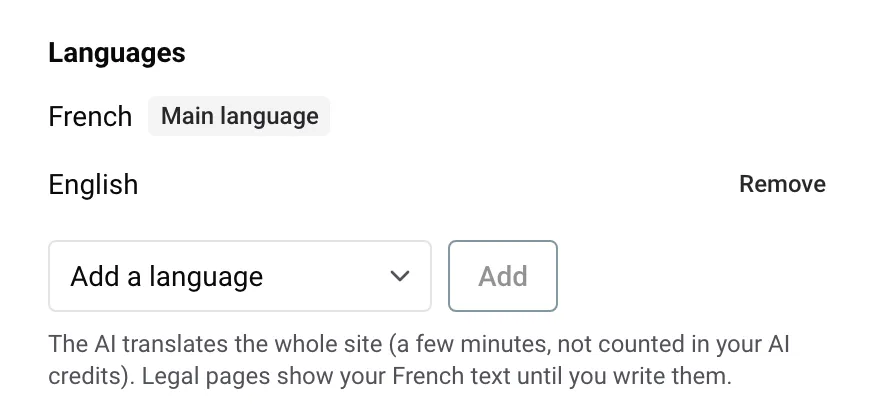
- In Languages, pick the language in Add a language, then click Add.
- The panel closes and a banner shows “Translating your site into” and the language, with a progress bar. Editing waits until it is done, and you can leave the page in the meantime.
- When the banner says “Your site is now in” the new language, click OK.
- Check the new language, write your legal page texts in it if you wish, then publish.
The AI translates the whole site in a few minutes: every page, every property page and your articles. This does not use your AI credits. Only your own text on the legal pages is not translated. On a site in Russian, Nowistay uses fonts that have Russian letters.
If the translation fails, the banner says “The change couldn’t be made. Nothing changed on your site.” with a Try again button.
Limits
- 3 languages per website, main language included. Beyond that: “A website has at most 3 languages.”
- 3 additions per website per month, failed attempts included. Beyond that: “You can add a language 3 times a month. Try again next month.” The count starts again on the 1st of each month.
Remove a language
- Open Site settings, then Languages.
- Click Remove next to the language, then confirm.
What happens next:
- The language leaves your live site at your next publish. Until then, visitors still see it.
- After that publish, the old addresses of that language lead visitors to your home page in the main language, for 12 months.
- The removal is an ordinary change: the undo arrow (right after) or Versions brings the language back with its texts. Adding it again later, without undoing, counts as one of your 3 monthly additions.
- The main language can’t be removed.
- If a text exists only in the language you are removing, Nowistay asks you to write it in the main language first.
What visitors see
- Addresses: your main language uses your site’s address as it is, the other languages add their code. With French as the main language, the English home page is your address followed by /en.
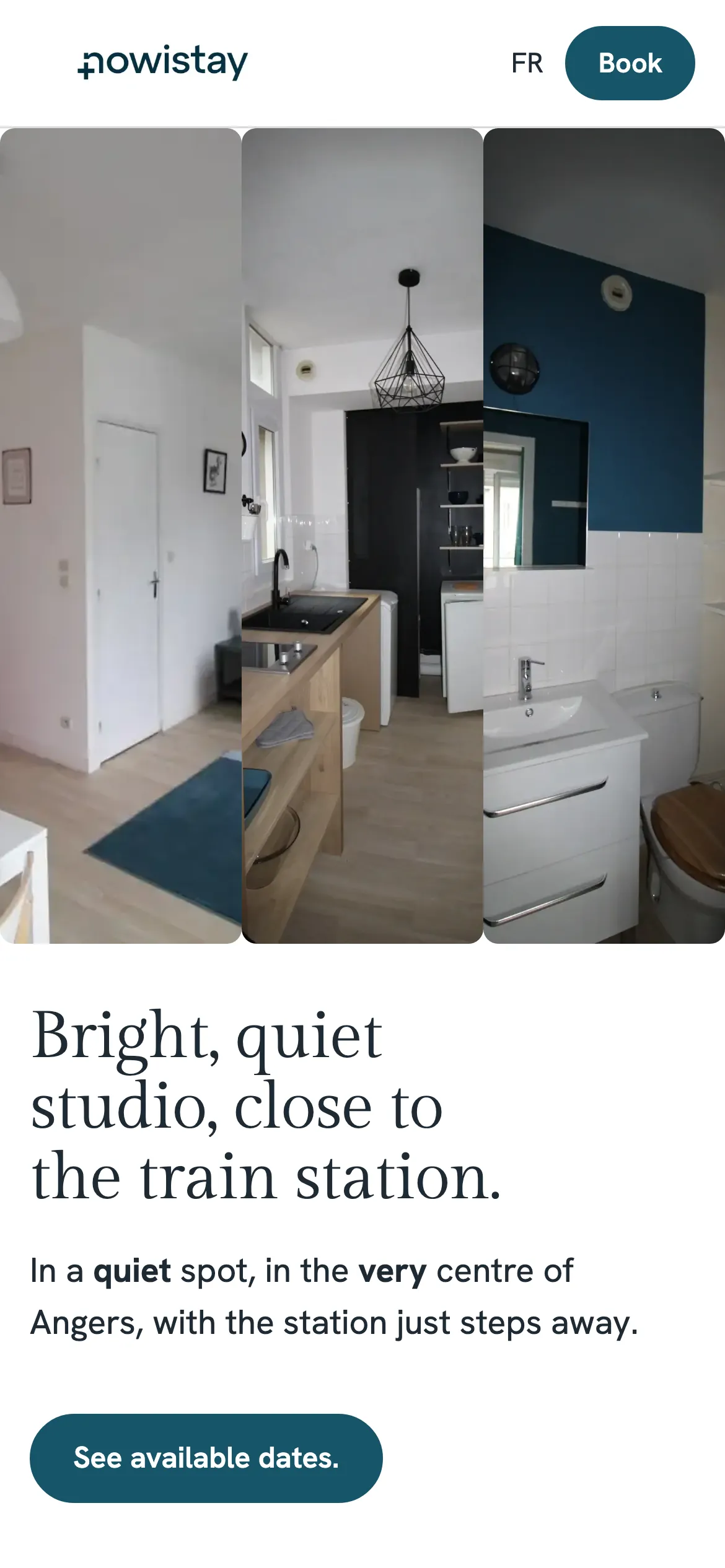
- Language links: at the top of every page, the codes of your other languages (for example EN and DE on a French page) lead to the same page in that language. They stay visible on phones.
- No automatic switch: the site doesn’t change language on its own based on the visitor’s browser. Visitors land in the language of the link they followed. Nowistay tells Google which pages are translations of each other, so Google can show each searcher the page in their language.
- Booking and contact: the booking calendar and the contact form open in the language of the page.
To change other settings of the site, see Website settings: name, contact details, properties and Google.
