Updated
You can change any text of your website by typing straight into the preview or in the side panel. The panel also gives you formatting (bold, headings, lists, tables), links, buttons and photos taken from each property’s image library.
Photos you add yourself are approved by that choice. Photos imported from Airbnb that are shown on your site wait for your approval, and the site can only be published once every photo shown is approved.
This is the quickest way to fix a word or rewrite a title. The details are in The website editor: the basics.
Use the panel for formatting, links, buttons, photos, and for your other languages. If your site has 2 or 3 languages, the switch at the top of the block (EN, FR…) chooses the language you edit. Every text must exist in every language of the site before you can publish: the publishing checklist shows Every text exists in all the site’s languages once it’s done.
Text changes show in the preview at once. A few need the preview to be refreshed with Update (a table, a text that appears where there was none or that you empty): see When to click Update.
There are two kinds of text fields.
A short text field (a subtitle, an introduction, the text of a highlight or of a call to action) holds one paragraph. When you click into the field, a small toolbar offers Bold, Italic, Link and Remove the link. Enter doesn’t create a new paragraph here.
Long text fields (the Text block, Photo and text, FAQ answers, the columns of Two columns, a property’s description) always show the toolbar above the field. It offers:
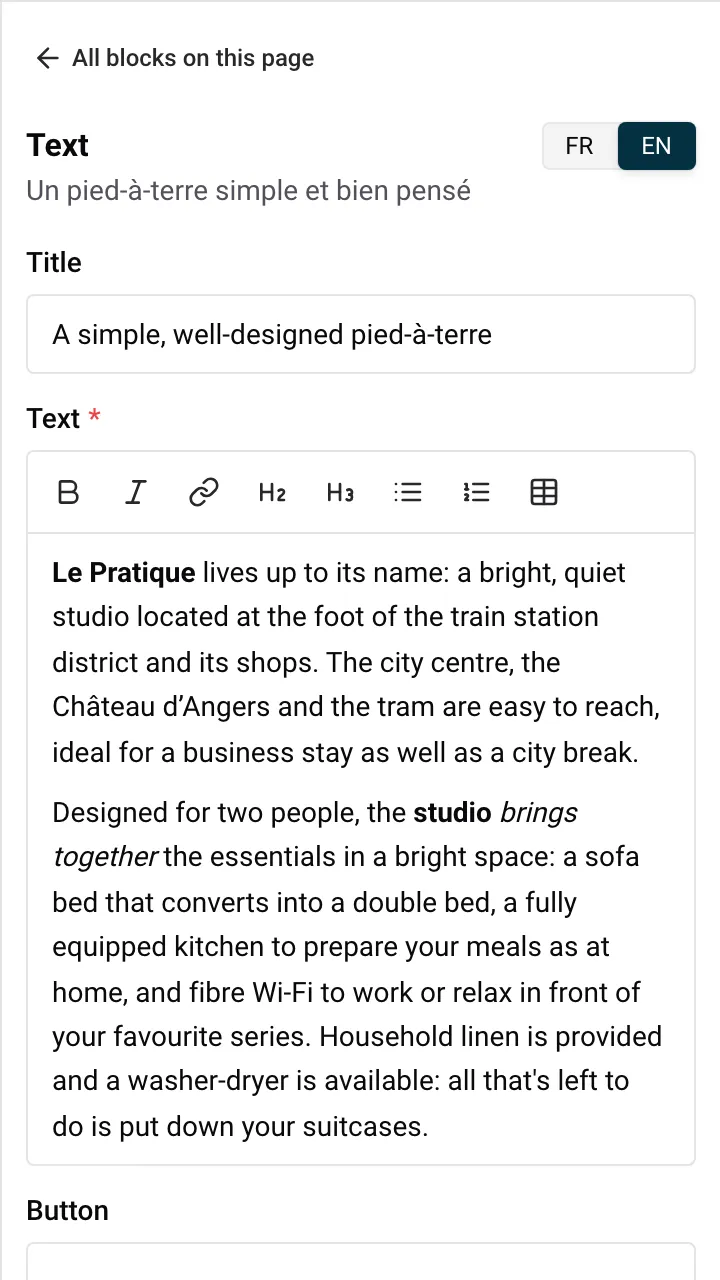
There is no underline, text colour, font size or alignment: the look of every text comes from your site’s style, so all pages stay consistent. To change fonts and colours, see Change the look of your website.
If a text contains something the toolbar can’t show (an image or a quote, for example), the panel shows it with its formatting codes, and a note explains why. You can still change the words.
The first row is the header on your site. A table shows in the preview after you click Update. On a phone, visitors scroll a wide table sideways.
Example: you rent a chalet in Morzine. On a “Getting here” page, a table with three columns (From, By car, By train) and rows for Geneva airport, Lyon and Paris answers the question guests ask most before booking.
Nowistay completes what you type: www.example.com becomes a web link, an e-mail address opens the visitor’s e-mail app, and a phone number lets visitors call you from their phone. If the address isn’t valid, you see Enter a web address (https://…), an e-mail address or a phone number.
To remove a link, click inside it and click Remove the link.
Example: in your “Getting here” text, link the words “regional bus timetable” to the bus company’s website, and your mobile number to a phone link so guests can call you in one tap.
Some blocks have a button:
A button has three settings in the panel.
The label: the text on the button, in the field named Button (one per language). It shows in the preview at once.
Button links to: where the button leads.
| Choice | Where visitors go |
|---|---|
| Booking | The page listing all your properties with the date search, where guests pick dates and book |
| Properties | The list of your properties on the home page |
| About | Your About page |
| A page of the site | One of your own pages, chosen in Page (Choose a page). Offered once you have at least one page of your own |
| A link of my choice | Any address you type in Link address: a web page starting with https://, an e-mail address or a phone number |
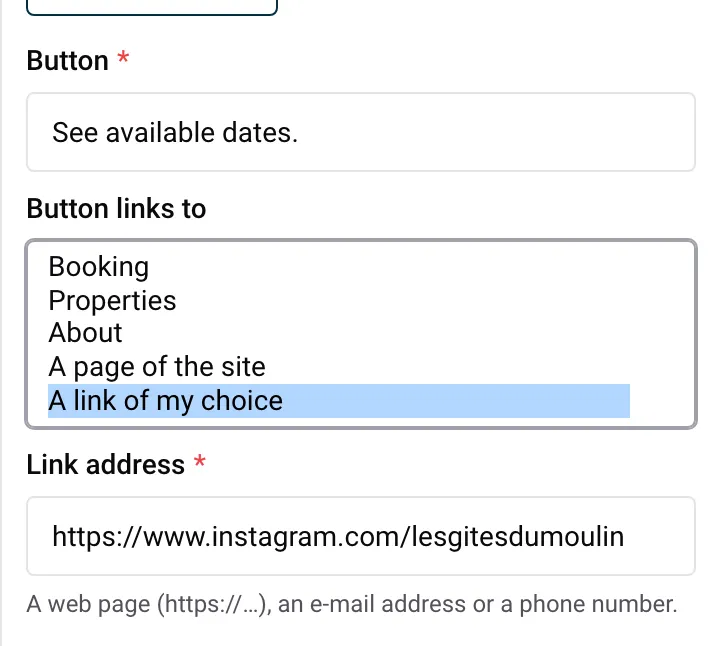
For A link of my choice, the field explains A web page (https://…), an e-mail address or a phone number. As in texts, www. addresses, e-mail addresses and phone numbers are completed for you. A button needs a secure address: an address starting with http:// is refused with Enter an address starting with https://, an e-mail address or a phone number. The button saves once the address is valid (or, for A page of the site, once a page is chosen).
Appearance: Text link (the default, a simple link under the text) or Button (a filled button in your main colour). You choose it on Introduction, Text, Photo and text and Call to action. The Main banner’s button is always a filled button.
Good to know:
Example: you host weddings in a renovated barn in Normandy. At the bottom of your “Weddings and events” page, a Call to action block says “Planning your day here?” with a button “Ask for a quote”. Set Button links to to A link of my choice, type your e-mail address, and choose Button as the appearance so it stands out.
Each property has its own image library in Nowistay, the same one as its welcome guide. The photos on your website are chosen from these libraries. Files guests sent you in conversations never appear there.
To use a new photo, click Add an image in the library and choose the file on your computer or phone: it is added to the property’s library and selected at once.
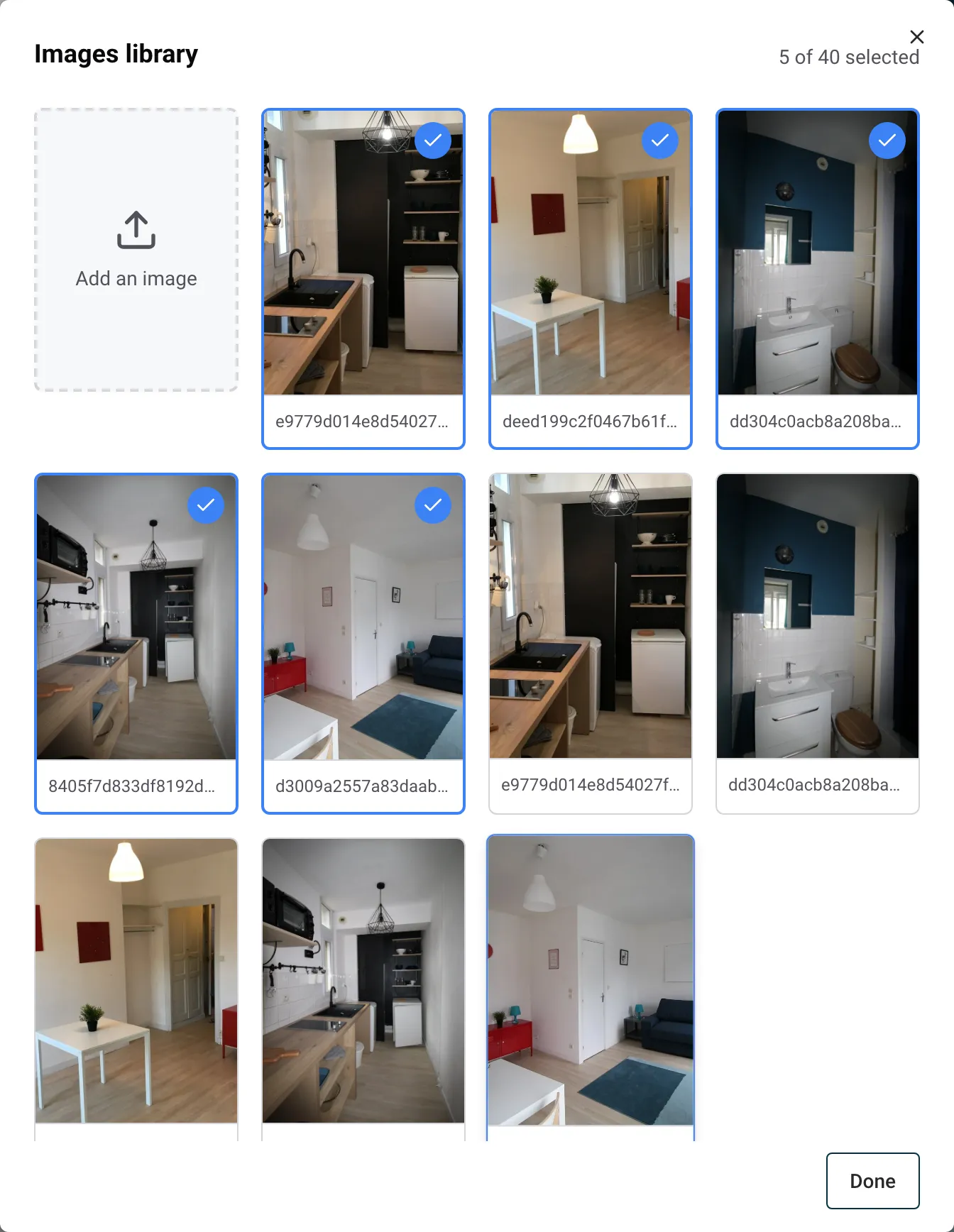
Example: you manage three apartments in Lisbon. For the home page’s Main banner (up to 3 photos), click Add photos, choose “Alfama Loft” and pick its terrace photo, then click Add photos again, choose “Baixa Studio” and pick its living room. Click Update to see the banner with both photos.
Other messages you may see: This file is too large. and This file format is not supported.
A photo shown on your website can’t be deleted from the library: you see This photo belongs to your website and can’t be deleted here. Remove it from the website first.
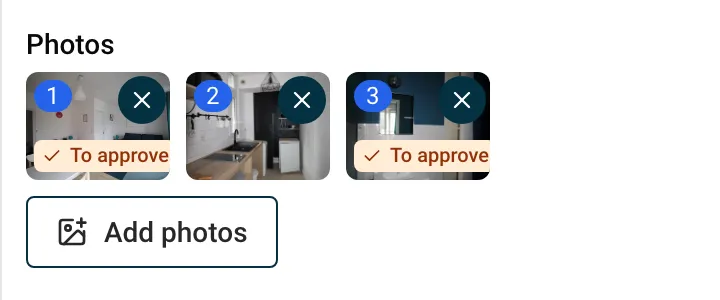
When the AI places photos imported from your Airbnb listing on your site (in the first version or after one of your requests), those photos wait for your approval. Their thumbnail in the block shows an orange To approve badge. Hover it to read Chosen by the AI: click to confirm this photo can be shown on your site, then click it: the photo is approved.
A photo you add yourself from the library is approved by that choice.
To approve every waiting photo at once:
Why it matters: your site can only be published when the checklist shows Every photo shown is approved, and by publishing you confirm you have the right to use these photos on your site. A photo on your Airbnb listing isn’t always yours to reuse: if a photographer took it, check that your agreement with them covers your own website. If you are not sure, replace the photo with one of your own.
Article cover photos work the same way: a cover chosen by the AI must be approved before you can approve the article (see Write a blog with AI).
Guides for hosts: read the blog.
Ready to Put Your Rental on Autopilot?
