Updated
The look of your website is set in the Style panel of the editor: a base style, a pair of fonts, your own colours, the shape of photos and the spacing. Each change shows at once in the preview, and your visitors see it after your next publish. Your logo and the small icon of the browser tab are in Site settings.
Every change saves on its own and appears in the preview straight away: no need to click Update. Each change is also a version, so the undo arrow and Versions work as for any other edit.
You chose a first style when you created the website. You can change it here at any time.
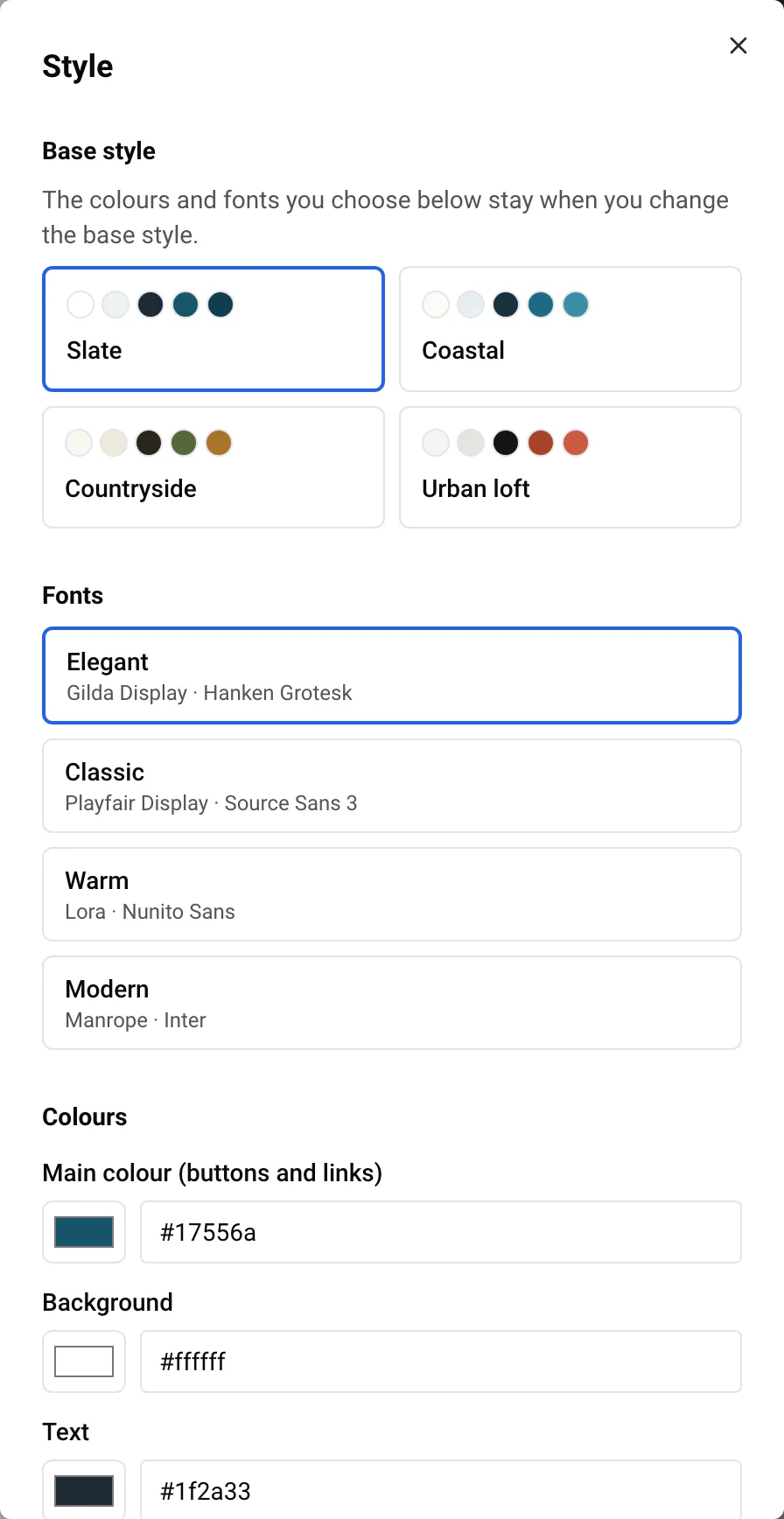
Under Base style, each card sets the colours and fonts of the whole site.
| Style | Colours | Fonts |
|---|---|---|
| Slate | white background, deep blue-green buttons and links | Elegant |
| Coastal | off-white background, sea blue | Classic |
| Countryside | warm cream background, olive green and ochre | Warm |
| Urban loft | light grey background, brick red, near-black text | Modern |
The fonts and colours you choose yourself (below) stay when you switch to another base style. So you can try the four styles without losing your brand colour.
Each pair of Fonts has one font for titles and one for the text:
Click a pair to use it. To go back to the fonts of your base style, click Use the style’s fonts.
On a site in Russian, Elegant is greyed out with Not available in Russian: its fonts have no Russian letters. Pages in Chinese use the Chinese fonts of the visitor’s device.
There is no setting for the size of the text.
Under Colours, you can replace three colours of the style:
One set of colours applies to the whole site: a block can’t have its own colours, and there is no dark version of the site.
When your website has a logo, Colours from your logo shows up to 3 colours found in it. Click one to make it your main colour. White, black and greys are ignored, so a black and white logo shows “No colour found in your logo.”
Some colours are hard to read on a website, for example a pale yellow button with white text. Nowistay adjusts them for you:
When Nowistay changes one of your colours, the panel says: “Adjusted so everything stays readable: links use a darker shade of your colour, backgrounds stay light and text dark enough.”
Example: you rent a seaside villa, Villa Azur, and your logo is a pale yellow sun. In Colours from your logo, you click the yellow. On the preview, the buttons become a slightly deeper yellow with dark text, and the links a darker shade of the same yellow, while the background stays light. If you want stronger buttons, type a deeper yellow yourself in Main colour (buttons and links).
Under Shape and spacing:
The logo and the icon are set in the site settings.
| Logo | Icon | |
|---|---|---|
| Where it shows | at the top of every page and in the footer | in the browser tab, and as the picture when someone adds your site to a phone’s home screen |
| File | PNG, JPEG or WebP, up to 2 MB, at least 200 px wide | a square PNG, JPEG or WebP, at least 512 × 512 px, up to 2 MB |
| Without one | your website name is written in the title font | no icon of your own in the tab |
The top of your pages always has a light background, so use the version of your logo made for light backgrounds (a white logo would not show). Both are optional.
More on the other settings in Website settings: name, contact details, properties and Google.
The AI can change the base style, fonts, colours, photo shape and spacing for you. For example:
It can’t change the logo or the icon. See Edit your website with AI.
The preview shows your new look at once. To check it on a small screen, click the Phone icon in the editor bar.
Your visitors see it after you publish: click Publish, then Publish the changes. After that, the booking calendar on your site also takes your colours and fonts. See Publish your website and put changes online.
Guides for hosts: read the blog.
Ready to Put Your Rental on Autopilot?
