Updated
The website editor is where you change your Nowistay website. You click a block in the preview, change its texts and photos in the side panel, and every change saves on its own. Nothing reaches your visitors until you publish, and any change can be undone.
The editor fills the whole screen. To leave it, click the arrow at the top left: you are back on your websites list.
The editor opens once the website is in your subscription. Before that, the page shows your private preview with the offer to add the website to your subscription (see Website subscription, AI credits and limits). If your subscription has a payment problem, you see Your subscription is not active. Settle it to edit your website.
The first time you open the editor in a browser, a message reminds you that This preview is private: search engines can’t see it, only people with the link can open it.
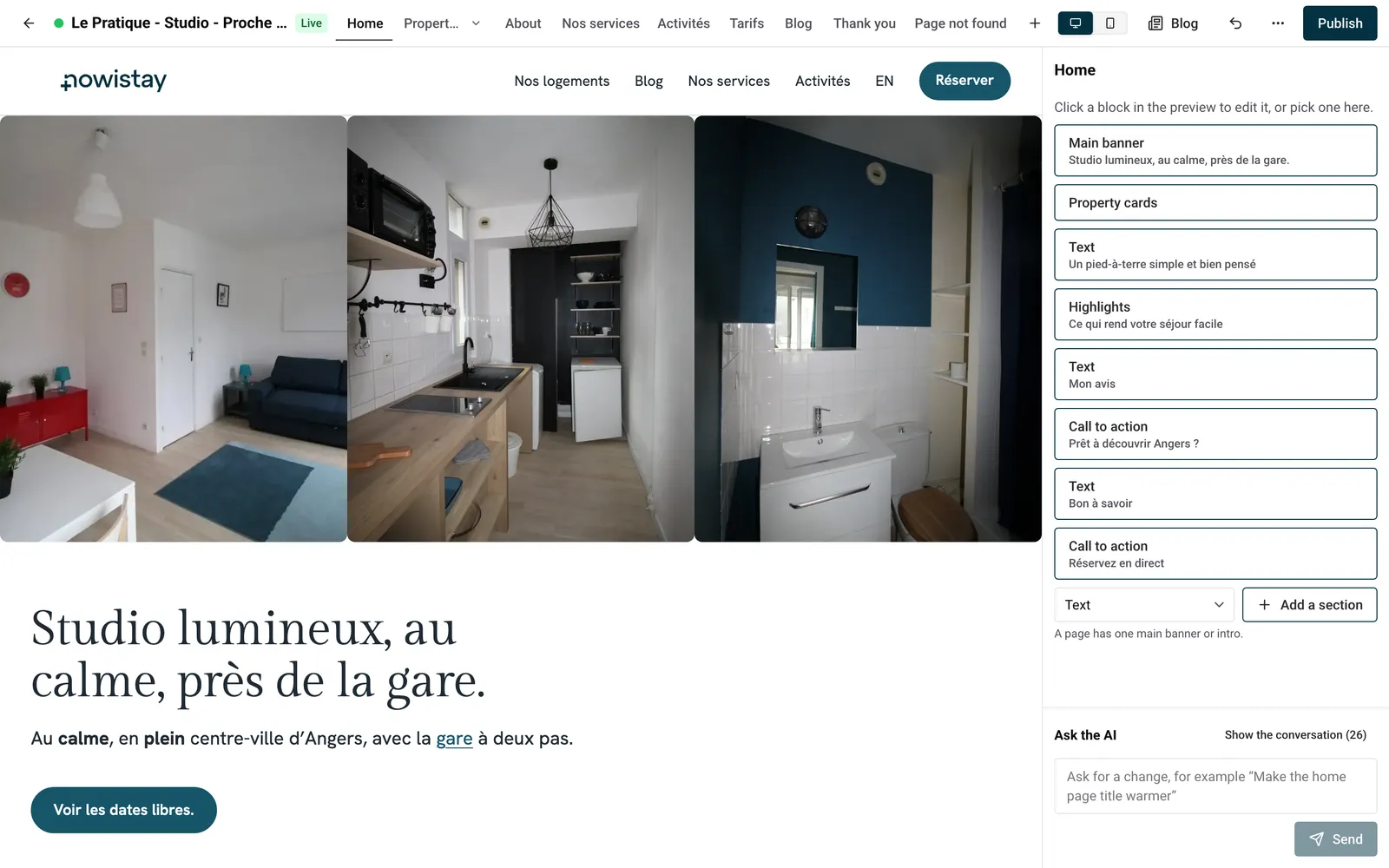
The editor has three parts: the bar at the top, the preview of your site in the middle, and the side panel on the right, with the Ask the AI box at its bottom (see Edit your website with AI).

| On the bar | What it does |
|---|---|
| Arrow | Back to your websites list |
| Coloured dot | Shows the state of the preview (hover it to read it) |
| Live | Shown once the website is published: click it to open your live site |
| Page tabs | Open a page of your site in the preview |
| + | Add a page of your own |
| Computer and phone icons | Show the preview at Computer or Phone size |
| Blog | Opens your blog’s articles (see Write a blog with AI) |
| Curved arrow | Undo the last change |
| … | The menu with every other tool |
| Publish | Opens the publishing panel |
The coloured dot means:
The tabs follow the order of your site: Home, Properties, About, your own pages, Blog (only once your site has an article), Thank you (the page guests see after booking) and Page not found (shown when someone types a wrong address). When there are many tabs, scroll the row sideways.
Properties opens a small menu:
When a property page is open, the tab shows its name.
Inside the preview, a click selects a block: it never follows a link. To move to another page, use the tabs.
The menu groups every other tool:
The preview is your website with your latest changes, at a private address that search engines don’t see. Move the mouse over it: each block gets a dashed outline. Click a block: it gets a solid blue outline and its fields open in the side panel.
What the panel shows depends on what you selected:
If your site has 2 or 3 languages, a switch (EN, FR…) at the top of a block or property page chooses the language you edit. Each language is edited separately.
On a computer, you can type straight into the preview:
These are two separate clicks, not a double-click: the first selects the block, the second edits the text. Bold, italic and links are kept. A text you empty completely is not saved: the previous one comes back.
Some long texts can’t be edited in the preview (when they contain an image or a quote, for example): edit them in the side panel. More in Edit texts, links and photos.
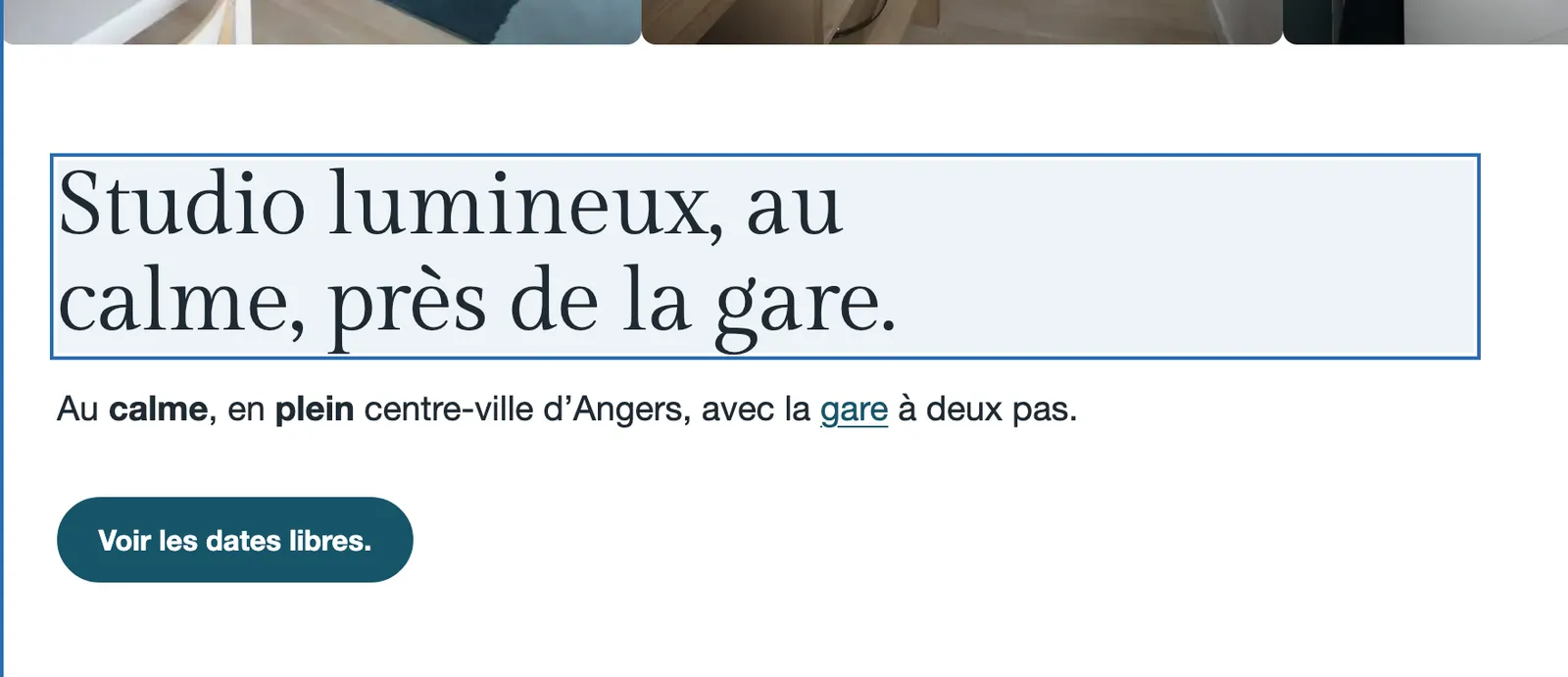
Example: you rent a farmhouse in Provence under the name Mas des Oliviers. The home page title says “A farmhouse among the olive trees” and you want “Your farmhouse in the Luberon, 10 minutes from Gordes”. Click the main banner, click its title, type the new one and press Enter. The new title shows at once and is already saved.
There is no Save button for blocks:
A green Saved tick appears next to the block’s name for a moment, and each save becomes a new version (see “Versions” below).
A few actions have their own button because they create something: a new block (Add), a new page (Add the page), the settings of one of your pages (Save). A new item in a list (a question, a highlight) waits until its fields are filled: Fill in the new item to save it.
Text changes show in the preview at once, and so do the changes you make in Style. Other changes need the preview to be refreshed:
When that happens, the dot turns orange and the bottom of the preview shows Some changes aren’t in the preview yet with an Update button. Click Update: one refresh brings in all the waiting changes, so you can make several changes and update once at the end. Your changes are already saved: Update only refreshes what you see.
The preview also refreshes by itself after an AI request that changed the layout, and when you add a page.
If a refresh fails, the preview shows The preview could not be updated with the reason and, when a property is the cause, a link to it. Fix what it says, then click Update again.
The curved arrow in the bar, Undo the last change, cancels your latest change. When that change came from the AI, the tooltip names your request, for example “Undo “Make the home page title warmer””. A message confirms Change undone.
To go back further than the last change, use Versions.
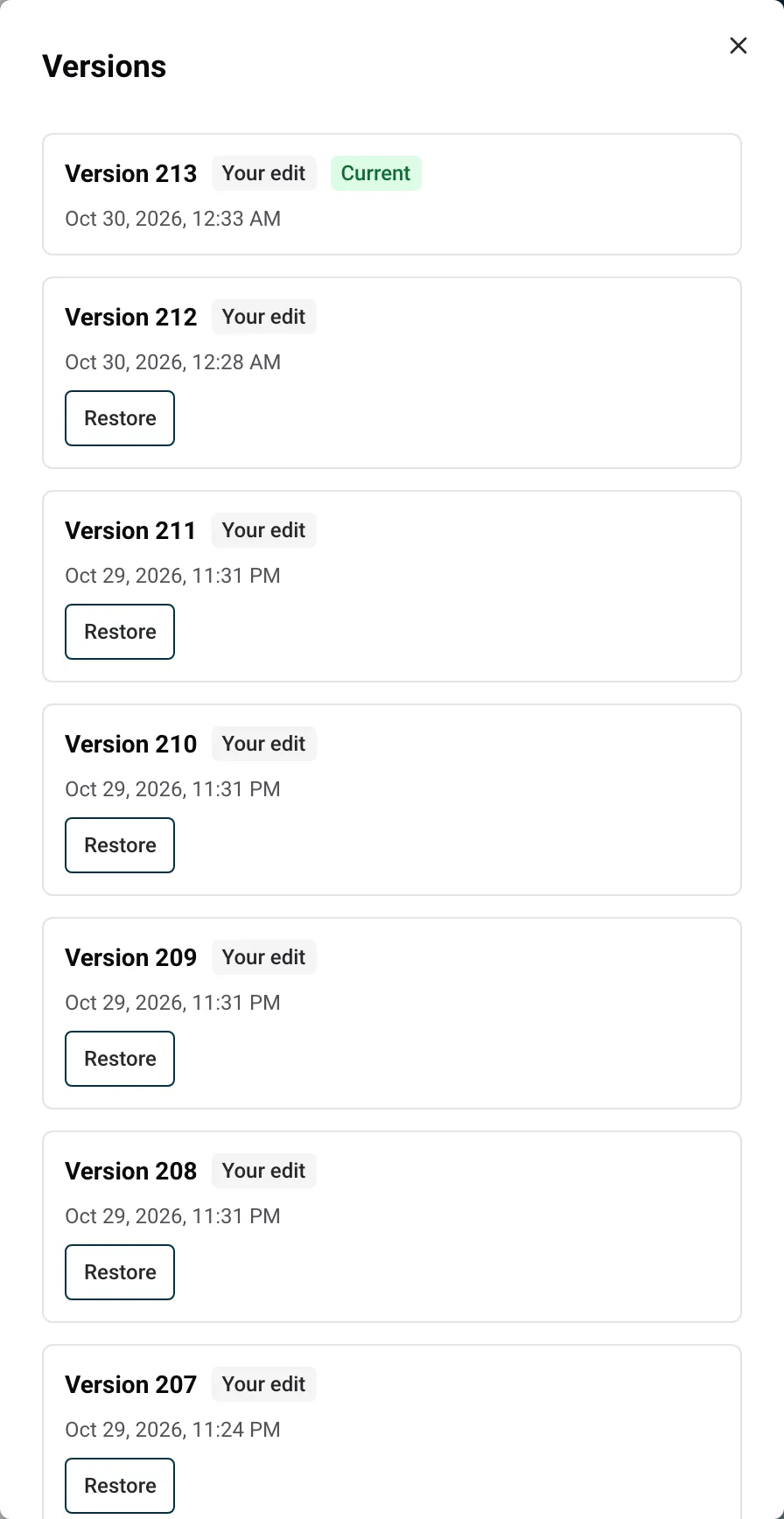
Every saved change, every AI request that changed something and every restore creates a version. Nothing is overwritten.
Good to know:
Example: on Monday you asked the AI to rewrite the home page of your two gîtes in the Dordogne. On Wednesday you prefer the old texts. Open Versions, find the version just before the AI one that shows your request, and click Restore. The AI’s version stays in the list in case you change your mind again.
When no block is selected, a Getting started card at the top of the panel sums up the essentials: select a block in the preview to edit its texts and photos, ask the AI about the selected block or about the whole site, and remember that every change can be undone. Click Got it to hide the card. It shows again if you open the editor in another browser.
During an AI request, and while a property or a language is being added to your site, the fields are read-only and show The AI is working on your website. Editing resumes when it has finished. Undo, restoring a version, adding a page and typing in the preview wait too. Anything you typed just before is saved as soon as the work is done.
The editor works on a phone, with a simpler layout:
On a computer, the phone icon in the bar shows your site at phone width: a quick way to check what guests on a phone will see.
Everything you do in the editor changes your draft, which only you can see. Visitors see your changes once you publish them: click Publish, then Publish the changes. See Publish your website and put changes online.
Guides for hosts: read the blog.
Ready to Put Your Rental on Autopilot?
