Updated
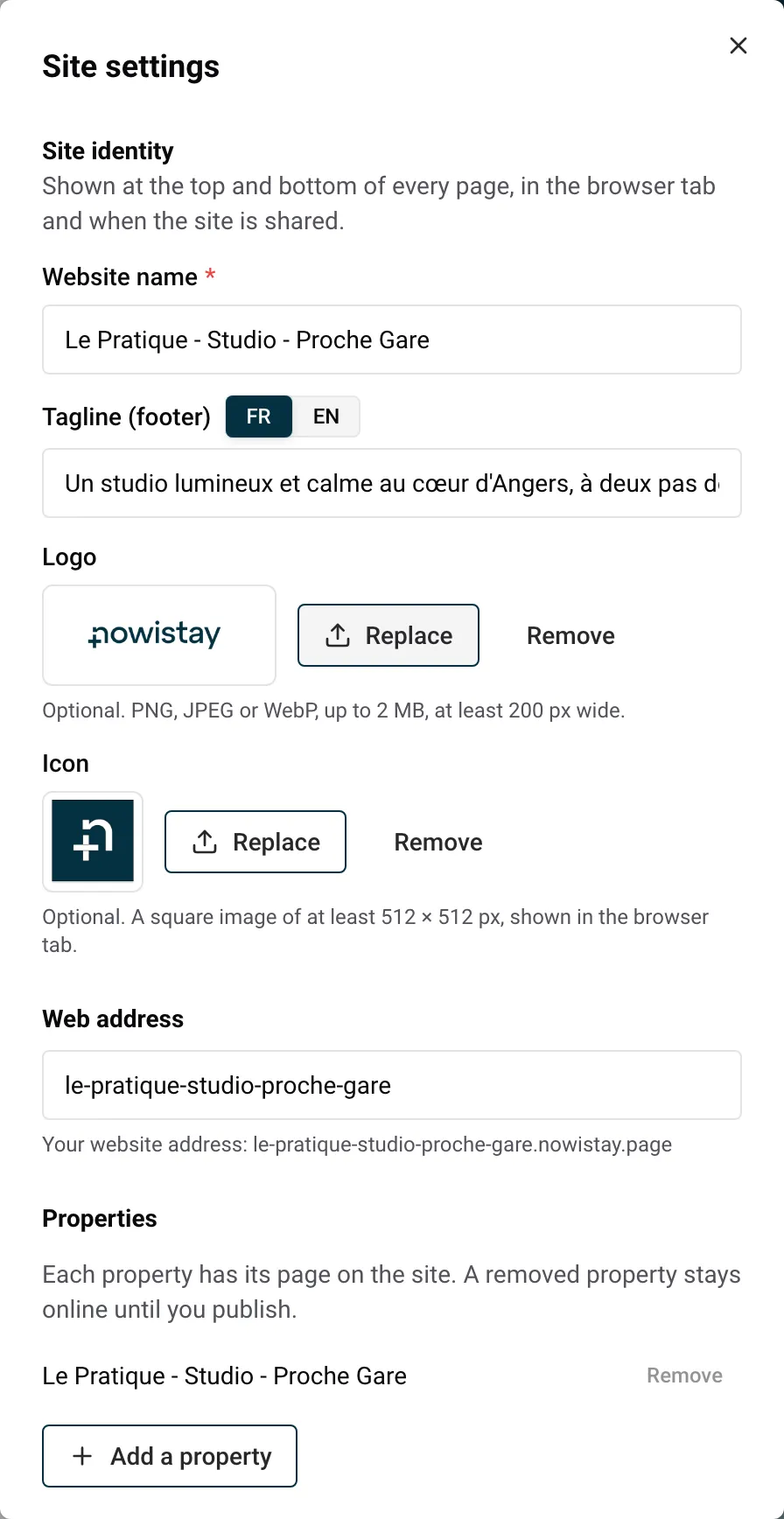
The Site settings panel holds what applies to your whole website: its name and logo, its address, its properties and languages, the contact details visitors see, and the texts Google shows for each page. You open it from the … menu of the editor.
The panel has these parts, from top to bottom: Photos to approve (only when some photos wait for you), Site identity, Web address, Properties, Languages, Public contact and Search engines (Google). Fields save on their own when you leave them, and a green Saved appears at the top.
You must have the right to show every photo of your website. Photos you choose yourself are approved by that choice. Photos imported from your Airbnb listing that Nowistay placed on the site wait for your approval.
In a block, a photo chosen by the AI and not yet approved shows a To approve badge on its thumbnail: click it to approve that photo alone.
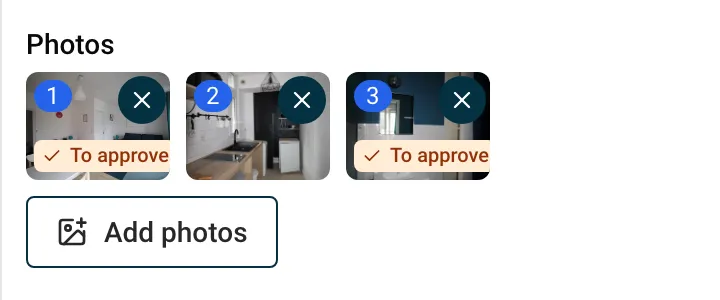
You can only publish when Every photo shown is approved.
Your website lives at an address such as les-gites-du-moulin.nowistay.page. You can change it here with Change the address: 3 to 40 characters, lowercase letters, numbers and hyphens. Once the site has been published, the old address leads to the new one for 12 months.
To use your own domain name, such as www.your-cottages.com, open Domain name in the … menu. Both are explained in Your website address and your own domain name.
Each property has its own page on the site.
The AI writes the property’s page in every language of your site. Adding a property does not use your AI credits and does not change the price of your website: the website subscription is per website, not per property.
The new property also joins the property cards of your home page. If your site had a single property, its buttons that led to that property’s booking now lead to your properties page.
Example: you manage 6 apartments in Seville and start renting a seventh, Casa Triana. Once it has its AI plan, Nowistay PMS, Stripe, its listing details and 5 photos, you add it here, check its new page, and publish.
A property can only be on one of your websites. If it is already on another one, Nowistay says “A property is already on another website.” To move it, remove it from the first website and publish that website: the property is then free to join the other one.
When every property is used, the window says “All your properties are already on a website.”
Its photos and reviews also leave the other blocks of the site (for example the main banner or the reviews). Until you publish, the property stays on your live site. A website keeps at least one property, so the last one can’t be removed.
| What | Limit |
|---|---|
| Properties per website | 25 |
| Properties added per website | 20 in 24 hours |
| Websites per property | 1 |
Add or remove a language of your site in Languages. See Website languages and translations.
The e-mail appears in the footer, on each property page (for guests who have a question before booking) and in the legal notice. The phone number appears in the legal notice. Both save together once the e-mail is valid.
Good to know: messages sent through your site’s Contact form block don’t go to this contact e-mail. They arrive at the e-mail address you use to log in to Nowistay, and in Enquiries in the … menu. Visitors who click the e-mail link of the site write directly to your contact e-mail. See Bookings and messages from your website.
This part sets the title and the description Google shows for the page open in the preview. When Nowistay created your site, it wrote a first title and description for each page; you can improve them here.
These texts don’t appear on the page itself. Google uses them in its results, and they also show when someone shares the page in a messaging app or on a social network.
Tips:
For a property page, ask the AI, for example: “Write a search title and description for the Casa Triana page.” Blog articles have their own Search results fields (see Write a blog for your website with AI).
You don’t need to install anything. On every published site, Nowistay:
Google decides when and where your pages appear: a new website can take some time to show up in its results. Regular blog articles give it more pages to show. See Get your website found on Google and AI assistants for what you can do to rank better.
There is no setting to add Google Analytics or other tracking tools. Visits are counted in Statistics, without cookies. See Website statistics.
Guides for hosts: read the blog.
Ready to Put Your Rental on Autopilot?
