Updated
Every Nowistay website has a free address such as yourname.nowistay.page. You can change it at any time, and once the site is published you can also open it on your own domain name, such as www.yourdomain.com, by adding two records at the company where you bought the domain.
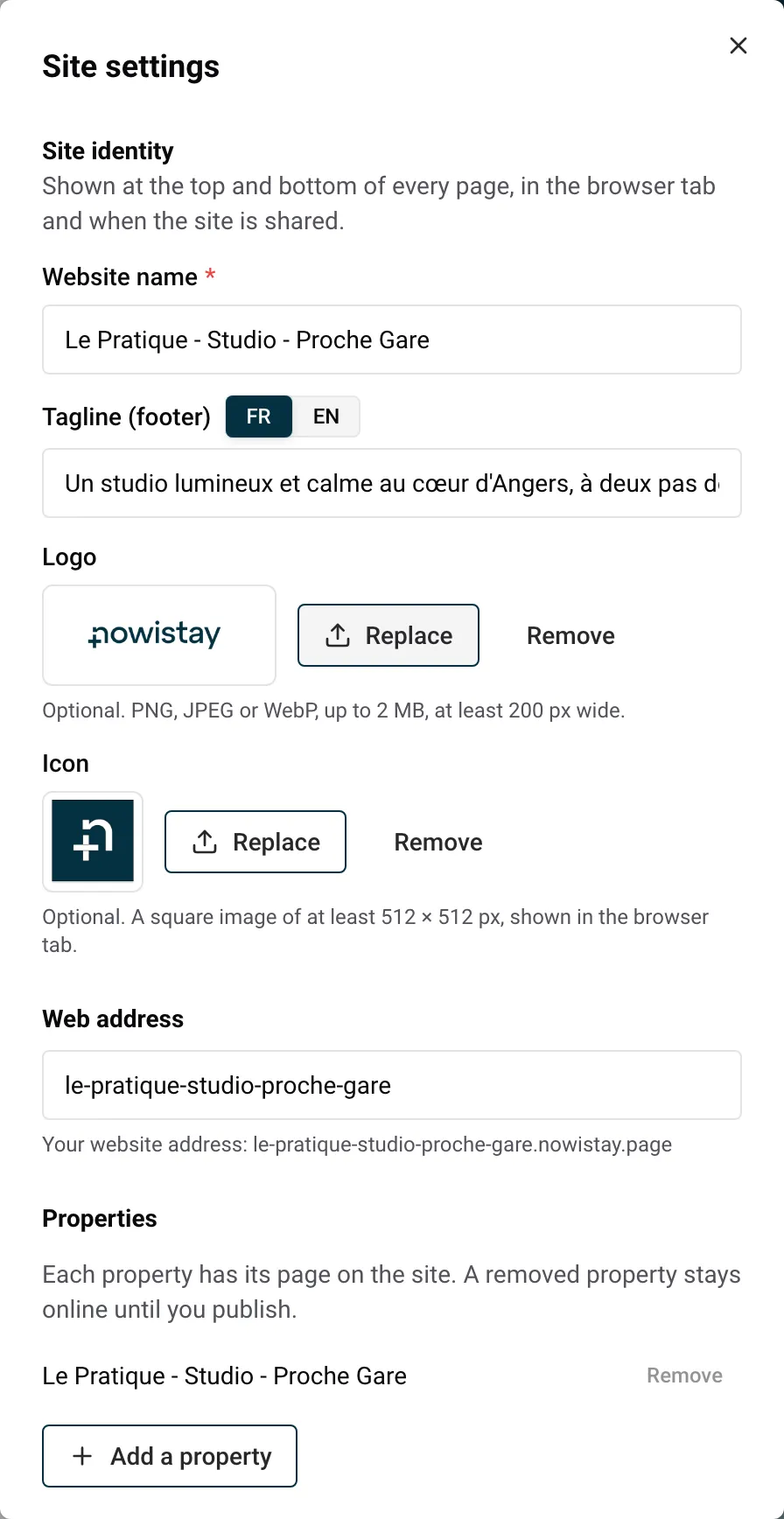
You choose the address when you create the website, in the Web address field of the Your website step. Your site then lives at yourname.nowistay.page.
The rules for the part before .nowistay.page:
www, blog, help, admin or mail;villa-booking or my-b00king-villa are refused with “This address contains a brand you can’t use. Choose another one.”When the address you type is taken, Nowistay suggests a free one next to Available:. Click it to use it.
What happens to the old address:
Example: you created gites-moulin.nowistay.page, then renamed your business Le Moulin des Trois Gîtes. You change the address to moulin-des-trois-gites.nowistay.page. Guests who saved the old link from last summer’s confirmation e-mail still reach your site, and you have a year to update your social media profiles and e-mail signature.
If your site is offline when you change the address, its links are updated at your next publish. If your own domain is connected, your site stays on your domain: the new nowistay.page address simply leads to it.
You buy a domain name from a registrar (a company that sells domain names). Nowistay doesn’t sell domains. Then you connect it in the editor.
Before you start:
Your site needs a CNAME record, a record that points your address to Nowistay. Domain name rules don’t allow a CNAME on the bare domain (yourdomain.com), so Nowistay uses an address with a prefix, usually www. If you type the bare domain, the app answers “Use a www address (for example www.my-rental.com): your registrar can forward the bare domain to it.”
So that visitors who type yourdomain.com still find you, set up forwarding at your registrar:
yourdomain.com to https://www.yourdomain.com, as a permanent redirect if you are asked.www records untouched.If your registrar doesn’t offer forwarding, ask its support team.
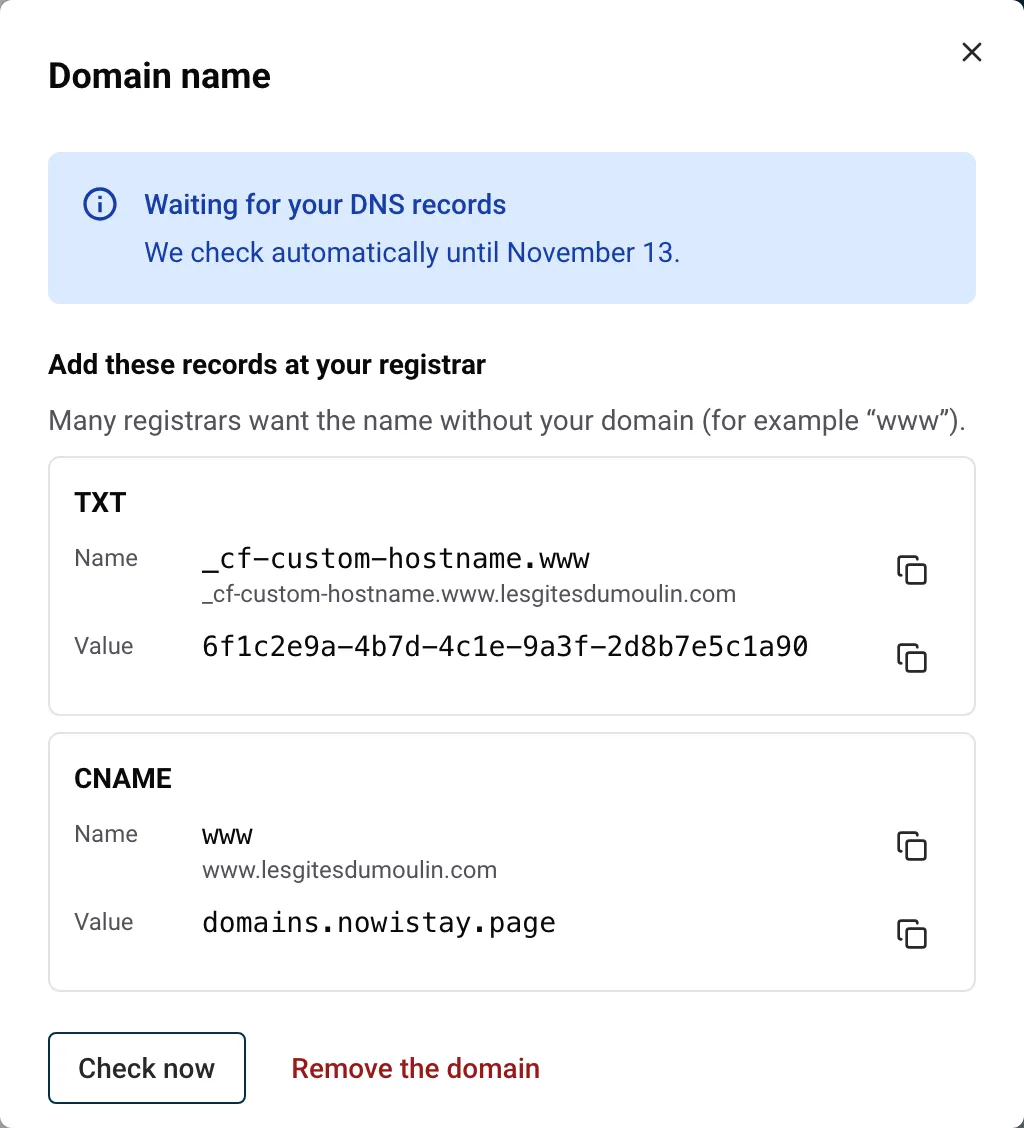
www, for example www.yourdomain.com. You can paste a full link: Nowistay keeps only the address.The panel then shows Add these records at your registrar with two cards. Each card gives a Name and a Value, with a Copy button next to each.
www address to Nowistay. Its name is your prefix (www) and its value is domains.nowistay.page.Many registrars want the name without your domain (for example www): that’s why the app shows the short name first, with the full name under it.
www. Value: domains.nowistay.page.www record already exists (often a parking page from the registrar, or your old website), delete it or change it into the CNAME above: www can’t point to two places.You rent three gîtes in the Dordogne under the name Le Moulin des Trois Gîtes. Your site is at moulin-des-trois-gites.nowistay.page, and you just bought moulin-des-trois-gites.com.
www.moulin-des-trois-gites.com and click Connect.| Type | Name | Value |
|---|---|---|
| TXT | the name shown in the panel (copy it) | the value shown in the panel (copy it) |
| CNAME | www | domains.nowistay.page |
www record that showed the registrar’s parking page.moulin-des-trois-gites.com to https://www.moulin-des-trois-gites.com.After you click Connect, Nowistay checks your records every 5 minutes during the first hour, then every hour, for up to 14 days. The panel shows the end date: “We check automatically until” followed by the date. To check at once, click Check now.
| Status in the panel | What it means | What to do |
|---|---|---|
| Waiting for your DNS records | Nowistay can’t see your records yet. A line says which one: “The CNAME is not visible yet.” or “The TXT is not visible yet.” | Check the record at your registrar. Changes can take up to a few hours to show. |
| Records found: your domain is almost ready | Both records are found. The security certificate (the padlock of https) is being created. | Nothing. Your site opens on your domain in a few minutes and Nowistay lets you know. |
| Your website is online at your domain | Your domain is connected. | Keep both records at your registrar. |
| Your domain no longer points to your website | It worked, but your records are no longer found. | Check them at your registrar. After 7 days, your website goes back to its nowistay.page address. |
| Your records were not found within 14 days | The checks have stopped. | Click Try again, then connect the domain again (you get a new TXT value). |
Nowistay also sends you a notification when the domain is connected (“Your domain is connected”), when it stops pointing to your site for 24 hours, and when the records were not found within 14 days.
If the panel says “A CAA record on your domain blocks the certificate: allow letsencrypt.org and pki.goog, or remove it.”, your domain has a CAA record that limits who may create certificates for it. Add those two names to it at your registrar, or delete it.
https://www.yourdomain.com.www address.Your site is back on its nowistay.page address, with its links updated. You can then delete the two records at your registrar. To switch to another domain, remove the current one first, then connect the new one.
www.yourdomain.com and forward the bare domain at your registrar.www.yourdomain.com becomes www.yourdomain.com.yourdomain.com. Type the short name shown in the app.www stops the CNAME from working. Delete it.Guides for hosts: read the blog.
Ready to Put Your Rental on Autopilot?
