Updated
Your website goes online when you click Publish in the editor. Nowistay first checks a short list (subscription, legal pages, approved photos, complete texts), then puts the site online at its address in a few minutes. After that, everything you change stays in your draft until you publish again with Publish the changes.

Each line turns green when it is done. The publish button stays greyed out until every line is green. Under a line that is not ready, the panel says how to fix it, and some lines have an Open button that takes you straight to the right place.
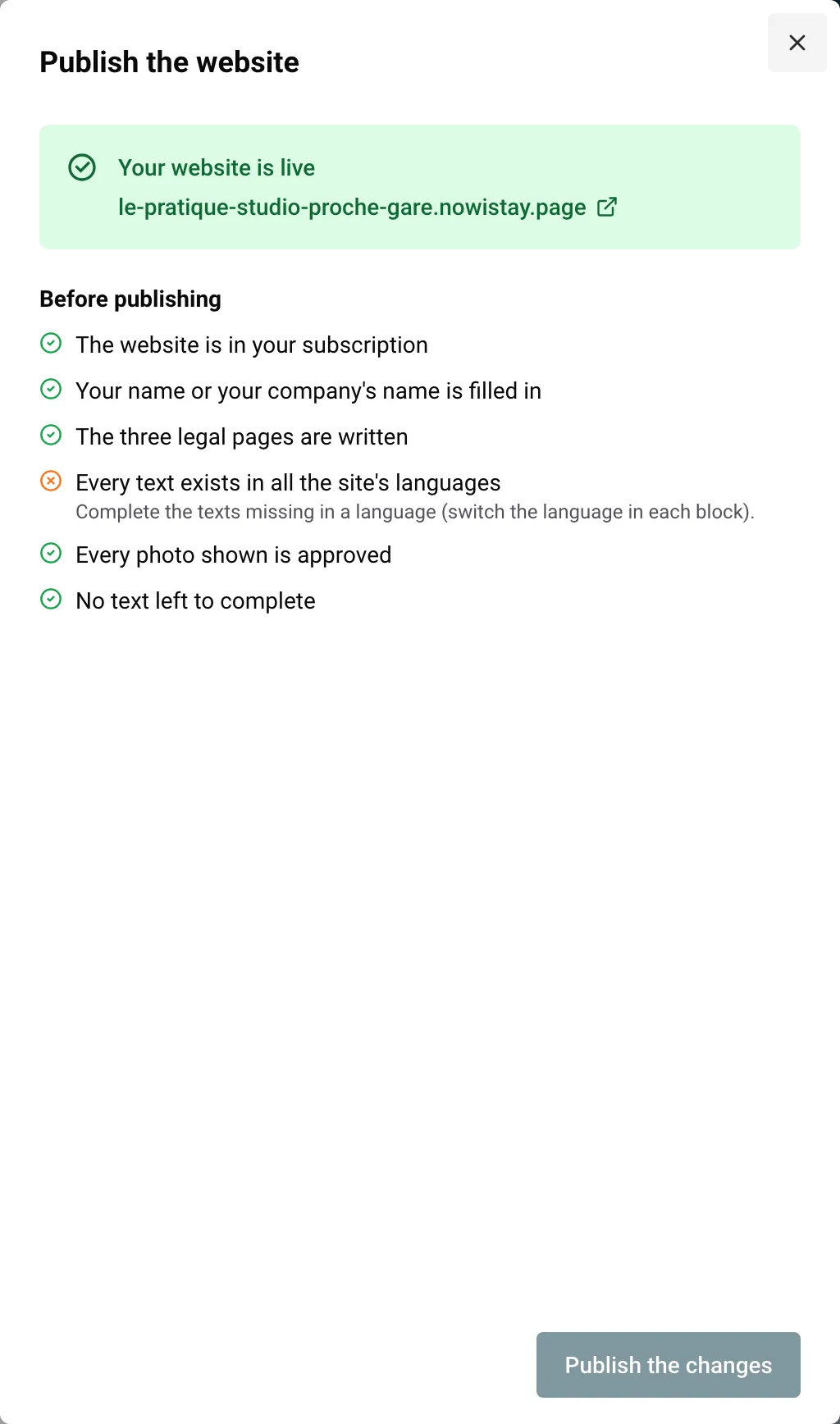
When every line is green, the panel shows this sentence above the button: “By publishing, you confirm that your legal pages comply with the law of your country and that you have the right to use these photos on your site.” It applies at every publish, and Nowistay keeps a record of it with the version you put online.
Your live address is the web address you chose when you created the site, for example moulin-des-trois-gites.nowistay.page, or your own domain once you connect one (see Your website address and your own domain name). Unlike the private preview, the live site can be found by search engines. To open it later, choose View the live site in the … menu.
Example: you manage 3 apartments in Lisbon and your site is in English and Portuguese. The first time you open the panel, two lines are orange: the legal pages and the photos. You click Open next to the legal pages, write your company details and your three texts, replace every [TO COMPLETE] part, then approve the 14 Airbnb photos in Site settings. All six lines turn green, you click Publish, and a few minutes later the site is live.
The panel shows “The last publication did not go through. Your live site is unchanged.” with the reason. Nothing changes online: visitors keep seeing the previous version (or, for a first publish, nothing is online yet). Fix what the panel points to, then publish again. Common reasons:
If a reason is unclear, choose Help in the … menu to ask our support team.
Everything you change in the editor (texts, photos, blocks, pages, style, languages, properties) saves on its own, but only in your draft. The live site does not move until you publish again.
Example: you add a “Getting here” page and change the photos of the home banner. Nothing changes online while you work. When the preview looks right, you click Publish, then Publish the changes, and both go online together.
A property or a language you removed in Site settings leaves the live site only at this moment. Its old pages then lead visitors to your properties page or to your home page.
If you published something by mistake, open Versions in the … menu, click Restore on an earlier version, then publish again.
| What | On the live site |
|---|---|
| Availability and prices in the booking calendar | Always up to date, no publish needed |
| Listing details (bedrooms, beds, bathrooms, rooms, amenities, registration number) | Nowistay updates the live site by itself within the hour after you change them |
| Articles scheduled for a later date | Go online on their date, from midnight in your properties’ time zone, if you published at least once after scheduling them |
| The “From … a night” price and the cleaning fee shown on pages | Recalculated each time the live site is updated: when you publish, or when Nowistay updates it for a scheduled article or a listing change |
| Guest reviews shown on pages | Same: a review you hide leaves the site at the next update |
| Check-in and check-out times, guest capacity | At the next update of the live site |
| Texts, photos, blocks, pages, style, languages, properties added or removed | Only when you publish |
| Articles approved without a later date | At your next publish |
Example: in November you write “What to do in winter around the gîtes”, approve it and schedule it for 1 December. You click Publish the changes once, and the article shows Scheduled for with its date. On 1 December, Nowistay puts it online by itself. More in Write a blog with AI.
Visitors who open your address see a simple page, in English and French: “Temporarily unavailable. This website is temporarily unavailable. Please come back later.” Search engines are told not to list it, and nobody can book from the site. Bookings already made are not affected.
To put the site back, click Publish again: the same checklist applies and the site returns at the same address.
Unpublishing does not stop billing: the website stays in your subscription. A published website can’t be deleted, so unpublish it first if you want to delete it.
In every case, the website and its draft stay in your website list.
Guides for hosts: read the blog.
Ready to Put Your Rental on Autopilot?
