Your Nowistay website has a blog. The AI suggests article ideas from your properties and your welcome guide, then writes the draft; you check it, approve it in every language of your site and choose when it goes online. The AI can write 8 new articles per website each month, and you can write as many as you like yourself.
Why a blog helps
- It answers your future guests’ questions. Before booking, travellers look for things to do, how to get there, where to eat. An article that answers them, written by the host, reassures them.
- It brings visitors from Google and AI assistants. Each article is a new page of your site that can come up when someone searches for your area.
- It leads readers to your properties. Under each article, a “Where to stay” section shows up to 3 of your properties, with a link to book.
On your site, an article shows its title, summary, cover photo, your website’s name as the author and its date. Nowistay adds a list of contents when the article has 3 sections or more, your questions and answers at the end, and links to your other articles.
Open the blog
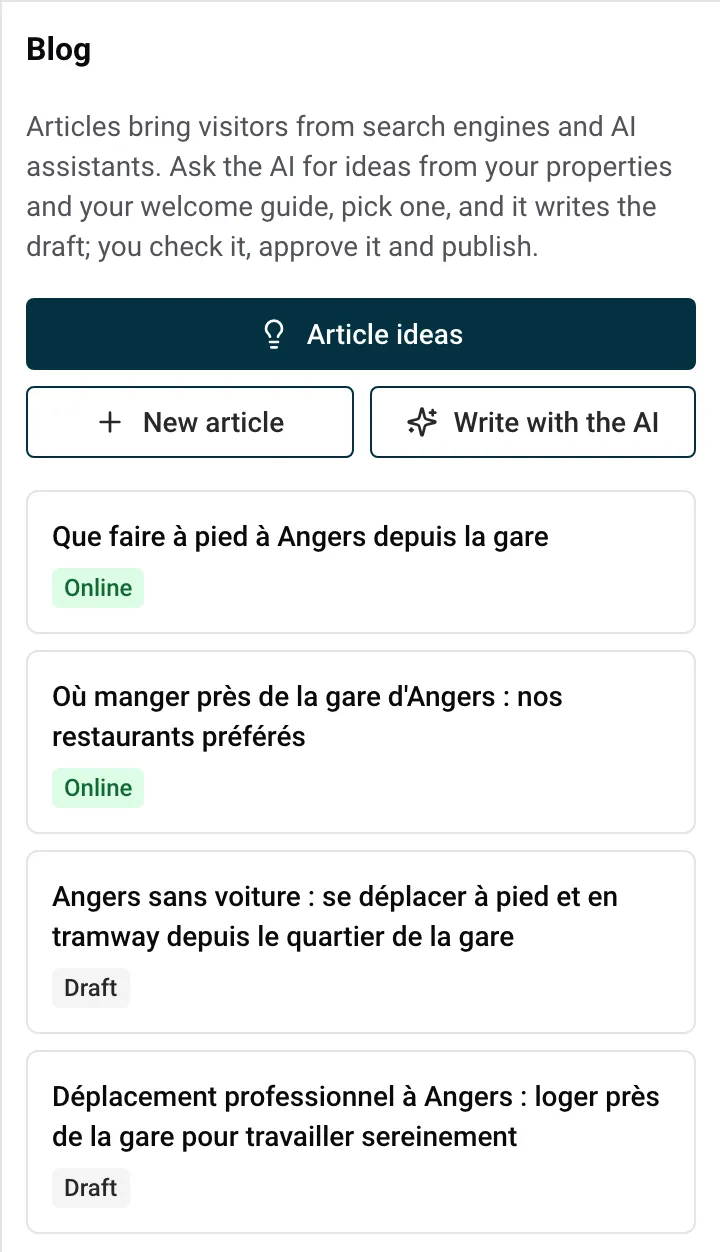
Click Blog in the editor bar (on a phone, the newspaper icon). The panel lists your articles with their status and gives three buttons: Article ideas, New article and Write with the AI.
Get ideas and let the AI write
- In the Blog panel, click Article ideas.
- The AI reads your properties and the local tips of your welcome guide, then suggests up to 6 ideas. Each idea has a title, the angle of the article, a category and the properties it suits.
- Click Write this article under the idea you like.
- When the AI has finished, click Open the article under its reply to read the draft.
You can also give your own topic: click Write with the AI, finish the sentence that appears in the AI box (“Write an article about…”), then click Send.
The richer your welcome guide’s local tips (restaurants, beaches, walks, markets), the better the ideas. The AI never reads the pages of your welcome guide about arrival, keys, door codes or Wi-Fi. To fill in your guide, see How to create the welcome guide with AI.
Ideas, writing and translating use AI credits (see Edit your website with AI). Articles written by the AI are always drafts: nothing goes online without your approval.
Write an article yourself
- In the Blog panel, click New article.
- Write the Title, the Summary and the Text in your site’s main language.
- Click Save the article. The full article form opens.
There is no monthly limit on articles you write yourself.
The article form
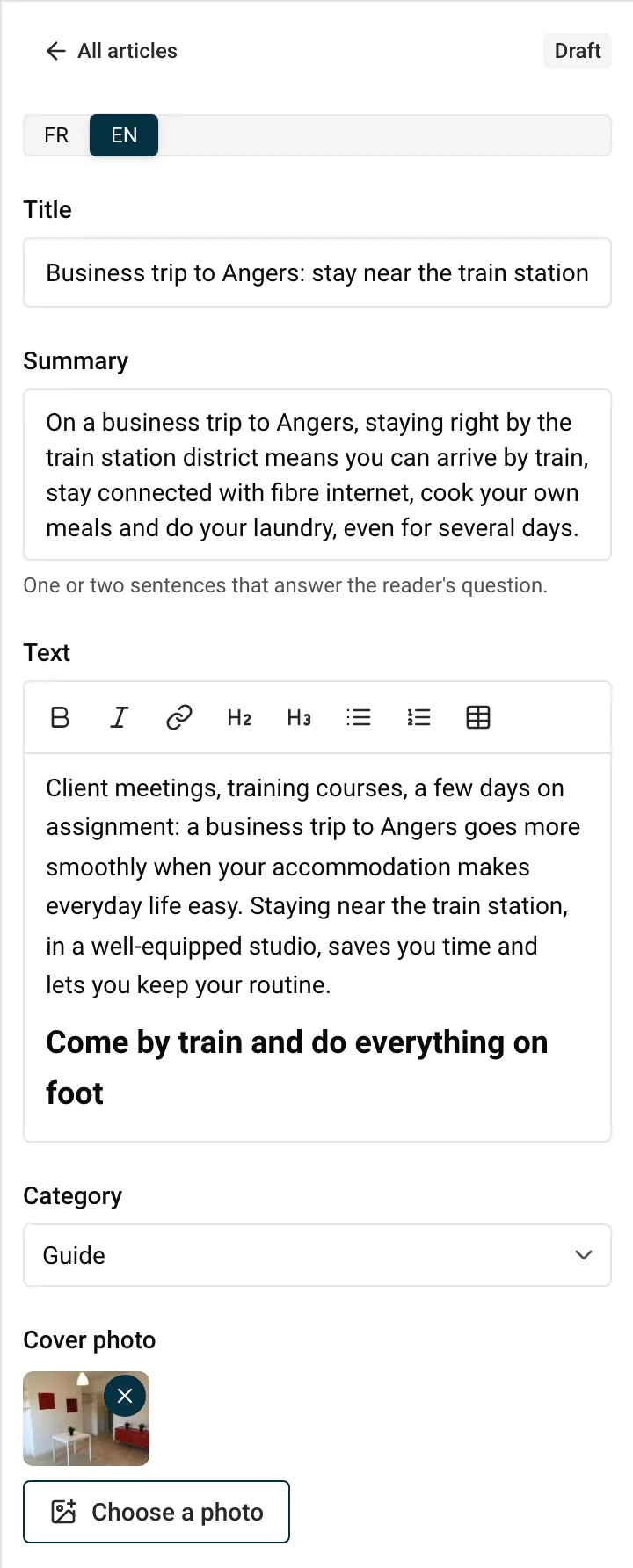
Each article has these fields. A language switch at the top lets you write each language of your site; the languages not written yet are marked with a dot.
- Title: up to 100 characters.
- Summary: one or two sentences that answer the reader’s question (up to 300 characters). It shows under the title and in the list of articles.
- Text: up to 20,000 characters, with the formatting bar (Bold, Italic, Link, Heading, Subheading, Bulleted list, Numbered list, Table). The article’s title is its main heading, so use Heading and Subheading for your sections. Photos can’t go inside the text: choose a cover photo instead.
- Category: Local area, Guide or News.
- Cover photo: one photo from the image library of any of your properties, or none. A cover chosen by the AI shows To approve: click it to confirm you may use the photo.
- Properties to suggest under the article: the properties shown in “Where to stay”.
- Questions and answers: click Add a question, then write the question and its answer. They appear at the end of the article.
- Search results: a Search title (up to 70 characters) and a Search description (up to 160) for Google. Fill in both or neither: left empty, the title and summary are used. A preview shows how the article may look in Google.
- Address: the end of the article’s web address, made from the title. It no longer changes once the article has been online.
On a computer, you can also click the article in the preview and type directly in its title, summary, text and questions.
Approve the article in every language
An article goes online only once you approve it, and approving needs the article complete in every language of your site.
- Open the article. Under To write before approving, Nowistay lists, language by language, what is still missing (title, summary, text, address, and the search texts or questions if you used them).
- To fill the missing languages, click Translate with the AI, or switch the language and write them yourself.
- Approve the cover photo if it shows To approve.
- Click Approve, or choose a date (see below).
To let the AI change an approved article, click Back to draft first. You can still edit an approved article by hand at any time.
Choose the publication date
- Approve dates the article today. It goes online with your next publish, and a message confirms: “Article approved: it goes online with your next publish.”
- To schedule it, pick a Publication date (today or later), then click Schedule. The article shows Scheduled for and the date.
Then publish your website once. On the chosen date, Nowistay updates your live site by itself shortly after midnight (in your properties’ time zone), as long as the site is online and in your subscription. You don’t need to come back.
Example: you manage 12 apartments in Lisbon. On a quiet Monday, you ask for ideas, let the AI write three articles, translate them, and schedule them for the 1st, the 10th and the 20th of next month. You publish once, and the three articles appear one after the other.
Article statuses
| Status | What it means |
|---|
| Draft | Only in your preview, with a “Draft” label. |
| Approved, online at your next publish | Approved and dated today or earlier: publish to put it online. |
| Scheduled for a date | Goes online on that date, after you have published once. |
| Online | Visible on your live site. |
| Changed since it went online | You edited it: publish again to put the changes online. |
An article moved back to draft is no longer on your live site after your next publish, unless you approve it again first. To remove an article, click Delete: it leaves your site at your next publish.
How articles appear on your site
- The Blog page is created with your first article and appears in your site’s menu as soon as one article is online.
- Your live site only shows approved articles whose date has come. Drafts stay in the preview.
- Every approved article exists in all the languages of your site, and visitors switch language with the site’s language links.
To publish, see Publish your website and put changes online.
Show your latest articles on a page: the Articles block
You can show your newest articles on any page that takes blocks, for example the home page.
- Open the page in the editor. In the side panel, choose Articles in the list at the bottom, then click Add a section (or select a block and use Add a block after).
- Set How many to show (1 to 6, 3 by default) and the Layout: Cards or List.
- Click Add, then Update when the preview asks for it.
The block shows the heading “From the blog” with your latest articles. Its Manage the blog’s articles button opens the Blog panel. More blocks in Website blocks: every block explained.
Limits
| What | Limit |
|---|
| New articles written by the AI | 8 per website per month, renewed on the 1st |
| Articles you write yourself | no limit |
| Title / summary / text | 100 / 300 / 20,000 characters |
| Search title / search description | 70 / 160 characters |
| Address | 60 characters |
When the AI has written its 8 articles of the month, it says: “The AI has written this month’s 8 new articles. You can still write one yourself.”
Article ideas for a holiday rental
Good articles answer a precise question a guest asks. Some examples:
- “Where to eat near our apartments: 10 places we love”
- “Getting to the beach without a car”
- “What to do in the Dordogne in winter”
- “A rainy day in Lisbon with children: 6 ideas”
- “Markets around the cottages: which day, which village”
- “Day trip to Sintra: how to get there and what to see”
- “Walks you can start from the door”
- “Our new apartment in Graça is open” (category News)
Before approving, check every fact the article gives (opening hours, prices, distances, bus lines): the article is published under your website’s name.
