In the website editor, you can describe a change in your own words and the AI makes it on your website: a warmer title, a new FAQ, a page for weddings, a different main colour. You see the result in the preview, every AI change can be undone, and nothing reaches your visitors until you publish.
Where to ask the AI
On a computer
The Ask the AI box sits at the bottom of the panel on the right of the editor.
- Open Your websites and click your website to open the editor.
- Type your request in the box under Ask the AI.
- Click Send (or press Ctrl+Enter, Cmd+Enter on a Mac).
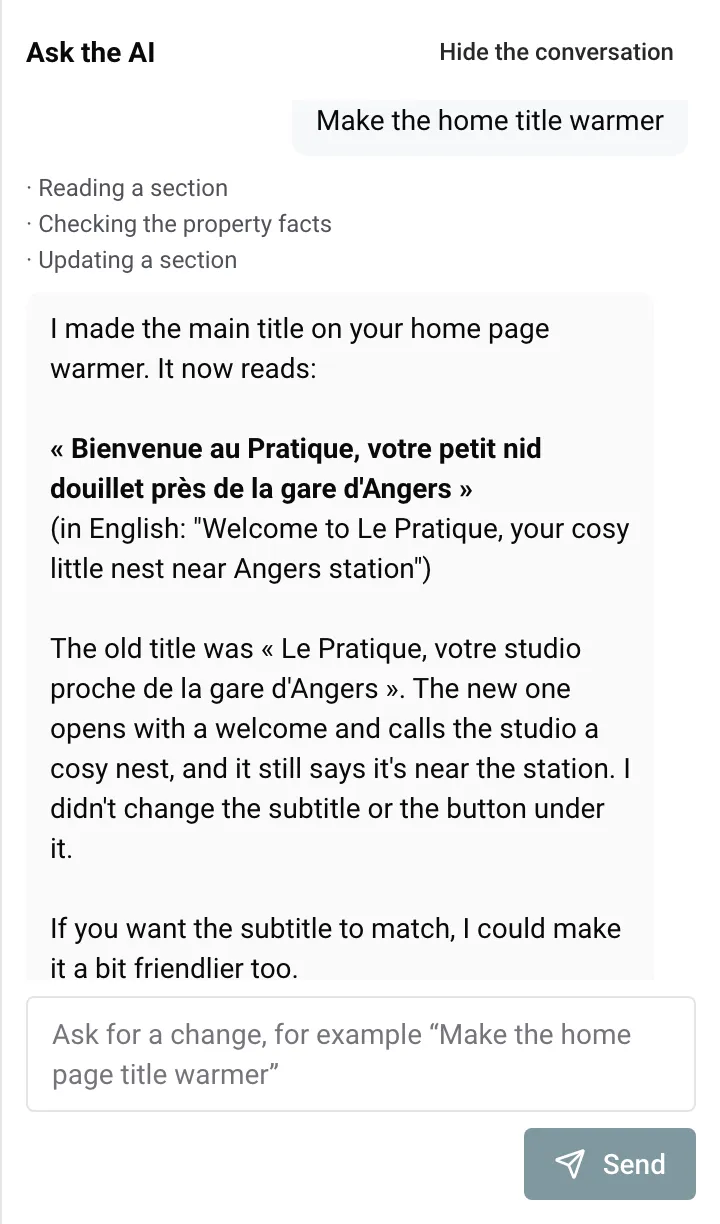
- The AI shows what it is doing (for example Reading the site, then Updating a section), then its answer and the line Saved as version with a number.
- Check the result in the preview. If the AI changed blocks or photos, the preview refreshes by itself at the end of the request.
About one block
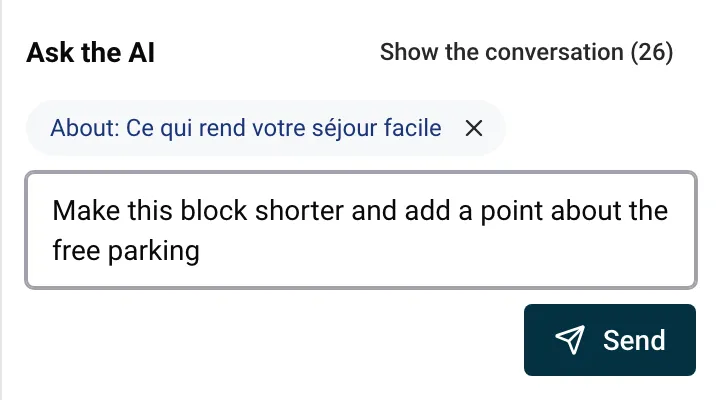
To change one precise block, select it first:
- Click the block in the preview. It gets a blue outline.
- Above the box, a chip shows About: and the name of the block. Your request now applies to this block.
- Type your request without repeating where the block is, for example “Make these highlights shorter”.
To ask about the whole site again, click the cross on the chip (Ask about the whole site instead). The chip also works when a property page or an article is selected.
On a phone
Tap Ask the AI in the bar at the bottom of the screen. A panel opens over the lower half of the screen, and the preview stays visible above it. To ask about one block, tap that block in the preview first.
Requests that work well
Write as you would to an assistant who knows your website: say which page or block, what you want, and give the facts the AI cannot guess (your story, your rules, the dates your pool is open). One change, or a few related ones, per request gives the best results.
Example: you rent two cottages in the Dordogne under the name Les Gîtes du Moulin. Here are requests you could send.
Texts
- “Make the home page title warmer and shorter.”
- “Rewrite the About page in a more personal tone. We are a couple who have welcomed guests at the mill since 2015.”
- With the Highlights block selected: “Rewrite these highlights for families with young children.”
Blocks
- “On the home page, move the reviews right after the main banner.”
- “Add a FAQ at the end of the home page with these questions: Is there parking? Yes, free in the courtyard. Are dogs welcome? Yes, one small dog per stay.”
- “Remove the call to action at the bottom of the About page.”
Pages
- “Create a page called Weddings and events, not in the menu, with a short text and a contact form.”
- “Write a search title and description for the About page.”
Property pages
- “On the Moulin Cottage page, add a highlight about the heated pool, open from May to September.”
- “Put a photo of the terrace first on the Barn page.”
- “On the Barn page, show the reviews that mention the quiet and the garden.”
Style
- “Give the photos an arch shape and use airy spacing.”
- “Use a deep olive green as the main colour.”
Translations
- “I added a text in English on the Weddings and events page: write the French and German versions.”
- “Read the German texts of the home page and make them sound more natural.”
The AI also writes blog articles. See Write a blog with AI.
What the AI can change, and what stays with you
The AI works from what Nowistay knows about your properties: listing details, photos, guest reviews, and the local tips of your welcome guide. Pages of your welcome guide about arrival, keys, door codes or Wi-Fi are never read.
The AI can:
- write and rewrite the texts of every page, in all the languages of your site at once;
- add, move and remove blocks, create pages of your own, rename them, choose which ones appear in the menu, and delete them;
- on property pages: the name shown, tagline, summary, description, highlights, nearby places, house rules, questions and answers, which reviews appear, and the order of the photos (chosen among that property’s photos);
- change the style: base style, fonts, colours, photo shape and spacing;
- write the search title and description of a page;
- suggest article ideas, write draft articles and translate them.
Only you can:
- write the legal pages and the publisher details (Legal pages);
- change the website name, tagline, logo, icon, contact e-mail and phone (Site settings);
- add or remove properties and languages (Site settings, free of AI credits);
- change page addresses;
- add links to other websites: the address of a button set to A link of my choice, and links inside texts. The AI can point a button to your booking page, your properties, your About page or one of your pages;
- approve photos. When the AI places a photo you have not approved yet, it shows a To approve badge: click it to confirm you may use it;
- approve, schedule and delete articles. The AI changes an approved article only after you click Back to draft;
- publish the website, connect a domain name and manage the subscription.
Some facts are never written by the AI because they come from your property information in Nowistay: number of guests, bedrooms, beds, bathrooms, amenities, check-in and check-out times, registration number and prices. To change them, update the property’s Listing details on the Properties page. See Website pages for what comes from where.
While the AI works on a request, the fields of the editor are read-only and show “The AI is working on your website. Editing resumes when it has finished.” You can send one request at a time per website.
How AI credits are used
- Each website in your subscription comes with 100 AI credits per month. The credits of all your websites are shared: with two websites, you have 200 credits for both.
- Credits renew on the 1st of each month. Unused credits do not carry over to the next month.
- Only requests to the AI in the editor use credits: messages in the chat, Article ideas, Write this article, Write with the AI and Translate with the AI.
- These never use credits: your own edits, the first version of your website, adding a property and adding a language.
- The number of credits a request uses depends on the work it involves. Changing one title uses fewer credits than writing a full article or reworking a whole page.
To see what is left, look at the line AI credits left with its reset date: it shows on the Your websites page and at the top of the … menu in the editor. More in Website subscription, AI credits and limits.
When a request fails or credits run out
The message under your request tells you what happened.
| Message | What to do |
|---|
| The AI can’t help with that request. | The request is outside what the AI can do (see the list above). Make the change by hand, or ask differently. |
| Something went wrong. Changes made before the error are saved. | Check the preview, undo if needed, then send the rest of the request again. |
| Something went wrong. Nothing was changed. | Send the request again in a moment. |
| The AI stopped before finishing. Changes made so far are saved. | The request was too large. Check what was done, then send the rest as a smaller request. |
| The AI stopped before finishing. Nothing was changed. | Split the request into smaller ones. |
| This block is no longer on the page. Select it again and resend your request. | Click the block again in the preview, then send. |
| The AI editor is unavailable right now. Try again in a few minutes. | Wait a few minutes. |
| Too many attempts. Try again later. | You sent many requests in a short time (more than 20 in 10 minutes). Wait a few minutes. |
Credits are counted for the work the AI does, so a request that stops halfway can still use some credits.
When credits run out, the box is greyed out and shows “AI credits used up until” with the date of the 1st of next month. A request already running always finishes. Your manual edits still work: you can change texts, photos, blocks, pages and the style by hand until your credits renew.
A new conversation: after a day without requests, the chat shows New conversation and the AI no longer remembers your earlier requests. Give it the context again in your next message.
Undo an AI change
Every AI request that changes something is saved as a new version of your draft.
- To cancel the last change, click the undo arrow in the editor bar. After an AI change, its tooltip shows Undo followed by your request, so you know what it cancels. A message confirms Change undone.
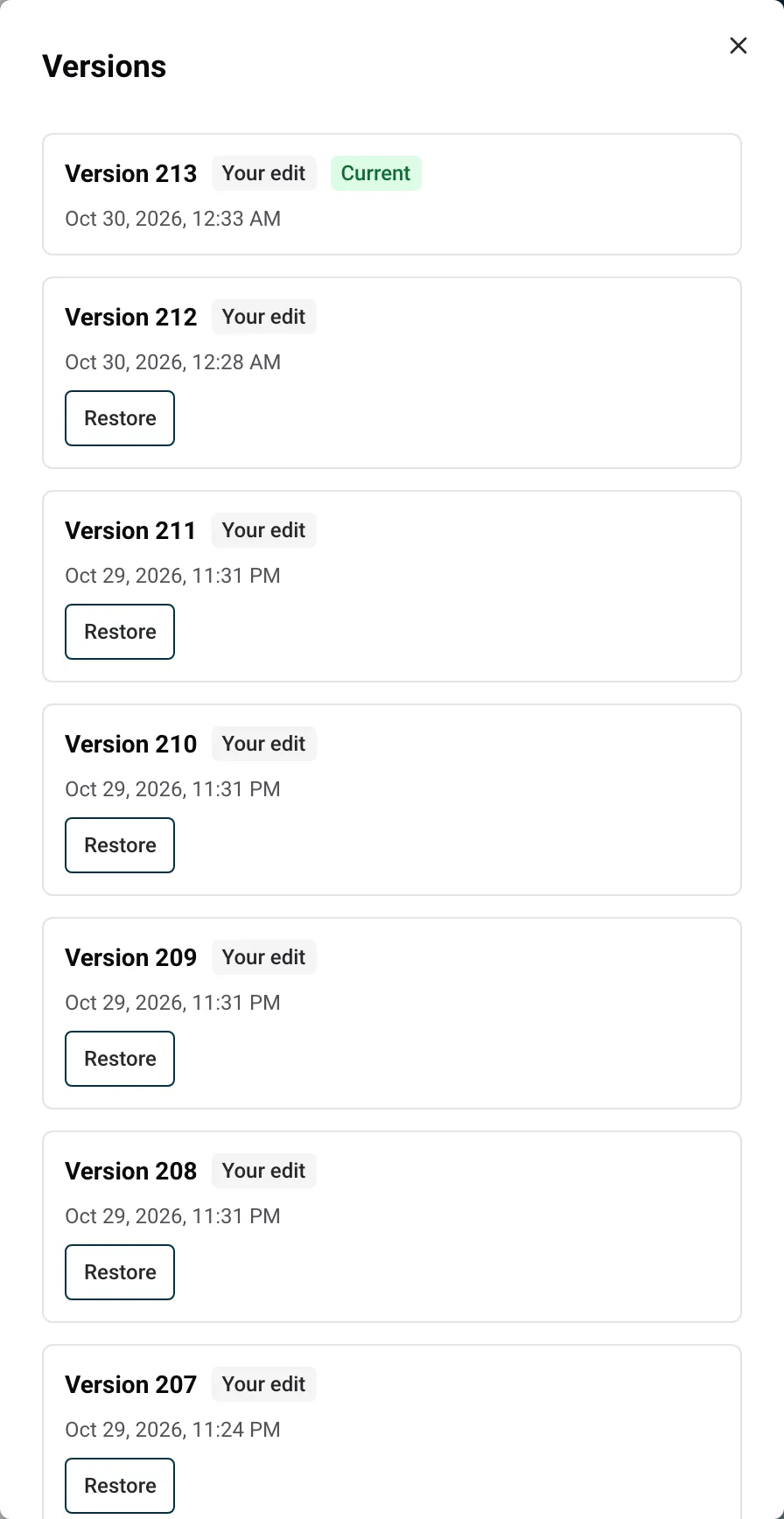
- To go back further, open the … menu, then Versions. AI changes have the AI badge and your request as their description.
- Click Restore on the version you want, then confirm. Nothing is lost: your current draft stays in the list, and you can come back to it.
The editor keeps your last 30 versions.
All these changes stay in your draft. Your visitors see them once you publish: see Publish your website and put changes online.
