Updated
Your website comes with its built-in pages: a home page, a page listing all your properties, one page per property, an About page, a thank-you page and a page for wrong addresses. You can add up to 10 pages of your own, 3 of them in the menu.
All pages are edited in the same editor. Property pages also take some facts straight from your property’s details in Nowistay, which you change outside the editor.
| Page (tab in the editor) | What visitors find there | What you can change |
|---|---|---|
| Home | Your main banner, texts, properties, reviews… | Every block: add, move, remove (see Website blocks) |
| Properties, then All properties | All your properties grouped by city, with a city filter when they are in several cities, and the booking search by dates | Only its introduction: title, text and button |
| One page per property | Everything about the property and its booking calendar | Its texts and photos (see below) |
| About | Who you are, with a contact form | Every block |
| Blog | Your articles, newest first | Its blocks (the articles are managed in the blog panel) |
| Thank you | The page guests land on after paying, with their booking confirmation | Every block |
| Page not found | The page shown for a wrong address, with a button back to the home page | Every block |
Built-in pages can’t be renamed or deleted: Only your own pages can be changed or deleted. The three legal pages (legal notice, privacy, booking terms) are written in Legal pages in the … menu: see Legal pages of your website.
Where pages appear on your site:
Each property has its own page. Visitors find, from top to bottom: the name and tagline with the starting price and a “See availability” button, the photo gallery, the key facts (guests, bedrooms, beds, bathrooms, check-in and check-out times, registration number), the description, the highlights, “Where you’ll sleep”, the amenities, what’s nearby, the house rules (“Good to know”), guest reviews, questions and answers, the booking calendar for this property and up to 3 of your other properties.
There is no map and no exact address on the page.
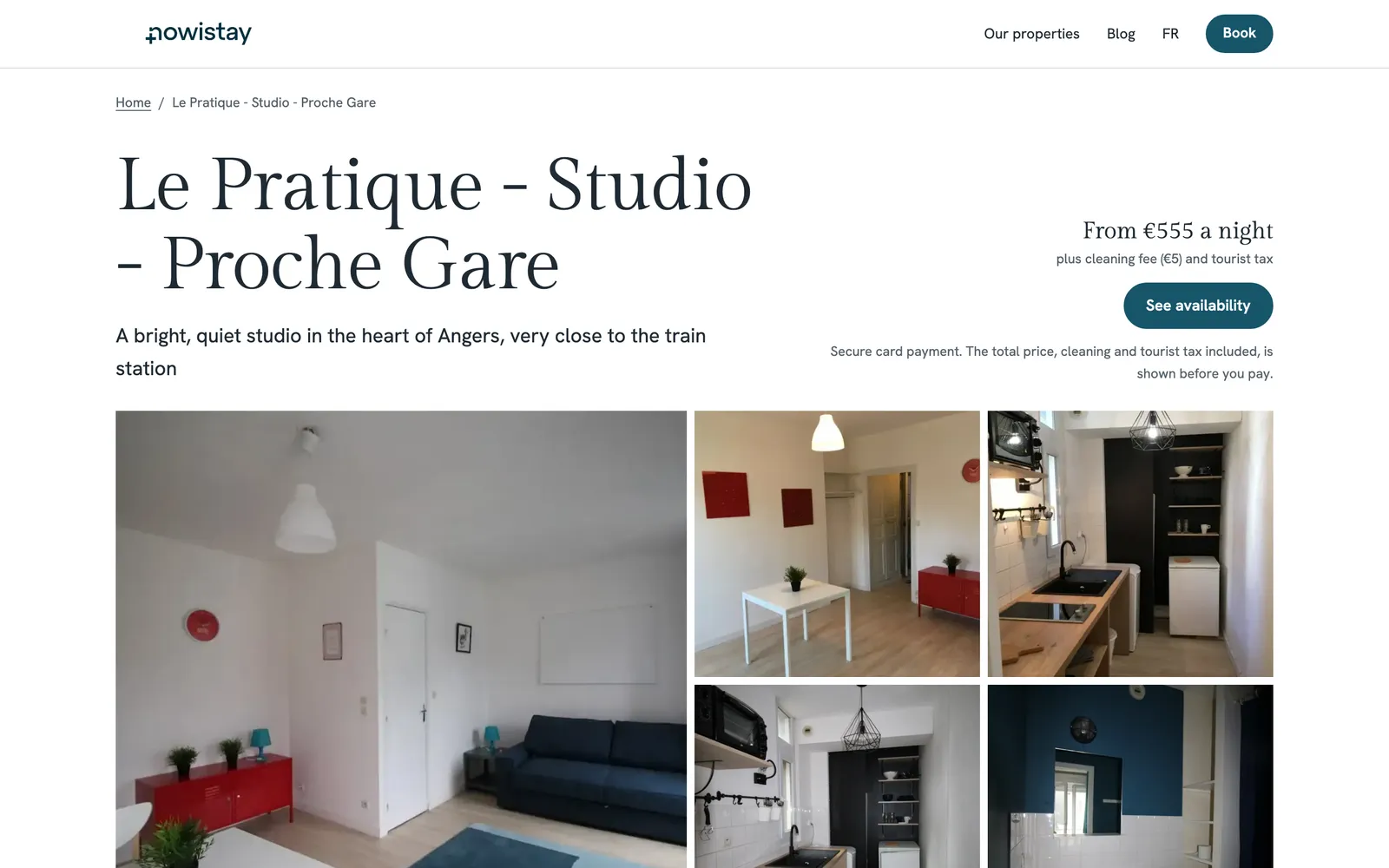
To open a property page, click Properties in the bar and choose the property, or click the property’s content in the preview. The panel shows Property: followed by its name, with:
Tagline, summary and description are required in every language of the site.
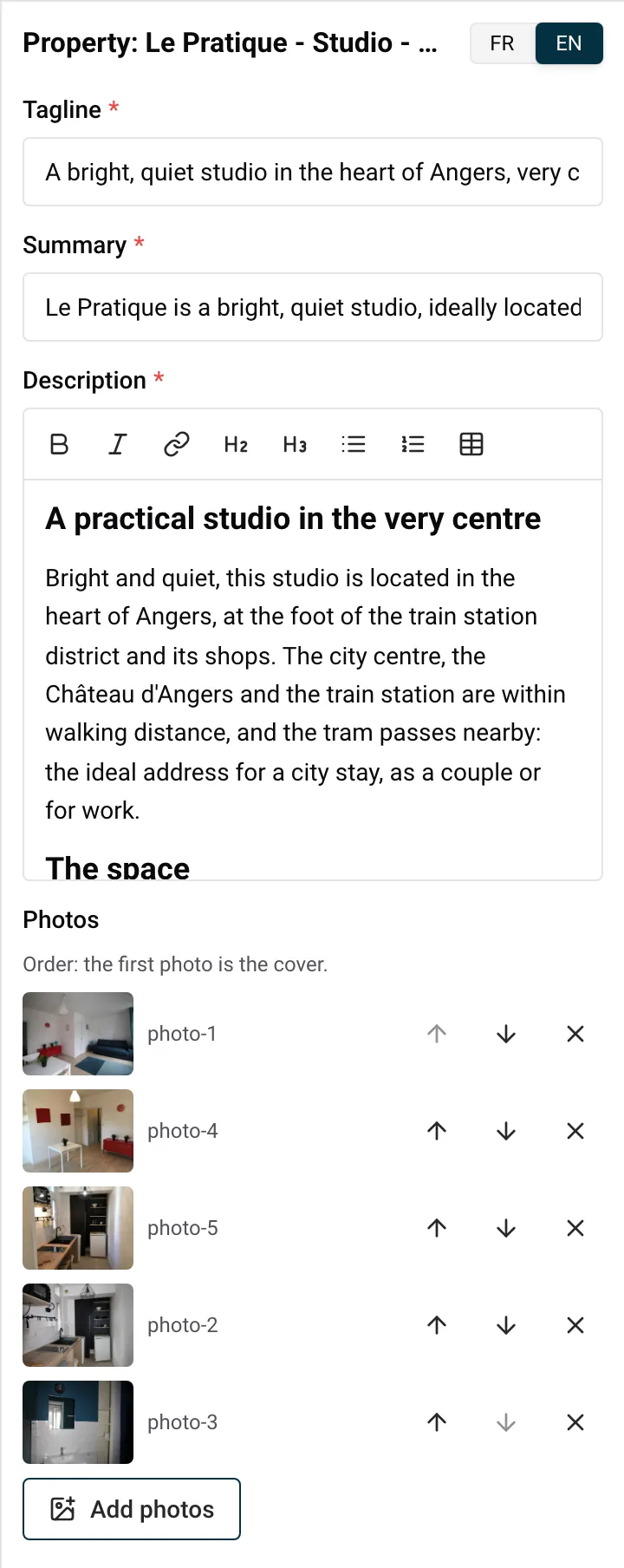
On a computer, you can also type straight into the preview to change the tagline, the description, the highlights, the nearby places and their distances, the house rules and the questions and answers.
To change the name shown on the page, add or remove a highlight, a nearby place, a rule or a question, or choose which guest reviews appear, ask the AI with the property page selected, for example “Add the bakery 300 m away to the nearby places”. See Edit your website with AI.
Property pages have a fixed layout: you can’t add blocks to them.
Some facts are not edited in the website editor. They come from your property in Nowistay:
| On the property page | Where to change it in Nowistay |
|---|---|
| Number of guests | Properties page, … on the property, Property infos: Maximum capacity of the property |
| Check-in and check-out times | Same form: Earliest arrival time (check-in) and Latest departure time (check-out) |
| Bedrooms, beds, bathrooms | Properties page, … on the property, Listing details |
| “Where you’ll sleep” (rooms and beds) | Listing details, rooms and beds |
| Amenities | Listing details, amenities |
| Registration number | Listing details, registration number |
| Starting price (“From … a night”) | Your nightly prices and cleaning fee in Nowistay |
| Guest reviews | Picked from your guests’ reviews, quoted as written, with no stars (ask the AI to change which ones) |
When you change the listing details, the preview catches up the next time you open the website, and your live site updates by itself. Changes in Property infos appear at the next preview update and on your live site the next time you publish. The starting price shown on the page is refreshed each time your site is updated online; the booking calendar always shows live prices and availability.
More on these fields in Get your properties ready for your website and How to edit your property settings.
Example: you just bought a dishwasher for your flat in Bordeaux. Open Listing details on the Properties page and tick it in the amenities. Your live site shows it under “Amenities” without you touching the editor.
The preview refreshes and opens on the new page, which starts with an Introduction block titled with its name. Add the blocks you need from the side panel (see Website blocks). In the bar, your pages sit right after About.
The address comes from the name: a page named “Our story” gets an address like /our-story (pages in your other languages start with the language, like /fr/).
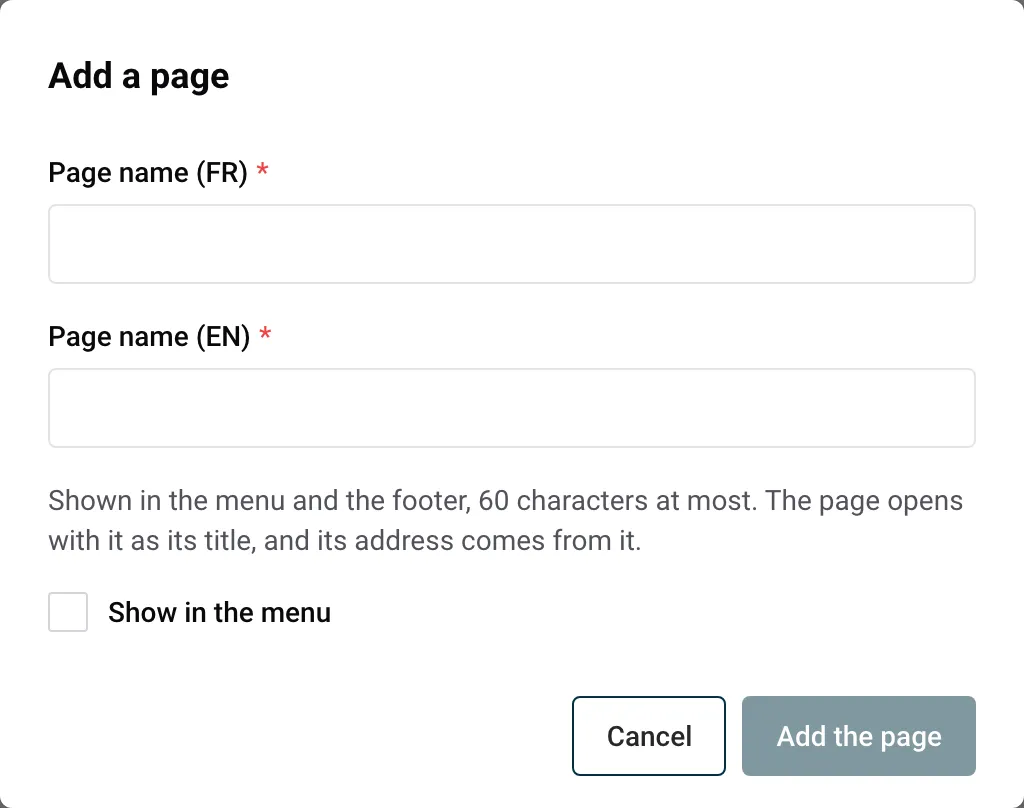
If the address is already taken, you see This address is already used by another page.
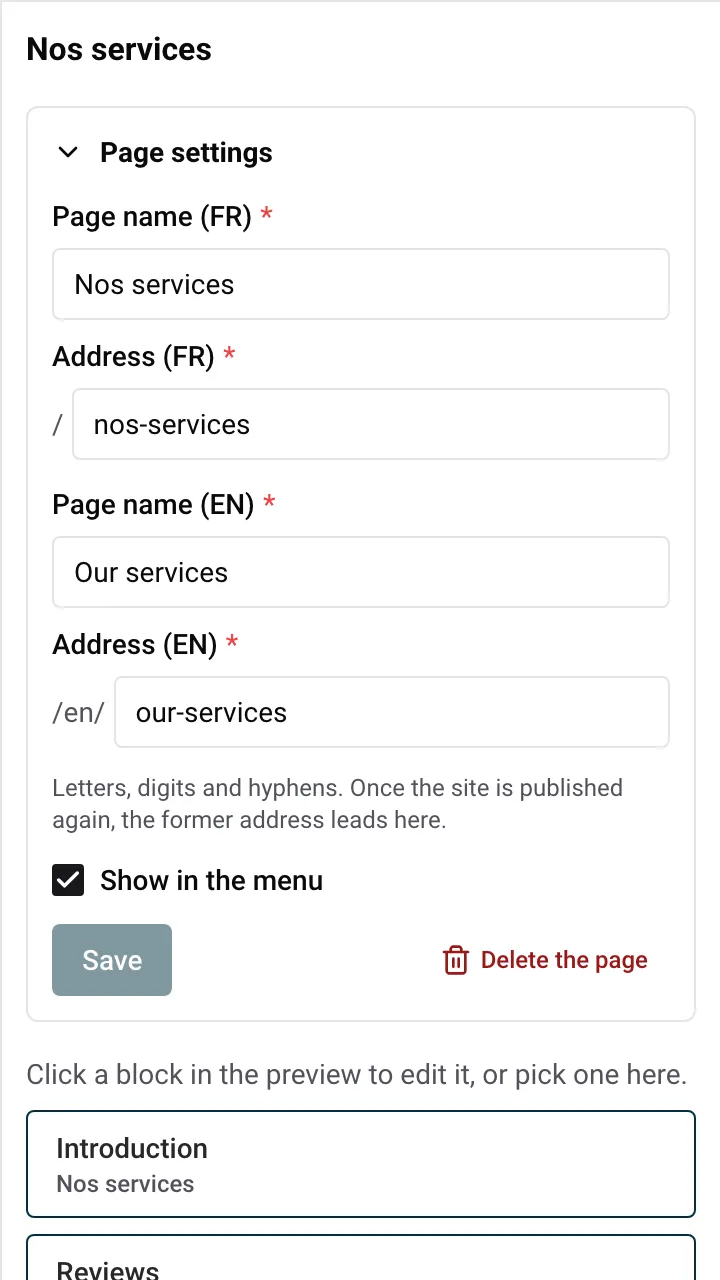
If a button somewhere on your site leads to this page, you see A button leads to this page: change that button first. Change that button’s Button links to, then delete the page (see Edit texts, links and photos).
| Limit | Value |
|---|---|
| Pages of your own | 10 per website |
| Pages in the menu | 3 (3 pages at most in the menu: remove one from it first.) |
| Blocks per page | 20 |
| Page name | 60 characters |
| Address | 40 characters |
The Blog page appears by itself with your first article, at the address /blog. Its tab shows in the bar from then on. Its panel lists your articles, then its blocks, which you can change like on any page. On your live site, the blog shows once you have published at least one approved article whose date has come. See Write a blog with AI.
Each page has a title and a description for Google. To change them, open the page in the preview, then …, Site settings, Search engines (Google): the fields apply to the page shown. See Website settings.
Example: you rent four cottages in the Alps. You add “Our story” and “Getting here”, both in the menu, and “Gift vouchers” in the footer only. With “Our properties” and “Blog” already there, the menu stays short and clear.
Guests like to know who they rent from. An Introduction (“Our story”), a Photo and text with you in front of the house, a Text about how you found the place, and Highlights with what you care about (local produce, eco-friendly cleaning, a quick reply).
Your website has no voucher shop, so explain how it works and let people ask: an Introduction (“Offer a stay”), a Text with the amounts and how the voucher is sent, and a Call to action with a button “Ask for a voucher” leading to A link of my choice with your e-mail address.
For a venue that hosts groups: an Introduction, two Photo and text blocks (the barn, the garden), an FAQ (capacity, caterers, music until what time) and a Contact form titled “Tell us about your event”. Tick Show in the menu so couples find it.
An Introduction, a Two columns block (“By car” and “By train”), a Text with a table of travel times from the nearest airports, and an FAQ (“Is there parking?”). Keep door codes and key instructions for your welcome guide: the website is public.
Guides for hosts: read the blog.
Ready to Put Your Rental on Autopilot?
