Updated
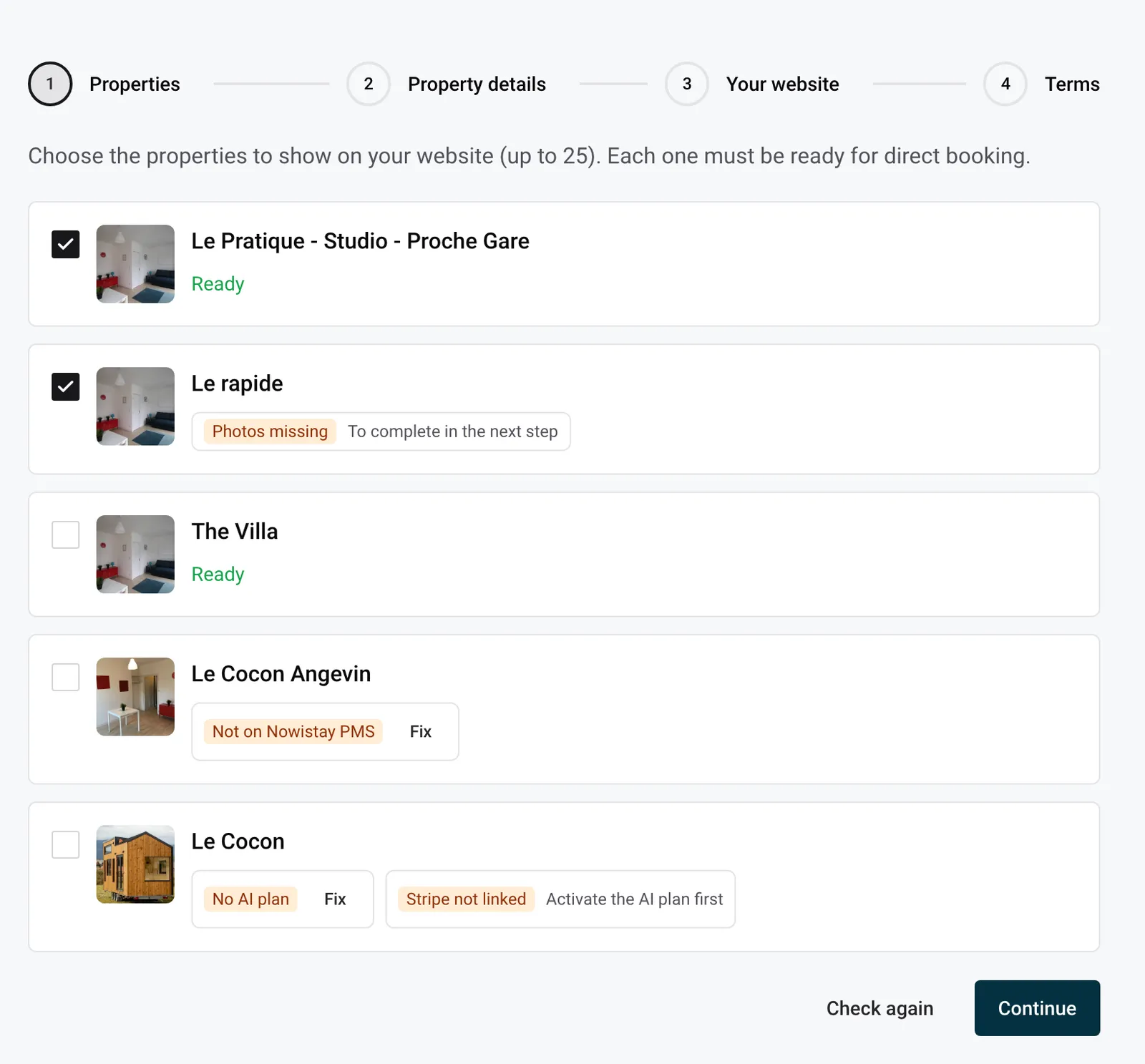
Before Nowistay writes your website, each property you put on it must be able to take direct bookings, have its basic details filled in and have at least 5 photos. In Create my website, every property shows Ready or a tag saying what is missing, with a button that takes you to the fix. Here is each check and how to solve it.
Good to know:
| Tag | What it means | How to fix it |
|---|---|---|
| No AI plan | The property doesn’t have the AI Channel Manager plan. | Click Fix and choose the plan for this property. |
| Not on Nowistay PMS | The property isn’t connected through Nowistay PMS. | Click Fix to connect it. |
| Stripe not linked | No Stripe account receives this property’s payments. | Click Connect Stripe, or Fix if you already use Stripe. |
| Details missing | Bedrooms, beds or bathrooms is empty. | Fill them in at the next step. |
| Photos missing | The property has fewer than 5 photos. | Add them at the next step. |
The first three are the conditions of any Nowistay direct booking.
Click Fix: the Activate your properties page opens with this property, so you can give it the AI Channel Manager plan. When this tag is there, the Stripe check shows Activate the AI plan first: start with the plan, then come back to Stripe.
The website takes availability and prices from your Nowistay calendar, so the property must be connected through Nowistay PMS, Nowistay’s channel manager. Click Fix to open the property’s synchronisation settings. If the property is still connected to Airbnb directly or through another tool, read how to connect your Airbnb listing through Nowistay PMS and what changes when you connect Nowistay PMS.
Guests pay by card on your own Stripe account, so each property needs one.
More about payments in How to add a direct booking widget to your website.
Two messages can appear above the list. They concern your account, not one property:
This step appears only if a property you ticked misses details or photos. Each property has its own row, marked Complete or To complete. Everything saves by itself when you leave a field.
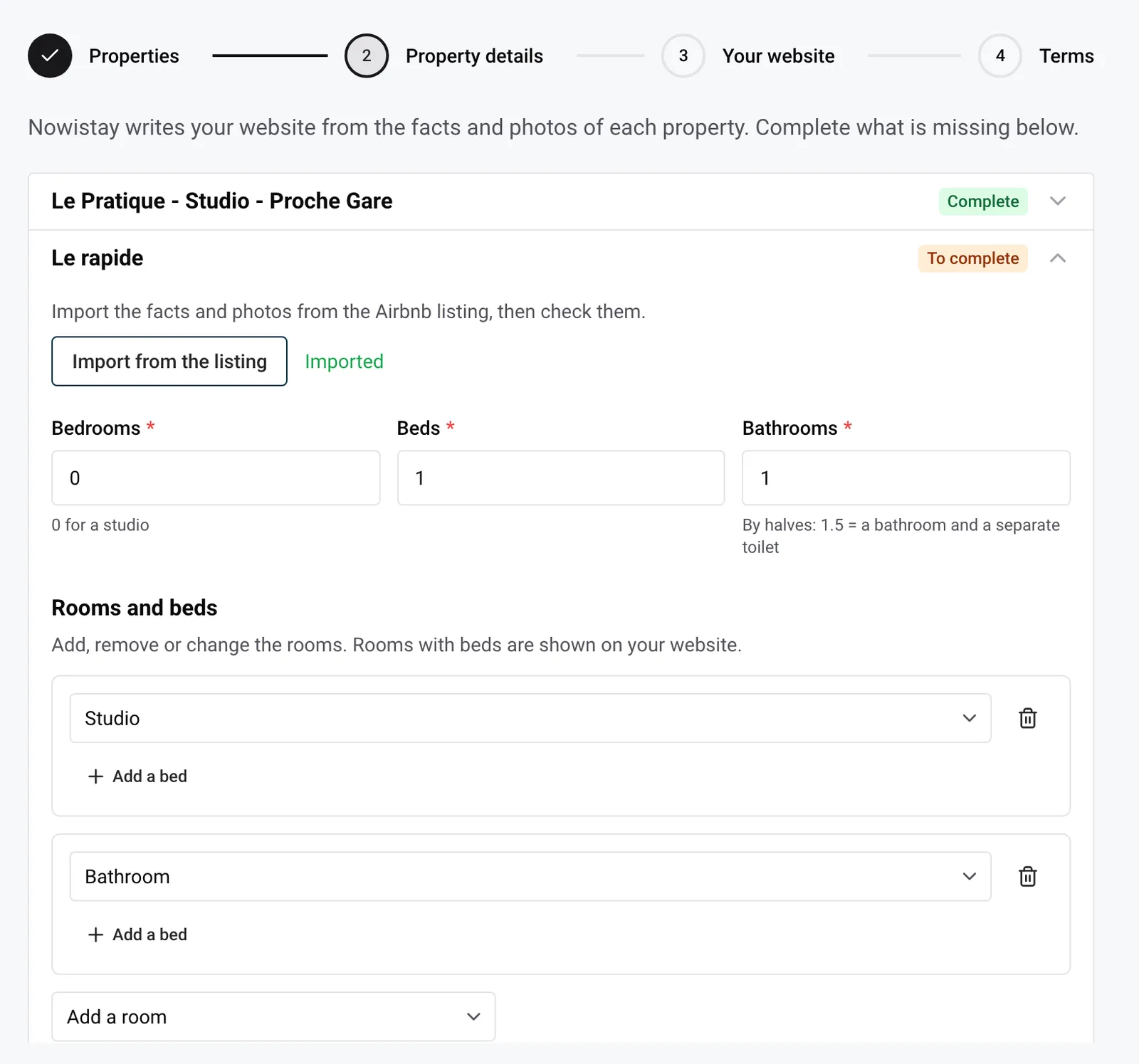
When Nowistay can read the property’s Airbnb listing, the import starts by itself the first time you open the property. You can run it again with Import from the listing (up to 5 times an hour). It brings:
The fields are greyed out while the import runs. Then you see Imported, or “The import did not work. Fill in the details by hand or try again.” Always check what was imported. If the property isn’t on Airbnb, the button doesn’t appear: fill in the details and add photos yourself.
Example of notes for What makes the place special: “Top-floor flat with a balcony facing the river. Bakery downstairs, tram stop two minutes away. The bedroom is on a mezzanine with a low ceiling, not ideal for very tall guests.”
Under the fields, a counter shows the photos of the property, for example “3 photos (at least 5)”. It turns green at 5.
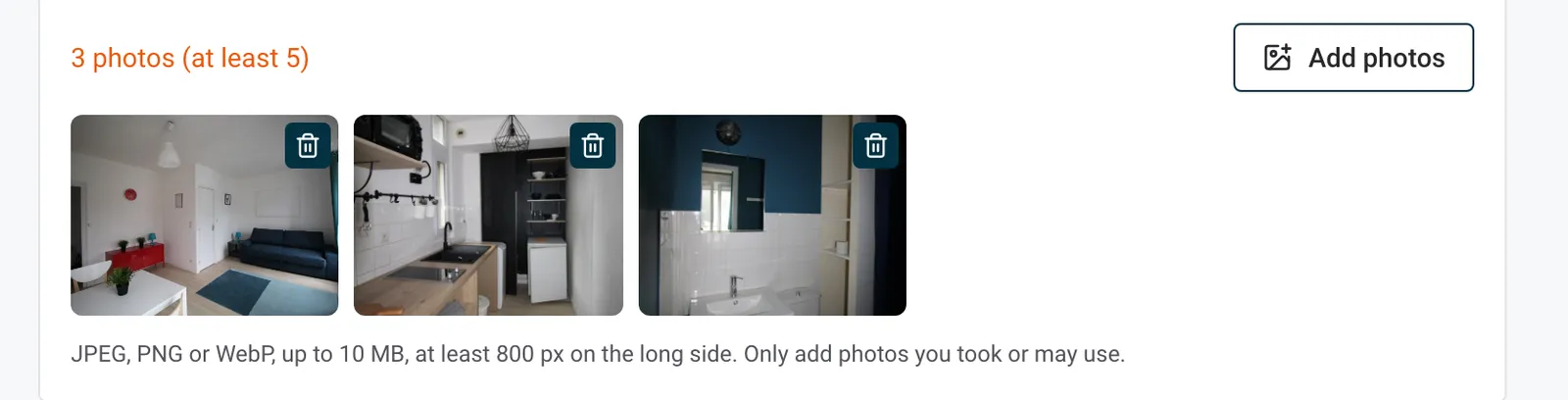
Photo rules:
| Message | What to do |
|---|---|
| “This image is too small.” | The long side is under 800 px. Use the original photo, not a screenshot or a thumbnail. |
| “This file is too large.” | Export the photo again with a smaller file size. |
| “This image is too large.” | The picture has too many pixels: reduce its dimensions. |
| “This file format is not supported.” | Save the photo as JPEG, PNG or WebP. |
The bin (Delete photo) removes a photo from the property’s website photos. Photos you picked from the library stay in the library.
When every property is complete, click Continue. If something is still missing, Nowistay opens the property concerned.
Two facts are only checked when Nowistay prepares the preview. If one is missing, the website page says:
Then go back to the website and click Build my preview. How to edit your property settings shows where these fields are.
Example: you rent three cottages in the Dordogne and want them on one website, Les Gîtes du Moulin. In Properties, Le Fournil shows Ready, La Grange Photos missing, and Le Pigeonnier Stripe not linked and Details missing. Stripe already receives Le Fournil’s payments, so for Le Pigeonnier you click Fix, link it to the same account and click Check again. In Property details, the import brings La Grange’s amenities and photos from Airbnb. Le Pigeonnier isn’t on Airbnb: you type 1 bedroom, 2 beds and 1 bathroom, tick its amenities and add 6 photos from its library.
The details you enter here belong to the property, not to the website: Nowistay also uses them for AI Pricing. To change them later:
When the property has an Airbnb listing Nowistay can read, the drawer also has a Your Airbnb listing box:
See Listing details: rooms, beds, amenities and registration number for every field.
Your website follows by itself: the preview refreshes the next time you open the website, and a published site shows the new details within the hour, without publishing again. The texts Nowistay wrote don’t change on their own: if a description mentions the old number of beds, correct it in the editor.
To change the photos of a property on your website, open its page in the editor: see Edit texts, links and photos.
Guides for hosts: read the blog.
Ready to Put Your Rental on Autopilot?
