Updated
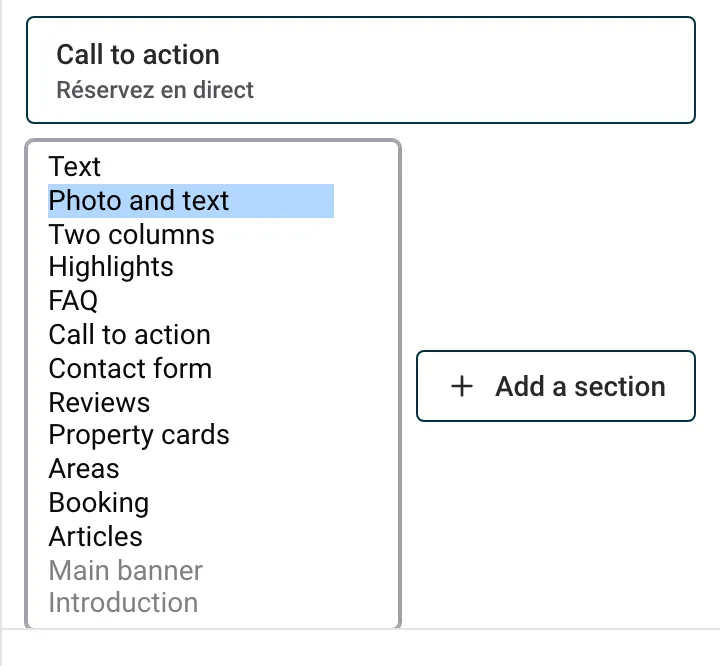
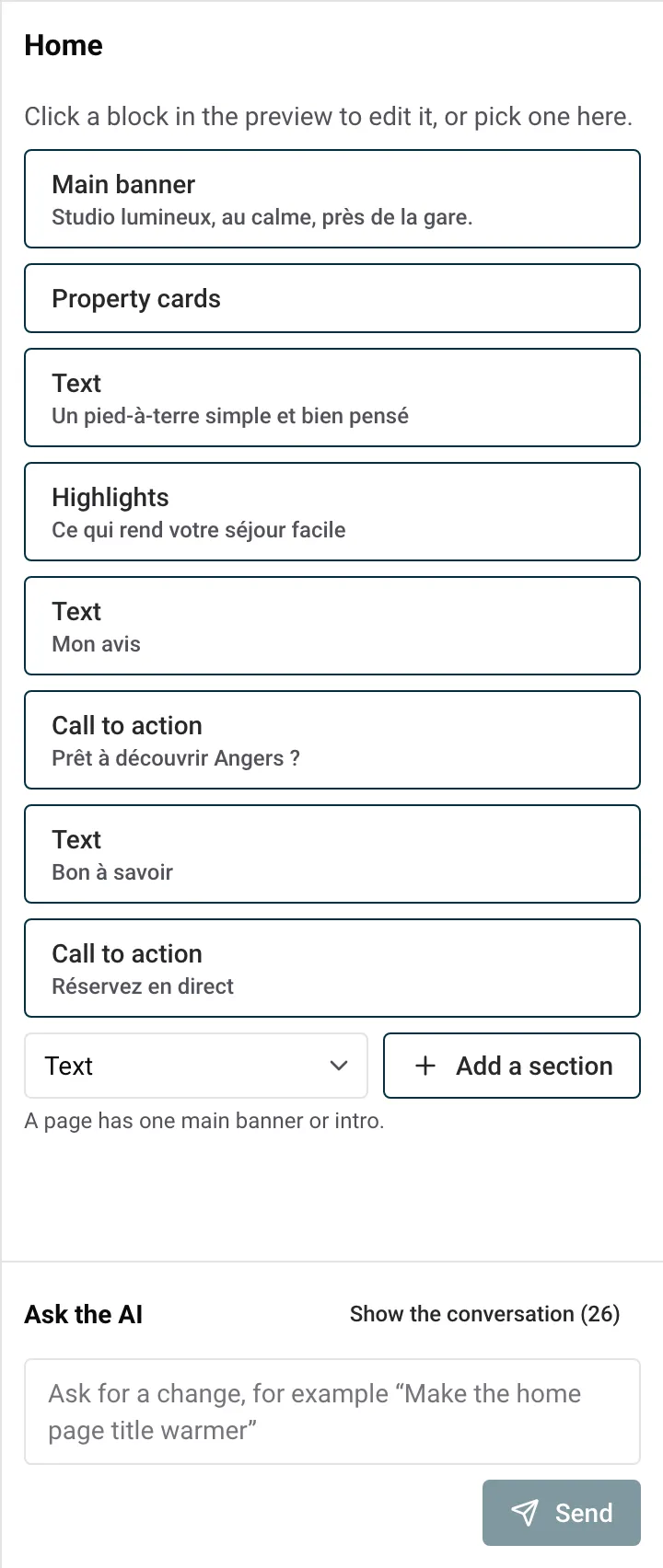
Each page of your website is a stack of blocks: a main banner at the top, then a text, your property cards, guest reviews, a contact form, and so on. There are 14 kinds of blocks. You add, move and remove them in the editor’s side panel, up to 20 blocks per page.
This guide explains how to work with blocks, then what each block is for, what you fill in, and when to use it.
| Block | What it’s for |
|---|---|
| Main banner | The top of a page: 1 to 3 photos, the page’s main title and a button |
| Introduction | The top of a page without photos: the main title and a short introduction |
| Text | A text to read, with headings, lists or tables |
| Photo and text | A photo next to a title and a text |
| Two columns | Two texts or two sets of questions side by side |
| Highlights | Up to 6 short strong points on a coloured band |
| FAQ | Questions that open on a click |
| Call to action | A coloured band with a title and one button |
| Contact form | The form visitors use to write to you |
| Reviews | Up to 6 guest reviews, quoted as written |
| Property cards | Your properties, with photo, guests and price |
| Areas | Up to 4 large photo panels, one per area or destination |
| Booking | A band with the booking search across all your properties |
| Articles | The latest articles of your blog |
You can add, move and remove blocks on the Home page, the About page, your own pages, the Blog page, the Thank you page and the Page not found page.
Two kinds of pages work differently:
Each move and each removal is saved as a version: Undo or Versions bring a block back (see The website editor: the basics).
Most changes to blocks show in the preview after Update. Text changes inside a block show at once.
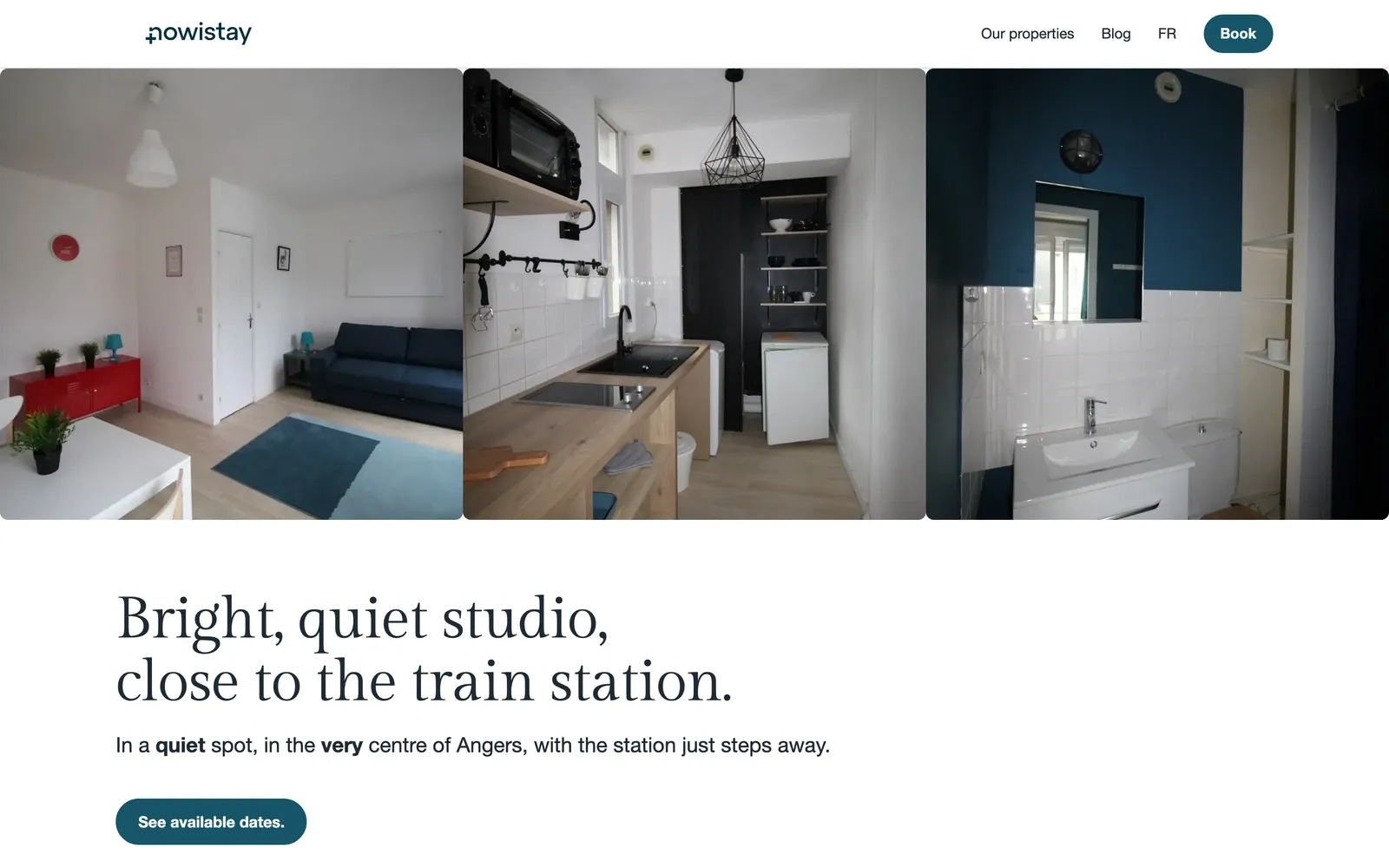
The first thing visitors see on a page: 1 to 3 photos side by side, then the page’s main title, a subtitle, an optional starting price and a button.
What you fill in:
Example: for two cottages in the Dordogne, three photos (the pool, the stone facade, the view over the valley), the title “Two stone cottages above the Dordogne”, the subtitle “Pool, gardens and the river 5 minutes away” and a button “Check availability” leading to Booking.
The top of a page without photos: the page’s main title and a short introduction, side by side on a computer, with an optional button. Every new page you create starts with one.
What you fill in: Title (required), Introduction (one paragraph) and an optional Button with its Appearance.
Example: on a “Gift vouchers” page, the title “Offer a stay in the Alps” and the introduction “A weekend or a week in our chalets, for a birthday, a wedding or just because.”
A text to read, in a narrow column that is comfortable on any screen. It can have headings, lists, links and tables.
What you fill in: Title (optional), Text (required, a long text with the formatting toolbar) and an optional Button.
Example: on your “Our story” page, three paragraphs about how you restored the farmhouse, with a subheading “The renovation” and a list of the original features you kept.
A photo next to a title and a text, with an optional button. On a phone, the photo sits above the text.
What you fill in: Title (required), Text (required), Photo (required, one photo), an optional Button, and the Layout: Photo on the left or Photo on the right.
Example: on the home page of a seaside house in Brittany, a photo of the garden on the left and the text “Breakfast in the garden, the beach at the end of the path”. Alternate left and right when you stack several of these blocks.
Two columns side by side (one above the other on a phone). Each column has a title, then a text, questions and answers, or both.
What you fill in: Columns, always exactly 2, each with Title (required), Text and Questions and answers (each a Question and an Answer). Each column needs a text, questions, or both.
Example: on a “Getting here” page, the left column “By car” with directions and parking, the right column “By train” with the nearest station and a question “Can you pick us up at the station?” with its answer.
Short strong points shown on a coloured band, three per row on a computer.
What you fill in: Title (optional) and Items, 1 to 6, each with a Title and a Text (both required). Click Add an item to add one.
Example: for a city apartment in Lyon, “5 minutes from the old town”, “Self check-in at any hour”, “Fibre internet and a real desk”.
A list of questions under the heading “Frequently asked questions”. Visitors click a question to read its answer.
What you fill in: Items, each with a Question and an Answer (both required; the answer can have links and lists). Click Add an item to add a question.
Example: on the home page, the questions guests ask before booking: “Are pets welcome?”, “Is there parking?”, “Can we arrive late?”. Answering them here saves you messages.
A coloured band with a title, an optional text and one button, to lead visitors to the next step.
What you fill in: Title (required), Text (one paragraph) and Button (required, with Button links to and Appearance).
Example: at the end of the About page, “Ready for a week by the lake?” with a button “See our dates” leading to Booking.
The form visitors fill in to write to you. You set its title and introduction; the form itself is the same on every site: name, e-mail, phone (optional), the property (when you have several), arrival and departure dates, number of guests and the message, with spam protection.
What you fill in: Title (optional; without one, the form is titled “Contact us”) and Introduction (one paragraph).
Each message reaches you by e-mail and appears in Enquiries in the … menu. Your About page has a contact form from the start. See Bookings and messages from your website.
Example: at the bottom of a “Weddings and events” page, the title “Tell us about your event” and the introduction “Give us your date and the number of guests, we reply within 48 hours.”
Guest reviews shown as large quotes, exactly as guests wrote them, with the guest’s name, the property, where the review was left and the month. No stars or ratings are shown.
What you fill in: Reviews, picked from the list of reviews of your site’s properties (newest first). Up to 6 reviews, shown exactly as guests wrote them. If the list is empty, you see No review to show yet.
Example: on the home page of a guesthouse, pick three reviews that mention what you are proud of: the breakfast, the quiet garden, the welcome.
Your properties, each with its photo, name, location, number of guests and price, and a link to its page.
What you fill in:
The block’s heading (“Our properties”) is set by the site.
Example: you manage 12 apartments in Lisbon. On the home page, a Grid showing 6 of them, with prices. On a “Family stays” page of your own, a second block with only the 4 apartments with two bedrooms or more, in Large layout.
Up to 4 large photo panels, each with a name and a short line. Each panel leads to its property’s page when it lists one property, or to the property cards when it lists several. The layout adapts to the number of panels.
What you fill in: Items, 1 to 4, each with a Name, a Short line, a Photo and Properties (at least one).
Example: a concierge with apartments in Alfama, Baixa and Cascais adds three panels: “Alfama, the old town”, “Baixa, everything on foot”, “Cascais, by the sea”, each linked to the apartments in that area.
A coloured band with your title, an introduction, a short note about secure payment and the booking search across all your properties: guests choose their dates and number of guests, see what is free and book.
What you fill in: Title (required) and Introduction (one paragraph).
Example: on the home page of a site with 5 holiday homes, a band “Find your dates” near the bottom, so guests can search without leaving the page.
The latest articles of your blog, under the heading “From the blog”. Only published articles show on your live site.
What you fill in: How many to show (1 to 6, 3 by default) and the Layout: Cards (cover photo, title and summary) or List. The button Manage the blog’s articles opens your blog panel.
Example: on the home page, 3 cards with your latest local guides (“Our 10 favourite restaurants nearby”, “The beach without a car”), which also bring visitors from search engines. See Write a blog with AI.
You can also ask the AI to add, rewrite, move or remove blocks: select a block and describe the change, for example “Add a FAQ under this block with the 5 questions guests ask most”. See Edit your website with AI.
Guides for hosts: read the blog.
Ready to Put Your Rental on Autopilot?
