Updated
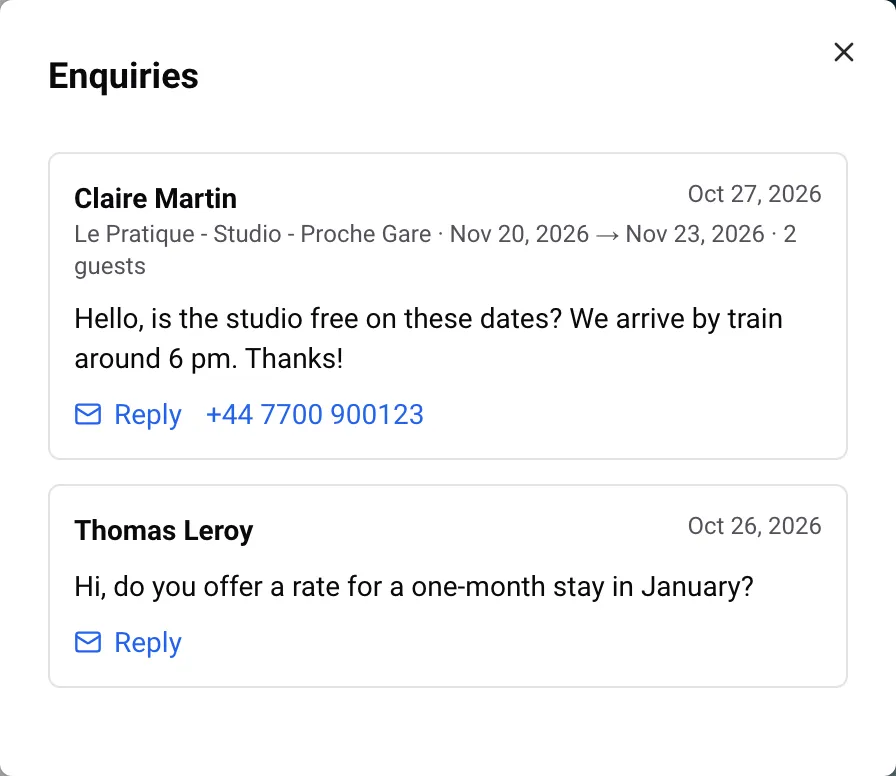
Guests book and pay directly on your website: the money goes to your own Stripe account and Nowistay takes no commission. Each booking appears in Nowistay like any other direct booking, marked as booked on your website. Questions sent through the contact form reach you by e-mail and are listed in the editor under Enquiries.
The booking calendar appears in three places on your site:
What the guest does:
If the guest leaves the payment page without paying, they come back to the booking section of the property page and nothing is booked.
The confirmation page is the Thank you page of your site: you can change its text in the editor like any other page (see Website pages). Once your site has been published, the booking calendar uses your website’s colours and fonts.
All these settings are explained in How to add a direct booking widget to your website.
Example: you rent a seaside apartment in Biarritz and use split payment: 30% at booking, the rest 14 days before arrival. A guest books 7 nights in August for €1,260 in total. They pay €378 on your site, and the remaining €882 is charged to their card automatically 14 days before arrival. Both payments go straight to your Stripe account.
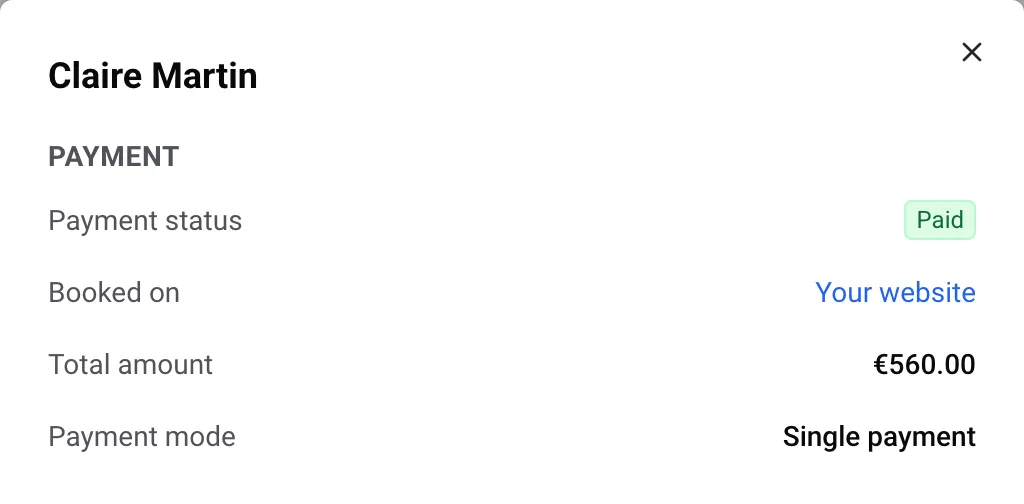
A paid booking from your website is a confirmed booking, handled like any other direct booking: you find it in Bookings and in your calendar.
Open the booking to see its Payment section:
Paid bookings from your website are also counted in the website statistics.
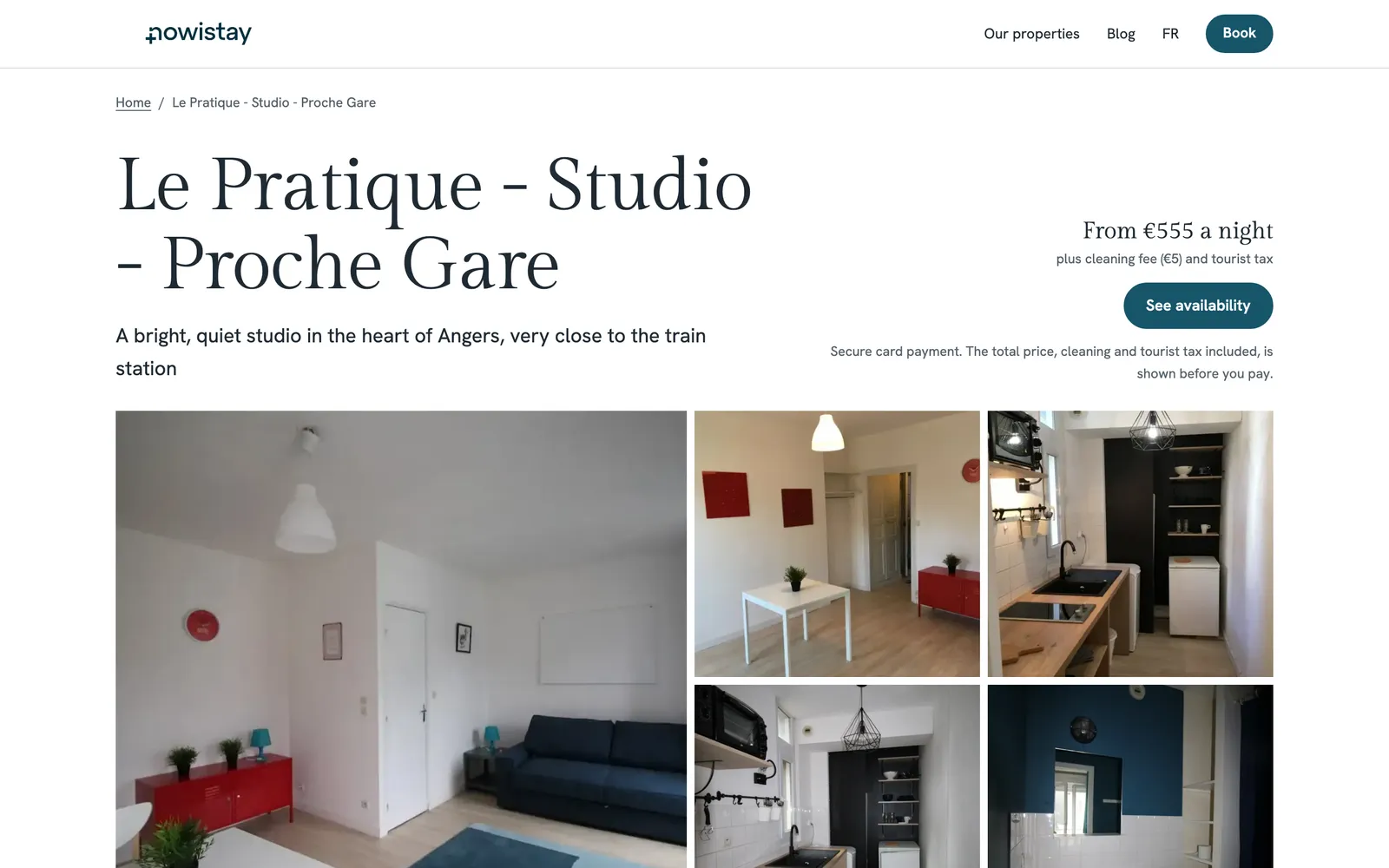
Your pages show a starting price, such as “From €95 a night”, with “plus cleaning fee (€60) and tourist tax” underneath. It appears on property pages and property cards, and in the main banner if you chose to show it. This starting price is the lowest nightly price over the next 90 days. It doesn’t take the minimum stay into account, so it is a guide, not a quote.
| Starting price on your pages | Booking calendar | |
|---|---|---|
| What it shows | Lowest nightly price over the next 90 days, plus the cleaning fee | The exact price for the guest’s dates: nights, fees, discounts, taxes, total |
| When it changes | Each time the live site is updated: when you publish, or when Nowistay updates it by itself | Always live, with your current availability |
Example: in September you lower your October prices. The booking calendar shows the new prices at once. The “From” price on your pages follows at your next publish. See Publish your website and put changes online.
Visitors who have a question before booking can write to you with the contact form. Your About page has one from the start, and you can add a Contact form block to any page. You can change the form’s title and introduction; the fields themselves are always the same.
The visitor fills in:
They click Send and see Message sent, with a line saying that your website received the message and will reply by e-mail.
The form has built-in spam protection: an automatic check runs before each message is sent. One visitor can send up to 5 messages per hour, and your site receives up to 100 messages per day.
The form works in your private preview too, as long as the website is in your subscription: send yourself a test message before you publish.
Each message reaches you in three ways:
The AI co-host doesn’t read or answer contact form messages: you reply yourself.
Visitors can also write directly to the contact e-mail shown on your site, in the footer and on property pages under “A question before you book?”. Those e-mails go straight to that address and don’t appear in Enquiries. You set that address in Site settings (see Website settings).
Example: you manage 12 apartments in Lisbon. The site’s contact e-mail is your team’s shared bookings mailbox, but you sign in to Nowistay with your own address. Contact form messages land in your own inbox, while direct e-mails go to the team mailbox. To keep everything in one place, set up a forwarding rule in your own mailbox, or check Enquiries every day.
Guides for hosts: read the blog.
Ready to Put Your Rental on Autopilot?
