The Dashboard is the first page you see when you log in to Nowistay. It gathers what needs you today across all your properties: arrivals and departures, late cleanings, guests waiting for an answer, empty nights you can still sell, and your figures for the month. Each card links to the page where you can act, so you can start your day from here instead of opening every property one by one.
This article walks through the page from top to bottom, block by block, in the default order. You can reorder or hide blocks at any time (see Customize your dashboard).
Which properties the dashboard covers
The dashboard covers your properties with an active AI Full Channel Manager subscription. Properties on another plan are not counted, and if none of your properties has that subscription, the page asks you to activate it before it can show anything. If you have no property yet, Nowistay opens the Properties page instead so you can create your first one.
The header: last update, refresh and settings
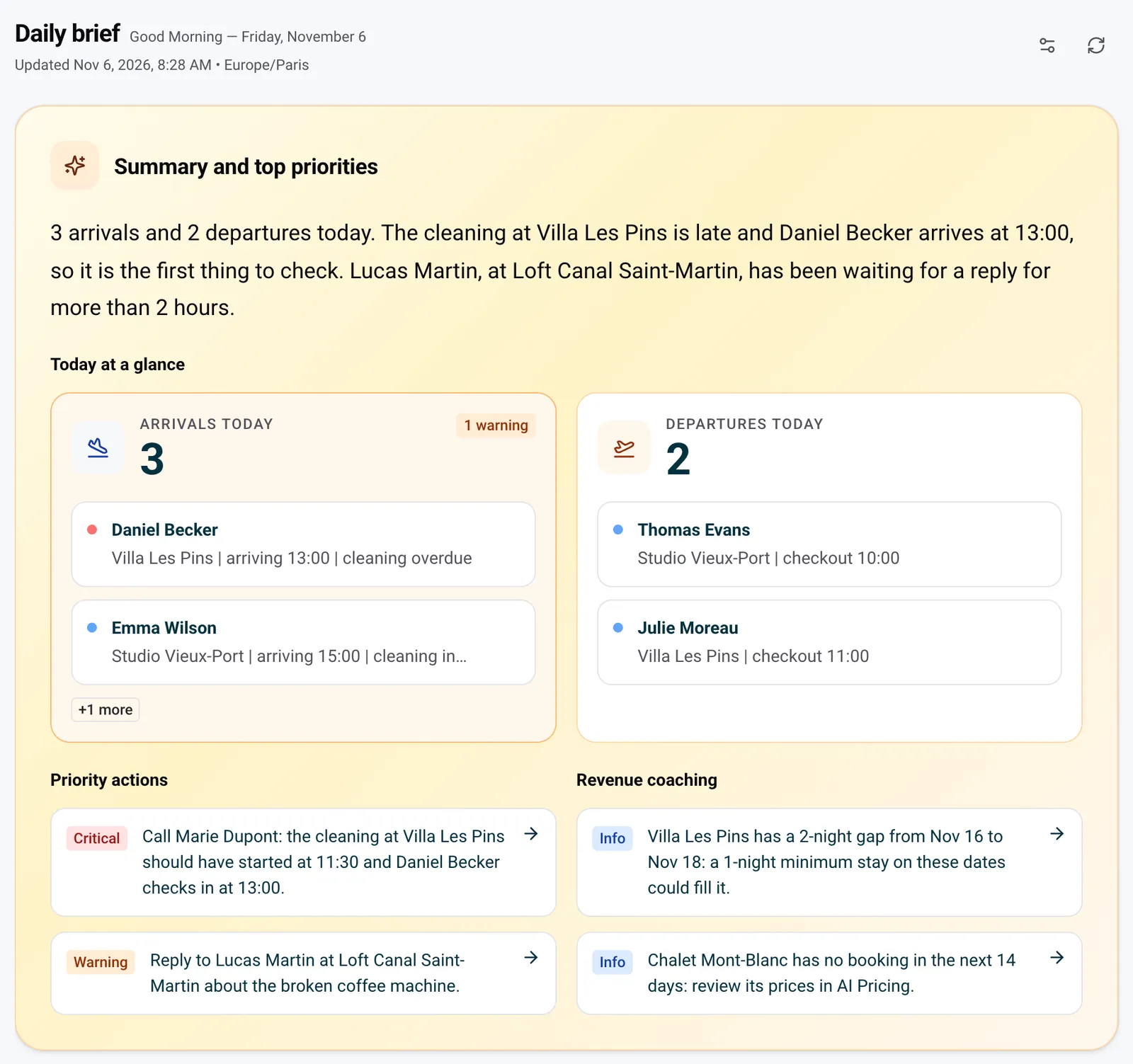
Next to the Daily brief title you see the date, then the time of the last update and the time zone used for “today”. The figures are recalculated every few minutes while you use the app. Two icons sit on the right:
- Refresh (circular arrows) recalculates everything right now, for example after you have assigned a cleaning.
- Settings (sliders) opens the Dashboard settings panel described at the end of this article.
Summary and top priorities
This first block is the daily brief itself. Early every morning, the AI reads your day and writes it up in a few sentences: how many arrivals and departures, and what deserves your attention first. Below the summary:
- Today at a glance shows two cards, Arrivals today and Departures today, with the number of guests and the first two of them (guest, property, time). A red dot or a warning badge flags a problem, such as a cleaning not finished before an arrival. “+1 more” means more guests are in the list: click the card to open them in Bookings.
- Priority actions lists the operational points to handle today, each with a Critical, Warning or Info badge.
- Revenue coaching suggests pricing moves, for example a gap worth filling or a property with no upcoming booking.
Each line with an arrow opens the page where you can act (mission, conversation, calendar or AI Pricing).
Critical alerts
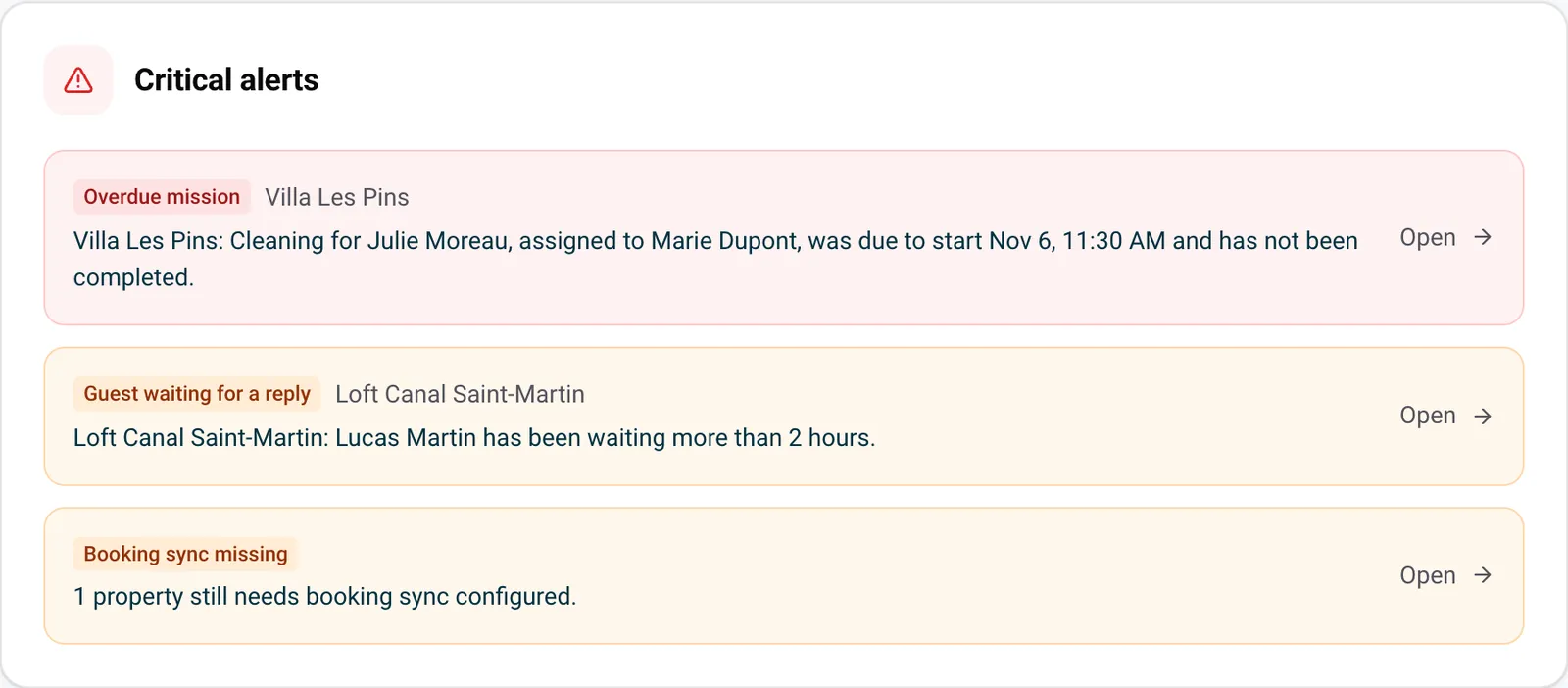
Critical alerts collects the problems that can hurt a stay or your revenue if nobody acts:
- Overdue mission: a mission (a cleaning, for example) that should have started in the last 36 hours and is not completed, with the person assigned to it.
- Guest waiting for a reply: a guest has been waiting more than 2 hours for an answer.
- Booking sync missing: one or more properties do not receive their bookings yet. Click Open to connect them.
- Payment failed or Payment link expired: a direct booking whose payment did not go through.
Click Open on an alert to go straight to the mission, conversation or booking concerned. When everything is fine, the block shows “No critical alerts right now.”
Guest attention
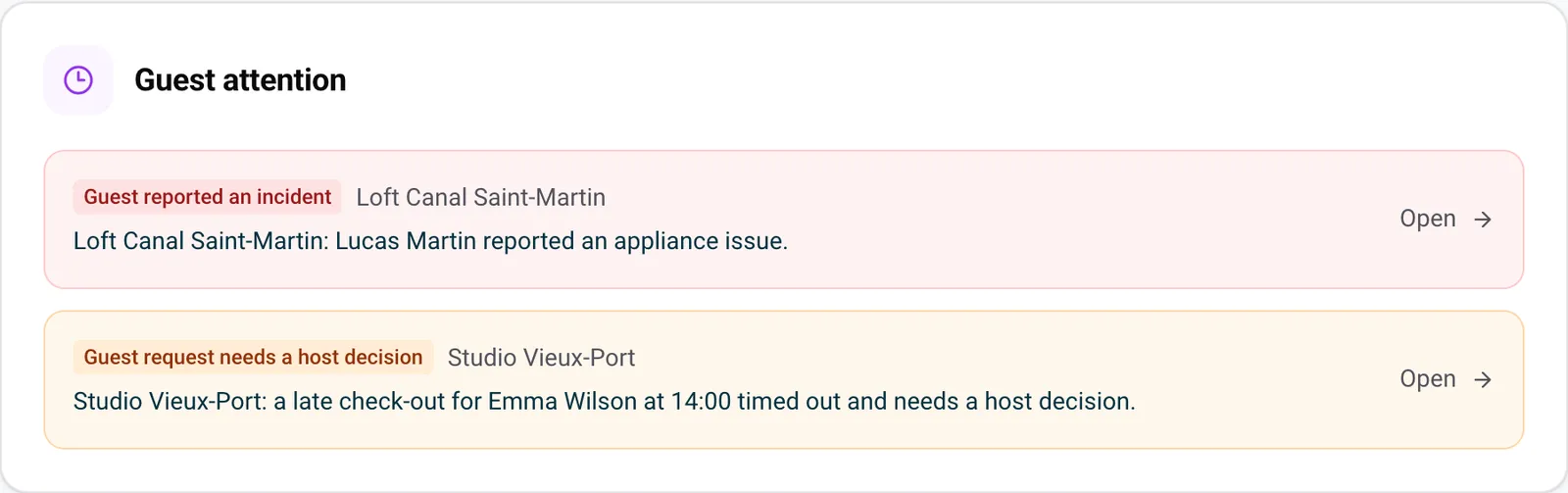
Guest attention shows the guest conversations that need your judgement: an incident reported by a guest (an appliance that broke down, a plumbing problem), a request for something extra, an early check-in or late check-out that is still waiting for your decision, or a concern the AI noticed in the latest messages of a current stay. The AI co-host keeps answering guests: this block only surfaces what it cannot settle alone. Requests and incidents are explained in Track guest issues, requests, and time changes with AI Inquiries.
Today’s turnovers
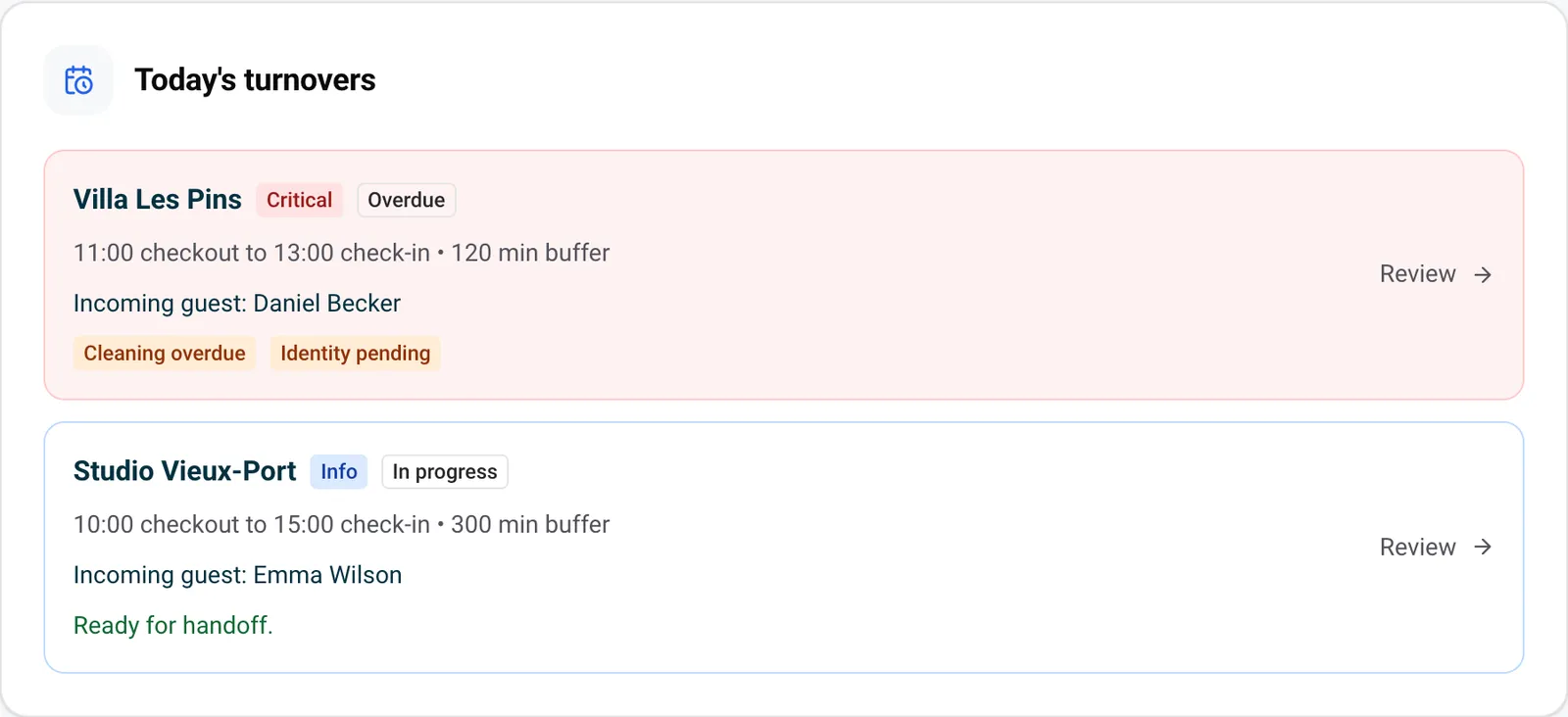
A turnover is a property where one guest checks out and the next one checks in on the same day. For each one you see:
- the checkout and check-in times, and the buffer between them in minutes;
- the incoming guest’s name;
- the cleaning status (Pending, Assigned, In progress, Completed, Overdue, Failed or Missing);
- what is still missing before the guest arrives: Cleaning missing, Cleaning overdue, Cleaning failed, Lock code missing (when a smart lock is connected) or Identity pending (when identity verification is on).
When nothing is missing, the card says “Ready for handoff.” Click Review to open the cleaning mission, or the incoming booking when the turnover has no cleaning mission.
Action queues
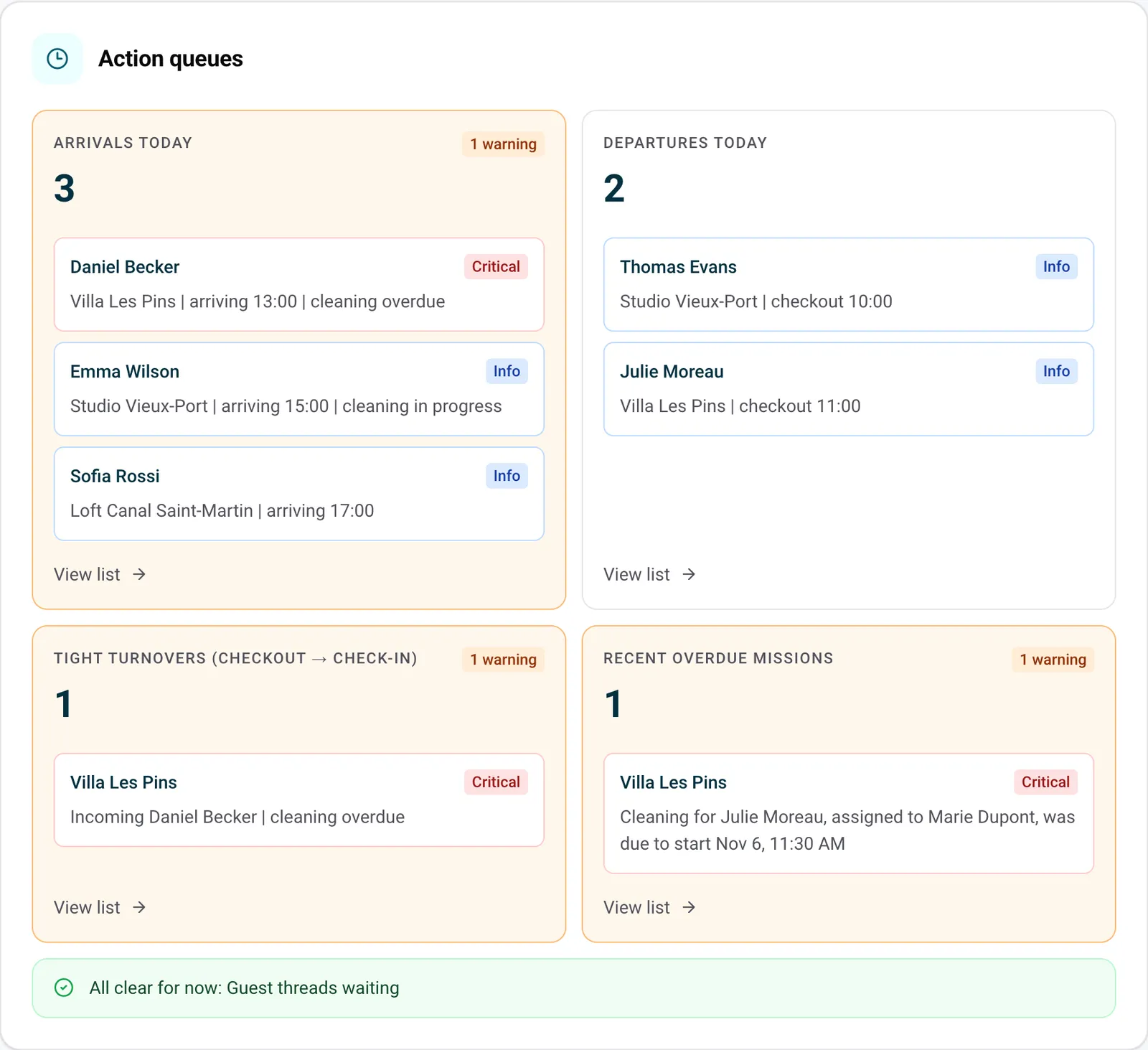
Action queues are short to-do lists, one per type of task:
- Arrivals today and Departures today;
- Tight turnovers (checkout → check-in): same-day turnovers with less than 3 hours between checkout and check-in;
- Recent overdue missions;
- Guest threads waiting: conversations where a guest has been waiting more than 2 hours.
Each card shows the count, the number of warnings and a preview of the first items. View list opens the full list in the right page. Queues with nothing in them are grouped on one green line, “All clear for now”, so the block stays short on quiet days.
Next 48 hours
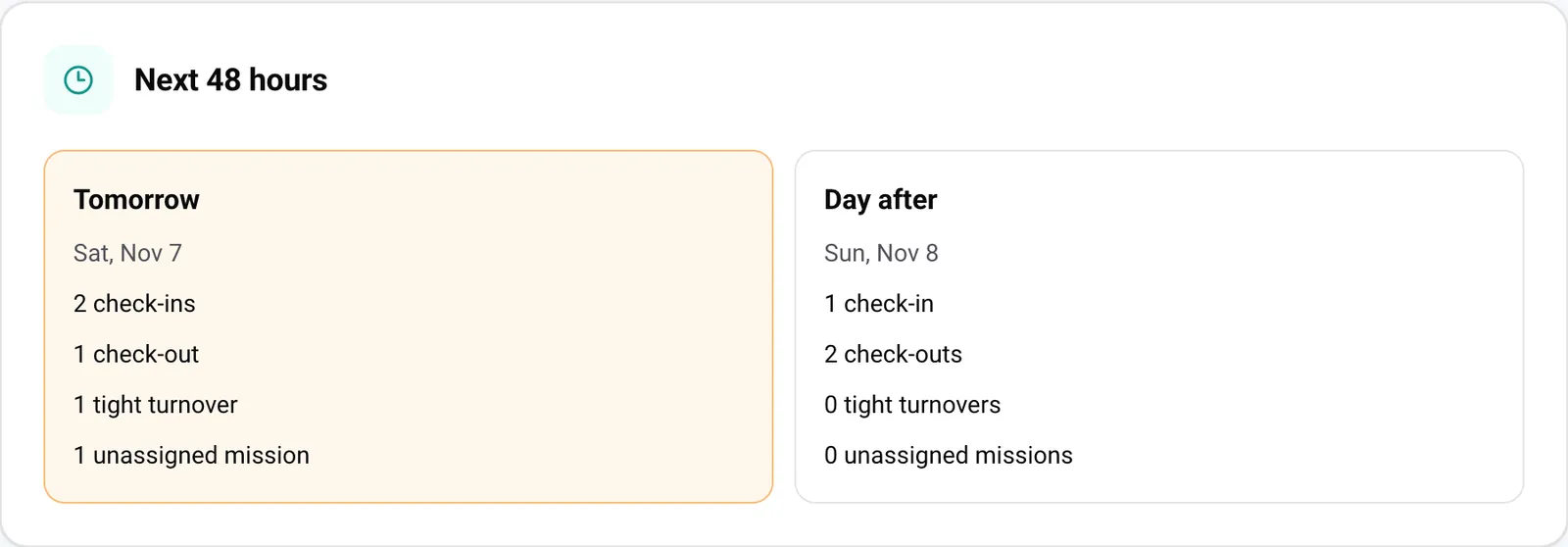
Next 48 hours looks ahead at Tomorrow and the Day after: number of check-ins, check-outs, tight turnovers and missions nobody is assigned to yet. A day with a tight turnover is highlighted in orange, which gives you time to find a cleaner or assign the mission before it becomes urgent.
Revenue opportunities
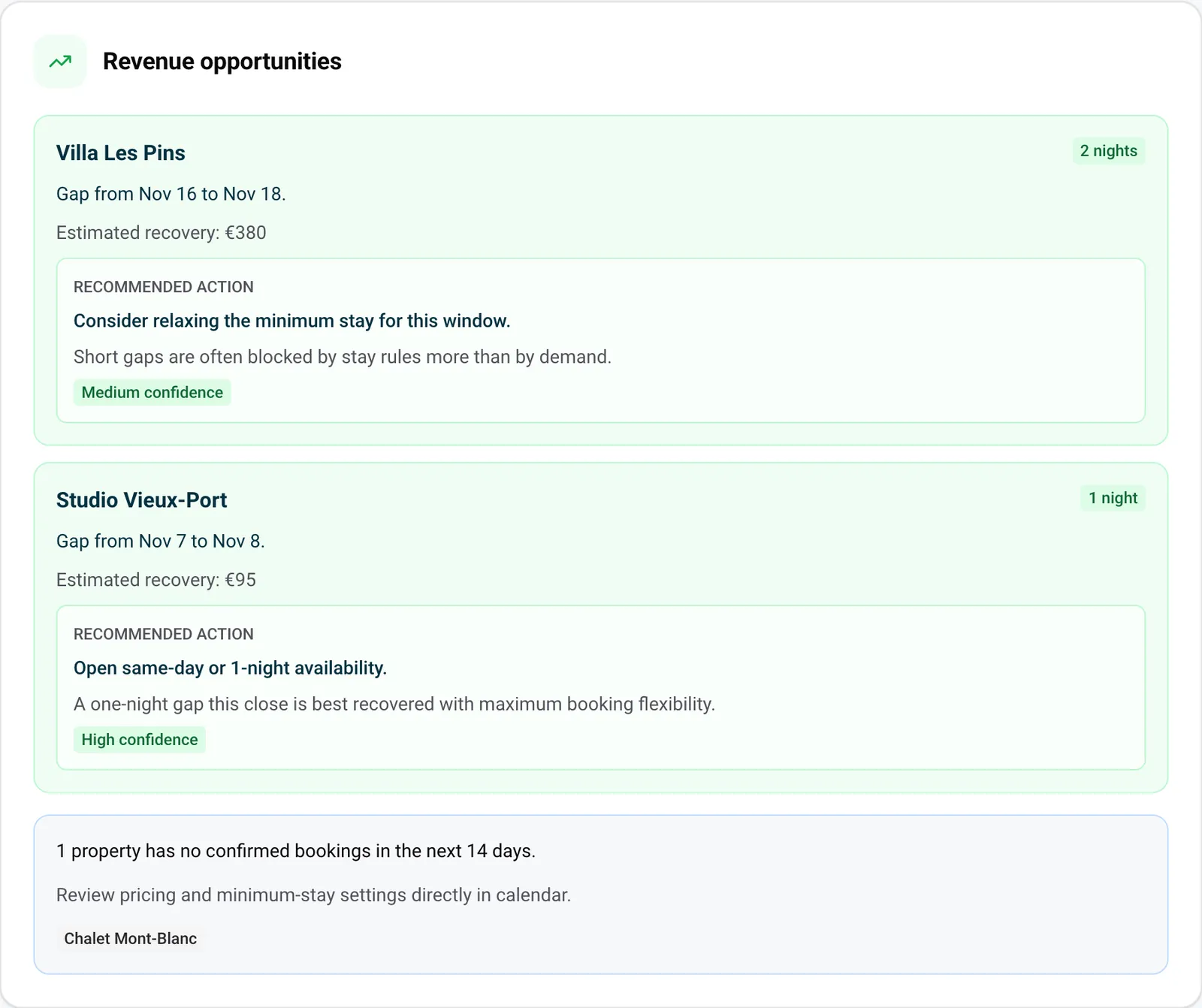
Revenue opportunities spots the nights you can still sell:
- Short gaps: 1 to 3 free nights between two bookings in the next 30 days (up to six, soonest first). Dates that are blocked or closed in the calendar are left out. Estimated recovery is the sum of your current nightly rates for those nights.
- Recommended action: if AI Pricing manages the property, you see the price it suggests for the gap. Otherwise the advice depends on how close the gap is: open same-day or 1-night bookings for a single night starting today or tomorrow, lower the rate by 15% within 4 days or by 10% within a week, and relax the minimum stay for gaps further out. A confidence level comes with each suggestion.
- Properties with no confirmed bookings in the next 14 days: click a property name to review its prices and minimum stay in the calendar.
Operational health
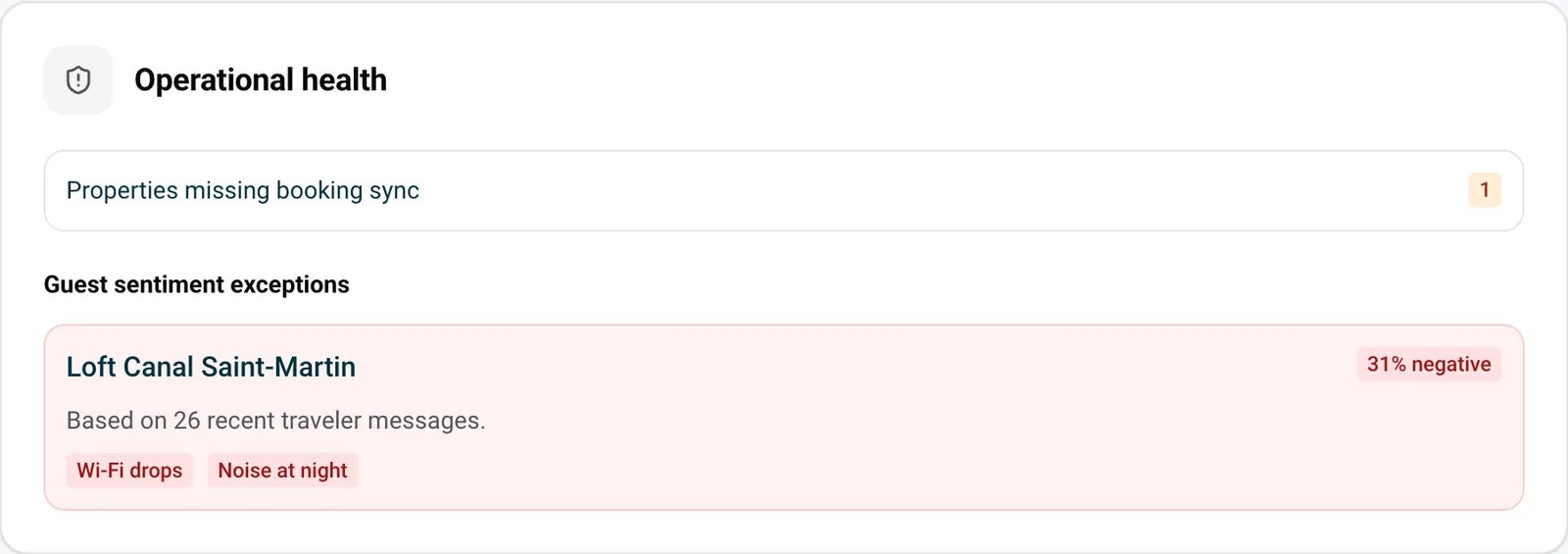
Operational health checks that your setup works:
- Properties missing booking sync: properties that receive no bookings from a channel or a connected PMS.
- Properties with assistant integration errors: properties where the connection used by the AI co-host reports an error. The link opens Integrations.
- Guest sentiment exceptions: properties where at least a quarter of the guest messages analysed over the last month read negative, with the number of messages and the most frequent complaints (Wi-Fi, noise, cleanliness…). It points you to a recurring problem rather than a single bad stay. For the mood of each individual guest, see Guest mood.
Portfolio snapshot
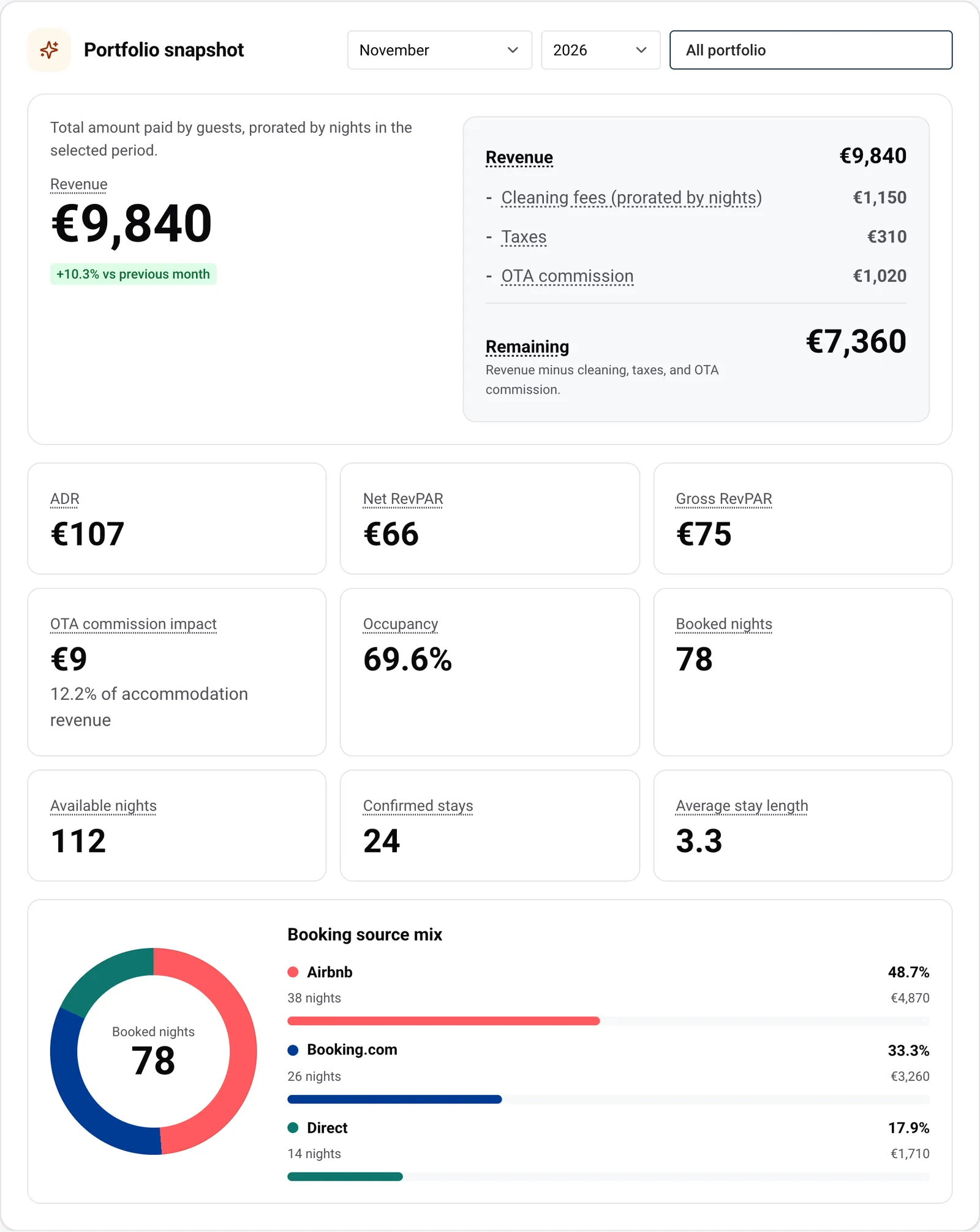
Portfolio snapshot gives your figures for one month. Pick the month and the year at the top of the block, and use All portfolio to show every property or tick one or several properties (a search field helps when you have many).
- Revenue: the total paid by guests for the nights of the selected month, with the change compared with the previous month. A stay over two months is split by night.
- The breakdown to the right subtracts Cleaning fees (prorated by nights), Taxes and OTA commission to give the Remaining amount.
- ADR: accommodation revenue (without cleaning fees and taxes) divided by booked nights.
- Gross RevPAR and Net RevPAR: revenue per available night, before OTA commission (the usual benchmark) and after cleaning fees, taxes and commission (what is left for the owner).
- OTA commission impact: commission per available night and its share of accommodation revenue.
- Occupancy, Booked nights, Available nights (nights blocked in the calendar are not counted as available), Confirmed stays and Average stay length.
- Booking source mix: share of booked nights per channel (Airbnb, Booking.com, direct bookings…) with the amount paid.
Hover over an underlined label to see exactly how it is calculated. Property owners can see the same figures for their properties in the Financials tab of their team dashboard link.
Customize your dashboard
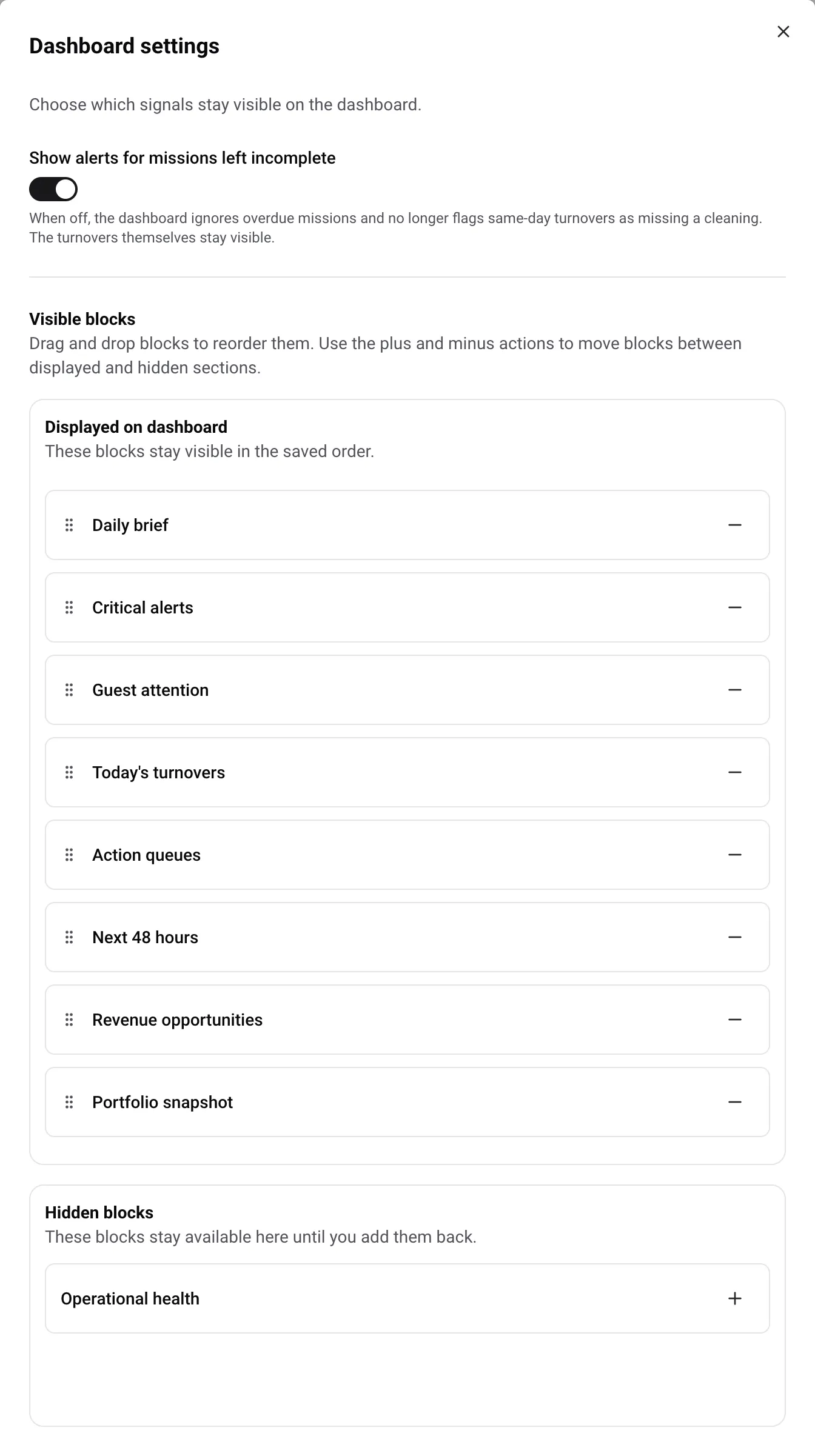
Click the settings icon (sliders) at the top right of the dashboard to open Dashboard settings:
- Show alerts for missions left incomplete: turn it off if your team does not mark missions as done in Nowistay. The dashboard then stops flagging overdue missions and same-day turnovers with a missing cleaning. The turnovers themselves stay visible.
- Under Visible blocks, drag a block by its handle to change its place in the Displayed on dashboard list.
- Click − to move a block to Hidden blocks, or + to show it again.
- Click Save.
Hiding a block only changes what you see: nothing is deleted, and you can bring the block back at any time.
Frequently asked questions
When is the daily brief written?
Early every morning, in the time zone of your properties. The other blocks are recalculated every few minutes while you use the app, and the Refresh icon updates them right away. If the AI summary is not available yet, the page still shows today’s arrivals, departures and priority actions.
Why is a block empty?
An empty block means there is nothing to report: no same-day turnover, no alert, no gap. Each block then shows a short message such as “No same-day turnovers today.” If the whole page is empty, check that your properties have an active AI Full Channel Manager subscription and that their bookings are synced.
Can my team see this dashboard?
The dashboard is part of your account. Your cleaners, maintenance staff and owners get their own view through their team dashboard link, with their missions, their calendar and, for owners, the monthly figures.
