Updated
Guest identity verification helps you confirm the identity of your guests before check-in using Stripe Identity. By enabling this feature in Nowistay, you can automatically send a verification link to your guests as part of your booking confirmation, and only send check-in instructions once their identity is verified.
This guide walks you through the full setup: connecting your Stripe account, enabling identity screening for your properties, adding the verification link to your messages, and setting up conditional sending.
First, connect your Stripe account to Nowistay to enable identity verification:
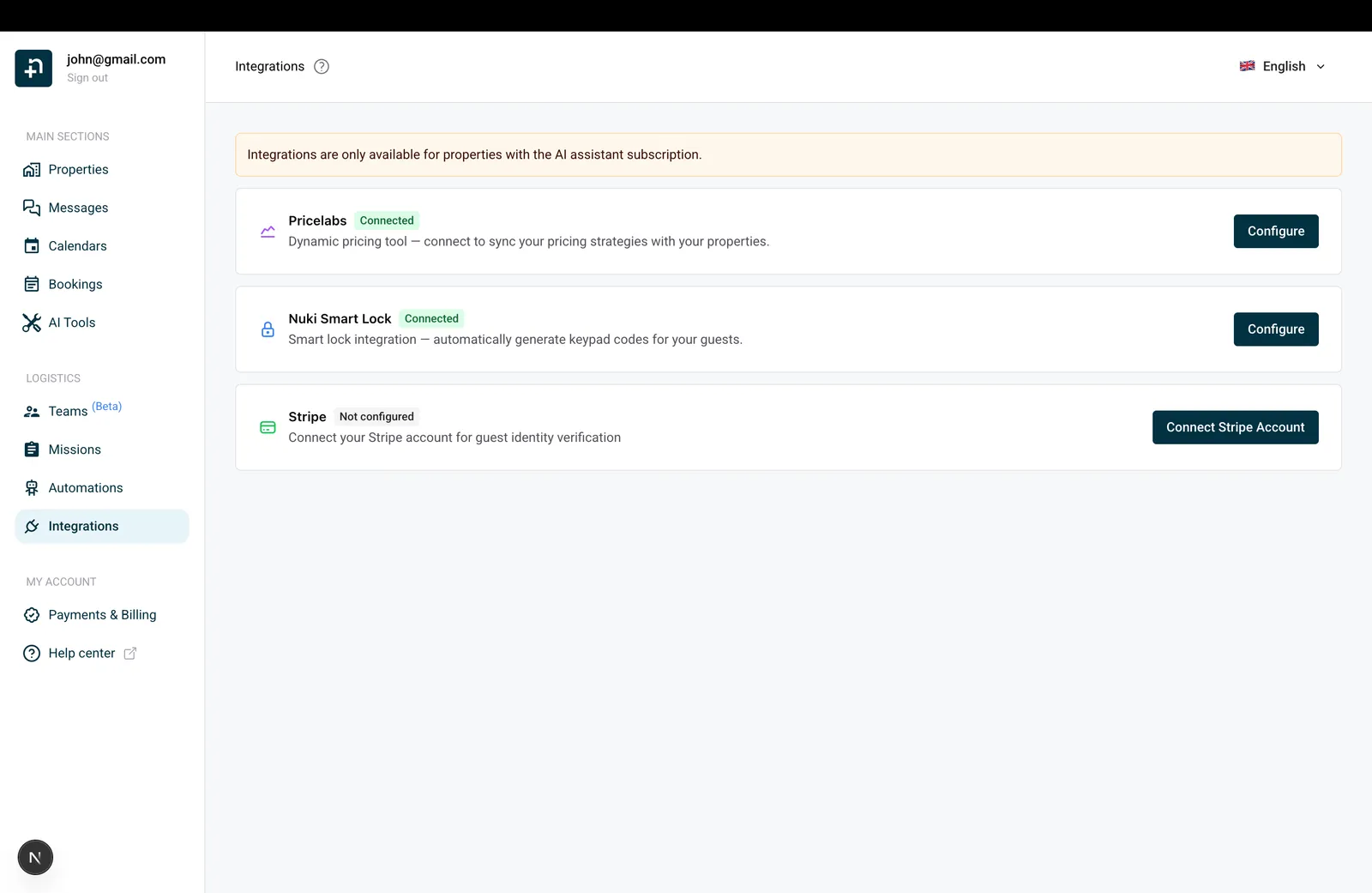
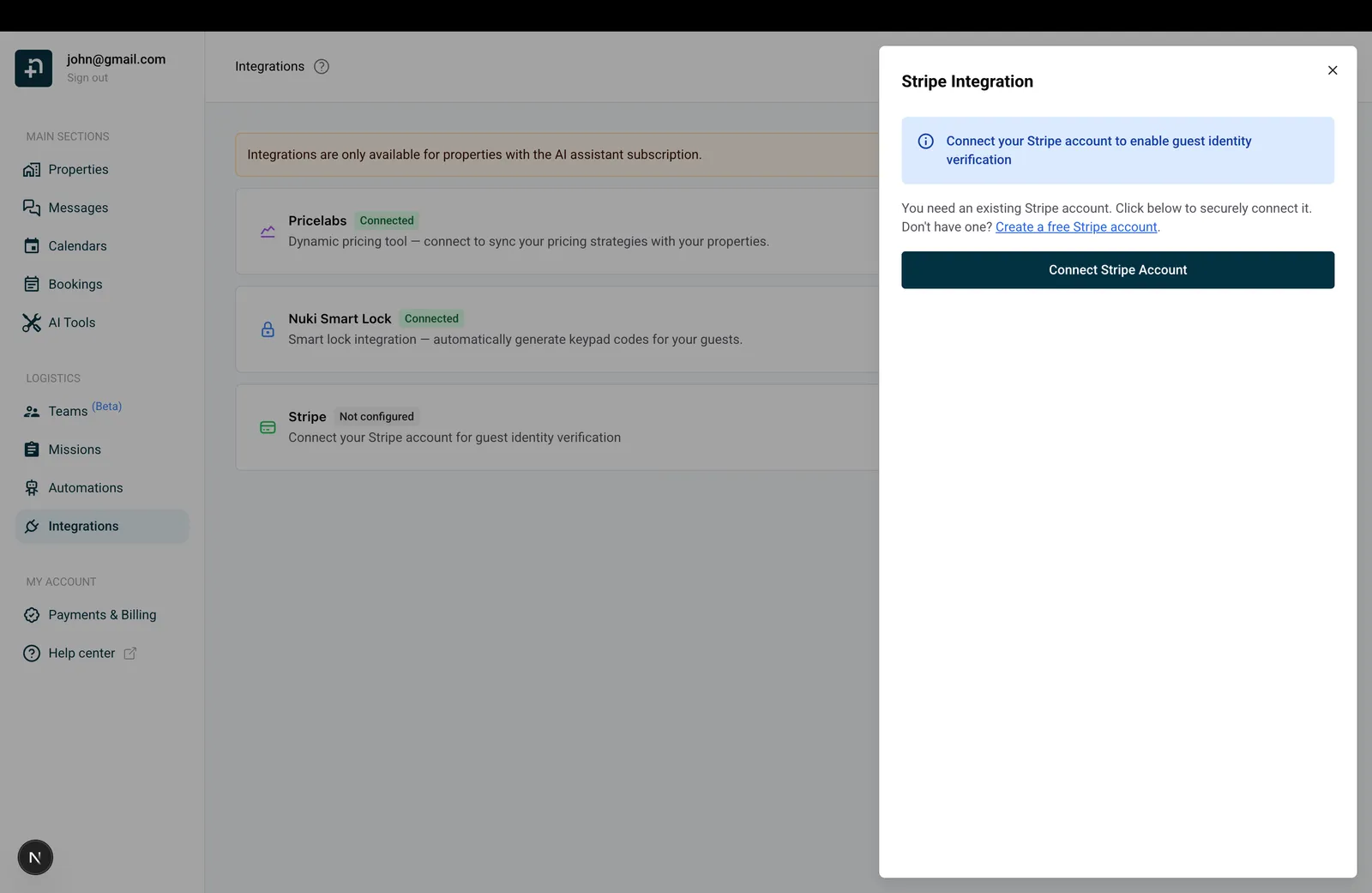
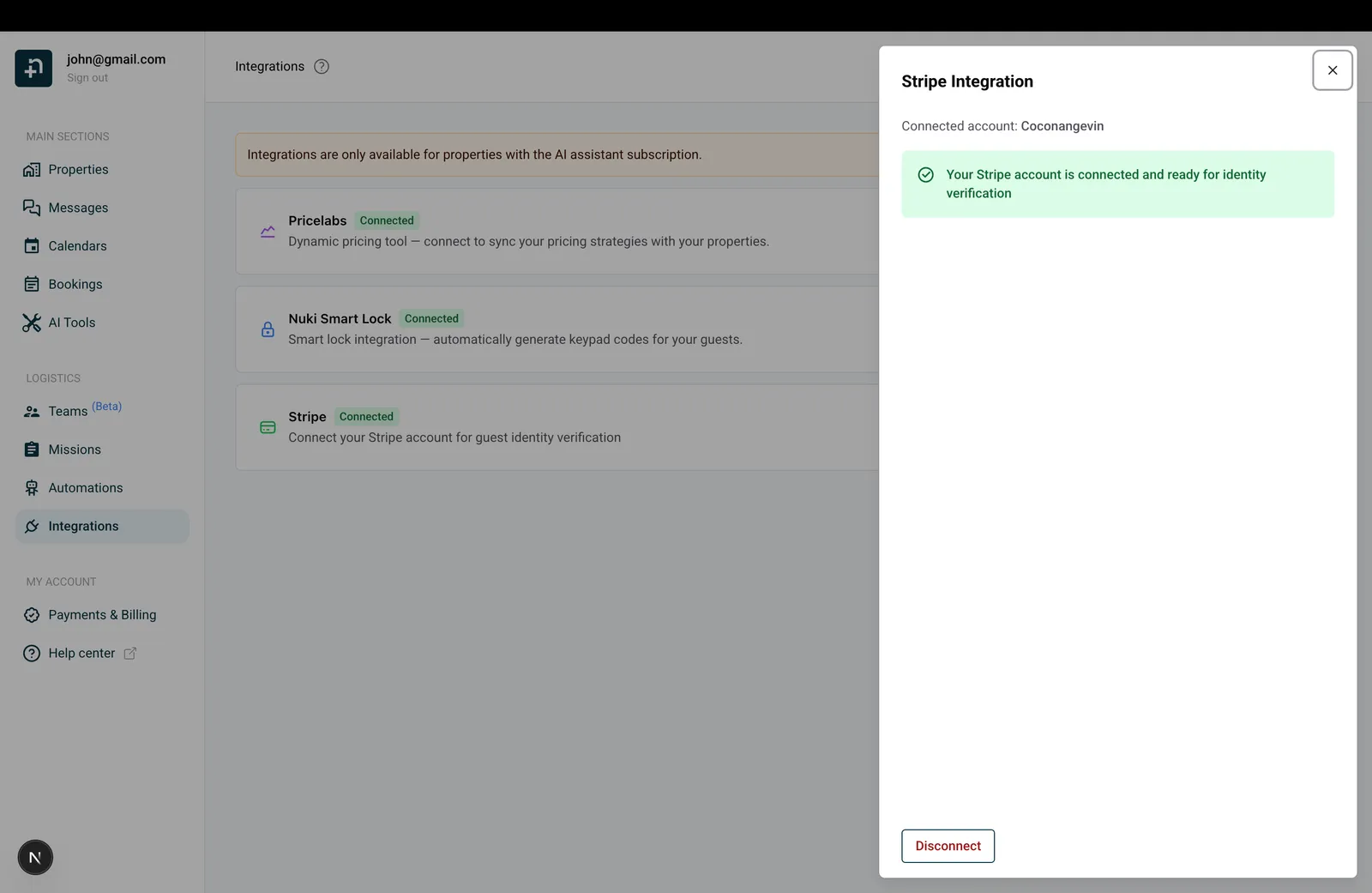
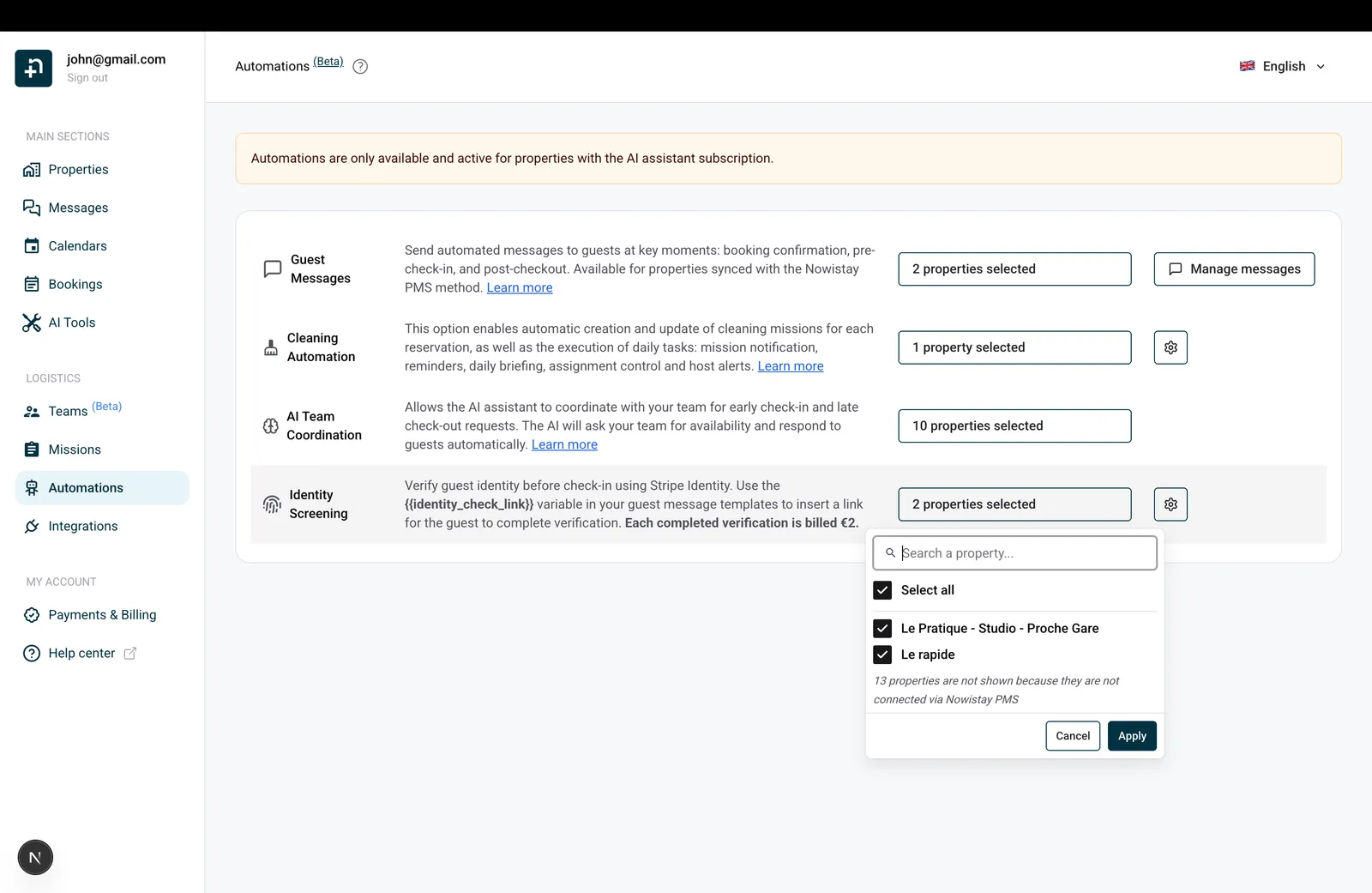
Now that Stripe is connected, activate identity screening on the properties where you want to verify guests:
You can also click the settings icon next to Identity Screening to open the configuration drawer, where you can manage your Stripe connection and access the screening history.
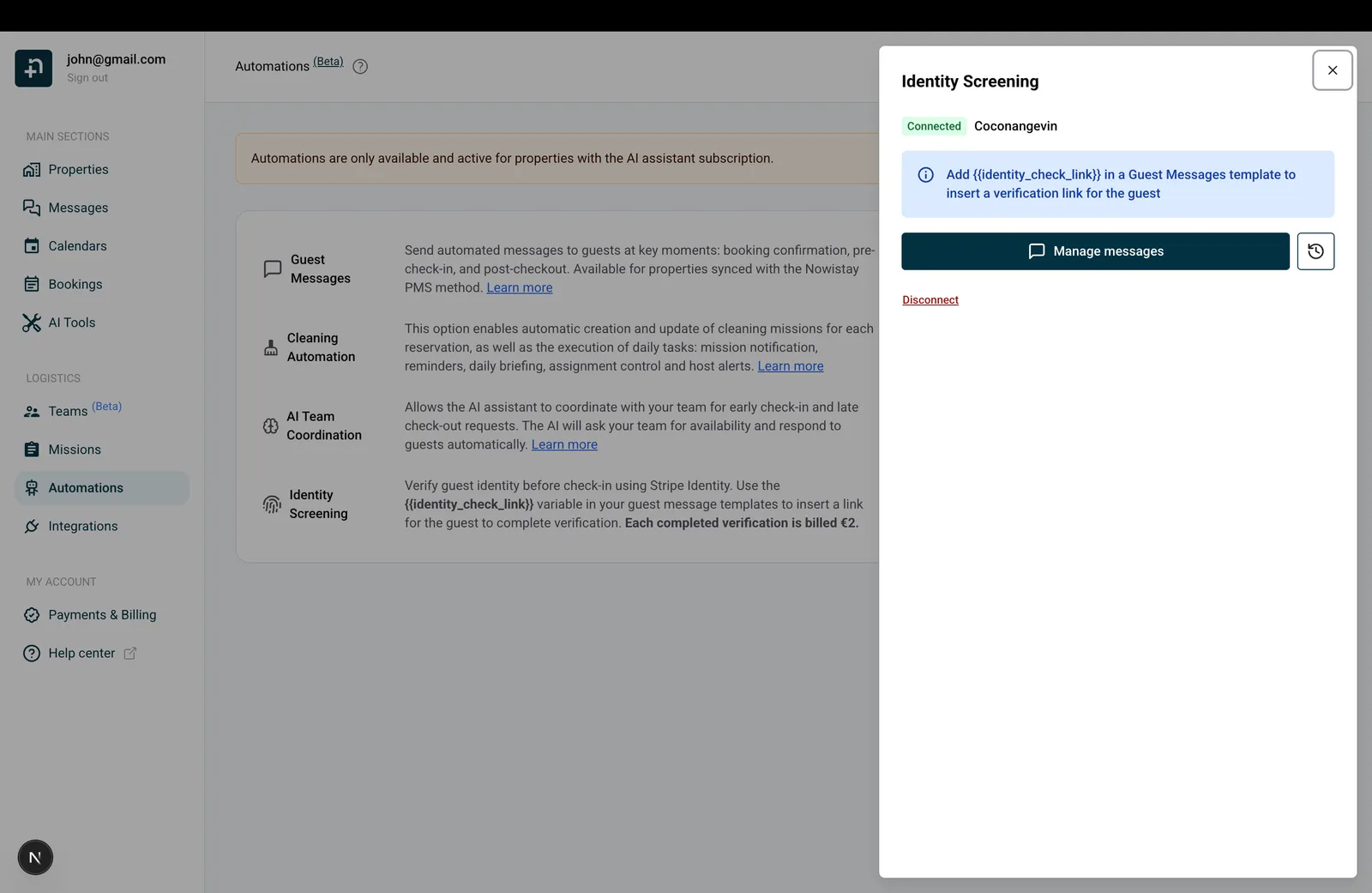
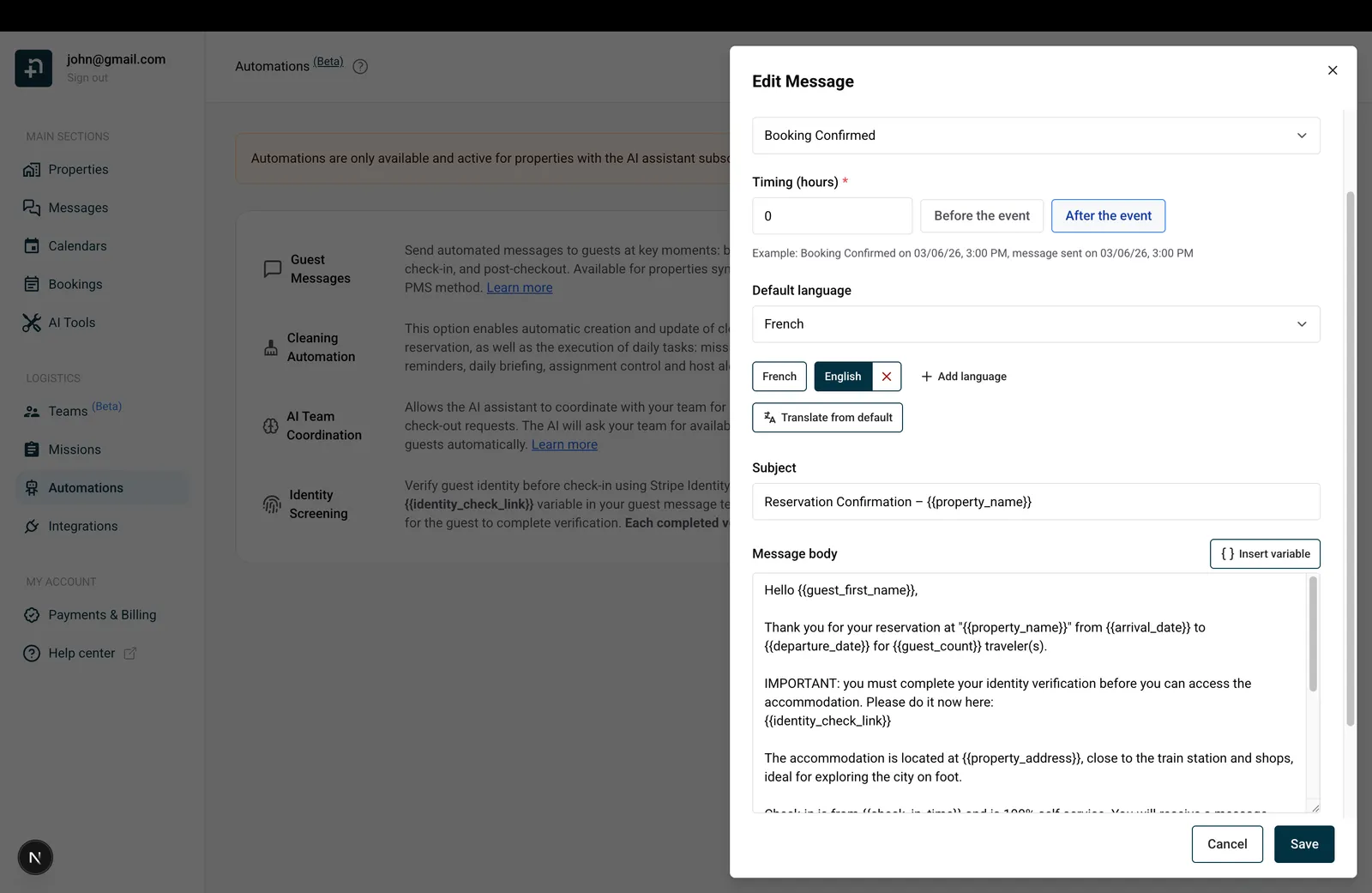
To send a verification link to your guests, include the {{identity_check_link}} variable in one of your guest message templates, typically the booking confirmation message:
{{identity_check_link}} variable where you want the verification link to appear. You can type it directly or use the “Insert variable” button.{{identity_check_link}}”When the message is sent, {{identity_check_link}} will be automatically replaced with a unique verification link for each guest.
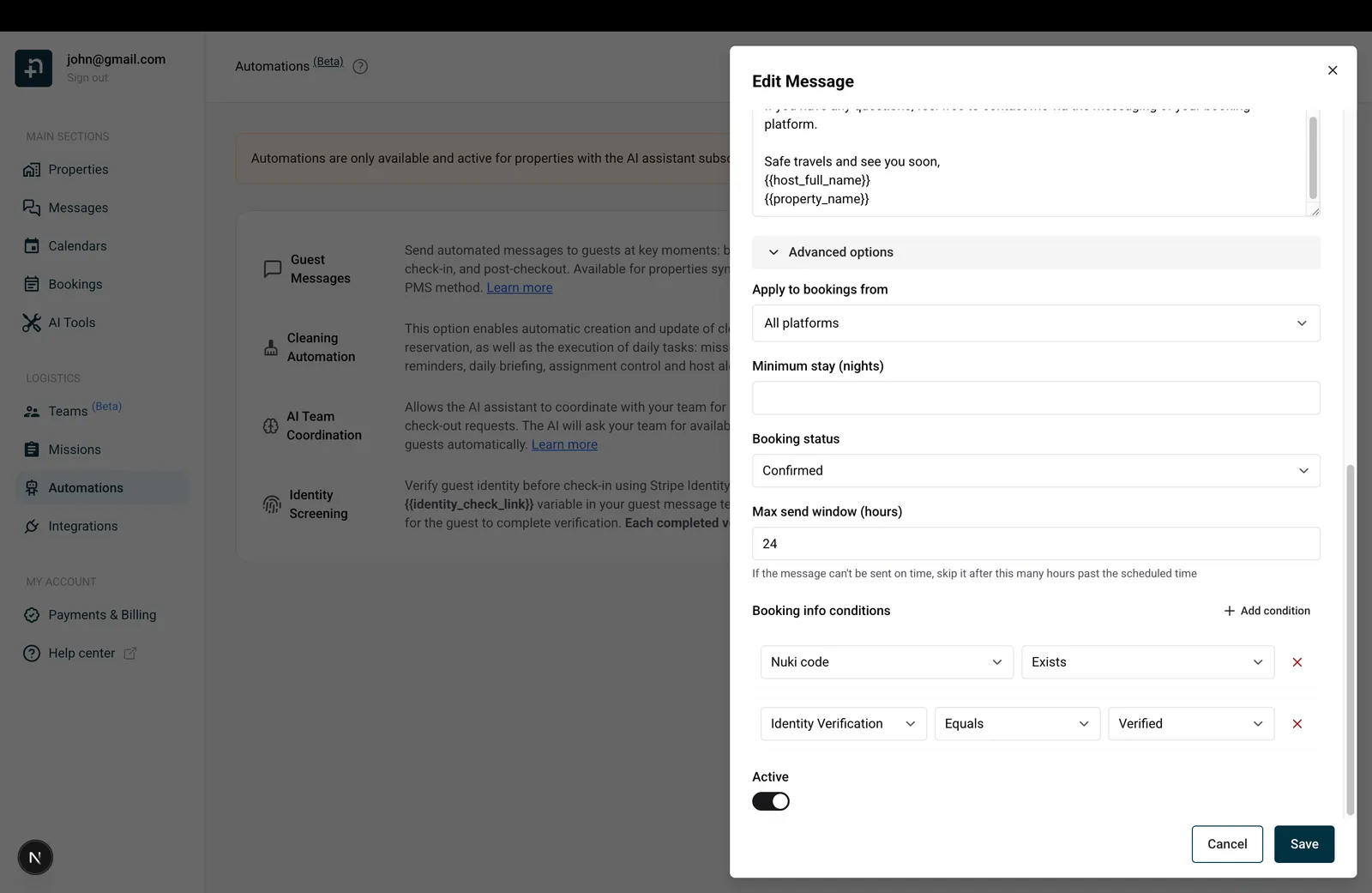
You can set up a condition on your check-in instructions message so it is only sent when the guest’s identity has been verified:
With this setup, your check-in instructions will only be sent to guests who have successfully completed their identity verification. If a guest hasn’t verified their identity, the message will be held until they do.
When a guest successfully completes their identity verification, Nowistay automatically sends them a short confirmation message to let them know they are all set. It appears right inside the guest conversation, so there is nothing extra for you to send.
The confirmation is delivered on the same channel the booking came from, so it reaches the guest wherever they have been chatting with you:
The guest receives a friendly note along these lines: “Hi [name], good news. Your identity check is complete and verified, so you’re all set. We’ll send your access instructions before your arrival. See you soon!”
Because it lands in the same conversation, the guest can reply in the usual place and your AI co-host can keep the conversation going automatically.
You can monitor the status of all identity verifications from the Screening History:
You can filter the history by property using the dropdown at the top.
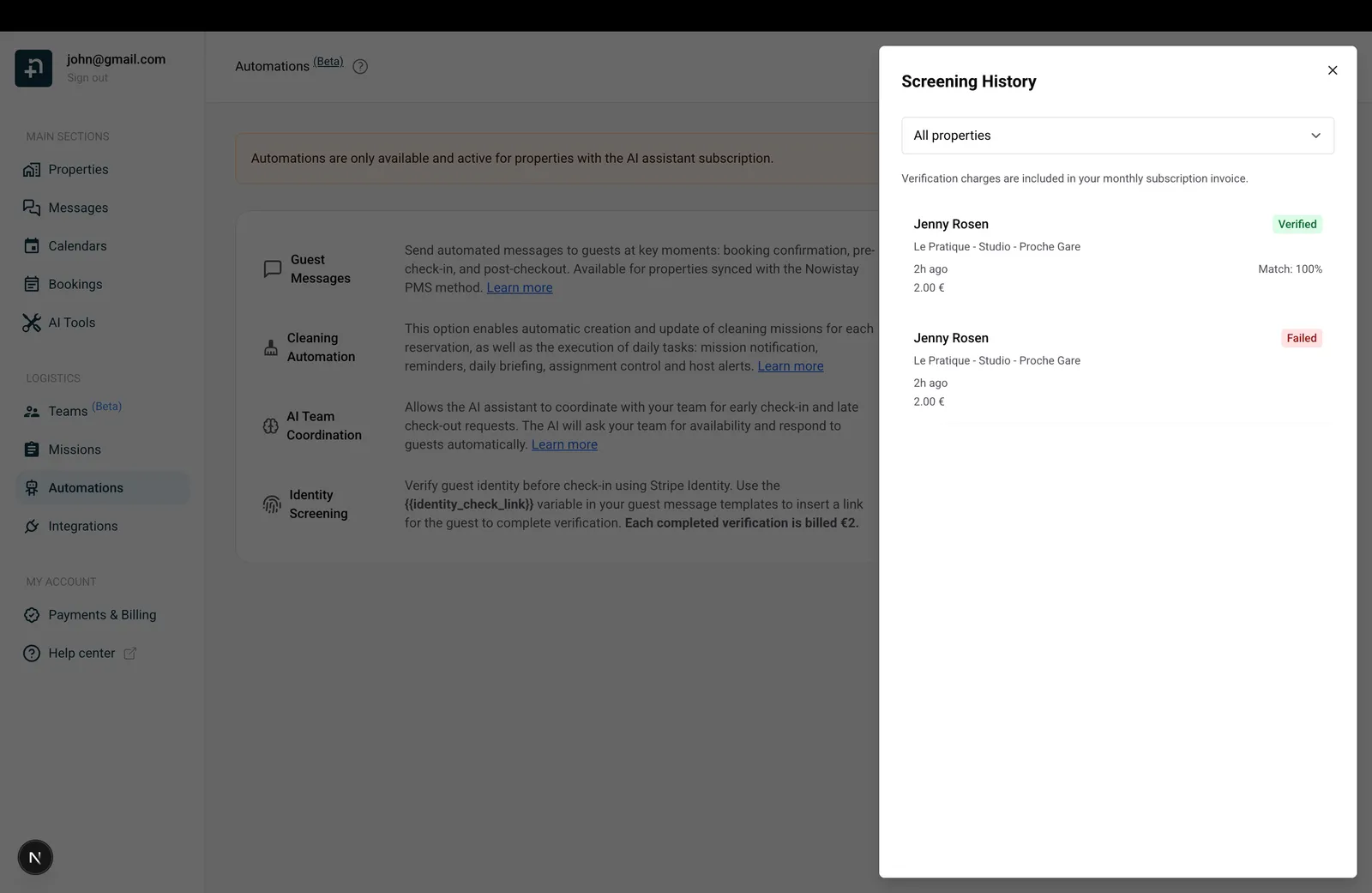
Each completed identity verification costs €2. Verification charges are included in a monthly invoice separate from your property subscriptions invoices. You can always check and download your invoices from your Payments dashboard.
Only completed verifications are billed; if a guest doesn’t complete the verification process, there is no charge.
Guides for hosts: read the blog.
Ready to Put Your Rental on Autopilot?
