What this is
Nowistay’s AI assistant doesn’t just reply to your guests. It also spots issues, requests, and time-change negotiations inside guest conversations and turns them into trackable inquiries you can review, accept, or refuse from one place.
Five inquiry types are detected automatically:
- Early check-in: the guest asks to arrive earlier than the standard time.
- Late check-out: the guest asks to leave later than the standard time.
- Schedule change: the guest informs you of a confirmed arrival or departure time.
- Incident: the guest reports a problem (broken heater, leak, smoke alarm, etc.).
- Request: the guest asks for an item or service (extra towels, breakfast, mid-stay cleaning, etc.).
Once detected, the inquiry is routed to the right person (you or your team), notified via email and WhatsApp, and resolved with a single click. Accepted incidents automatically open a maintenance task; accepted requests automatically add a note to the cleaning task; accepted time changes automatically update the booking and notify the cleaner.
You can also log a request or an incident yourself, straight from the booking, when a guest tells you about it by phone, at the door, or in a conversation the assistant does not manage. Your team gets the same notification and the same follow-up as for an AI-detected inquiry. See Step 6 below.
Where to find it
The feature lives in three places:
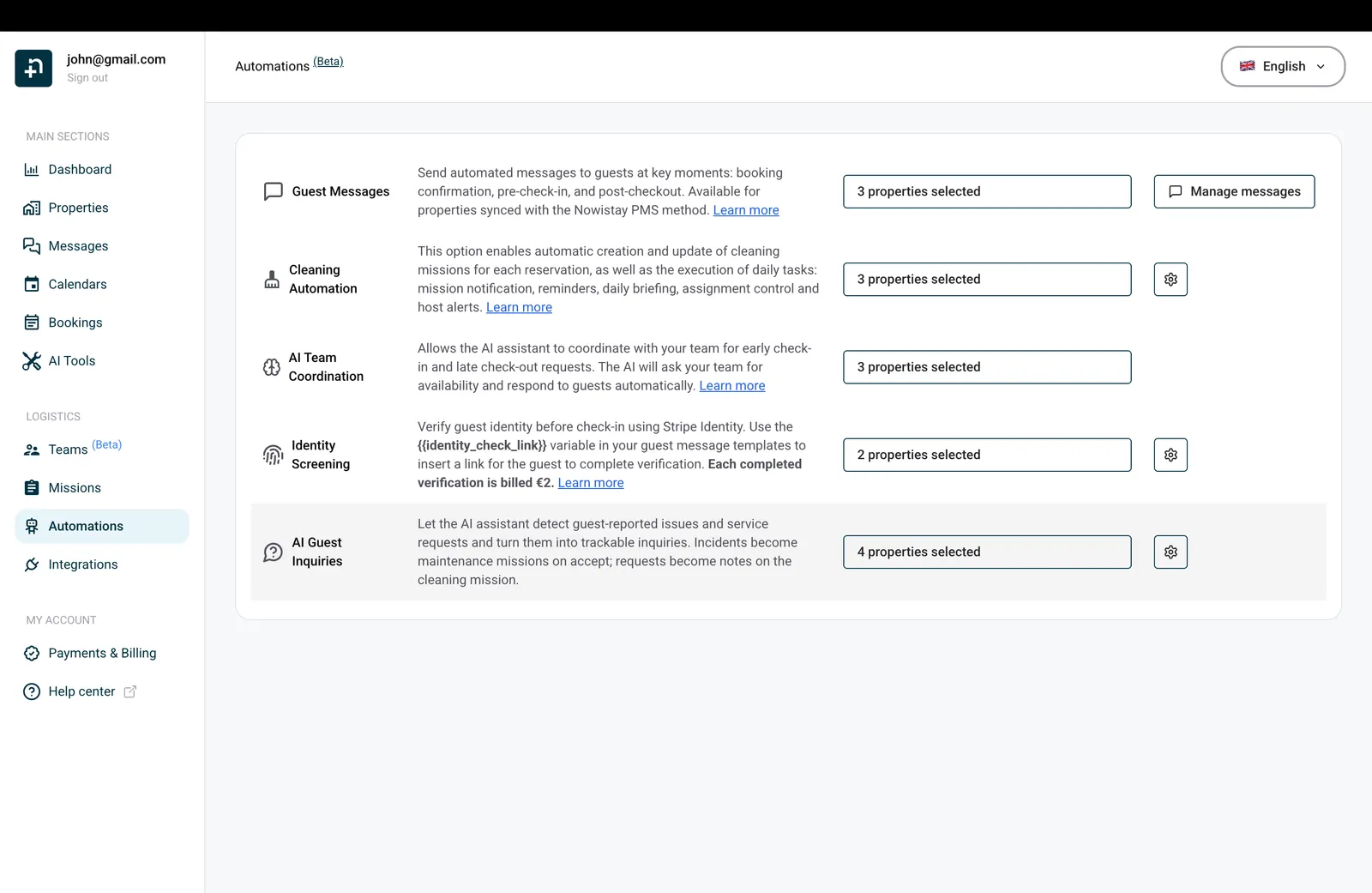
- Automations: the “AI Guest Inquiries” row enables the detection per property and exposes the routing settings.
- Bookings page: the “Incidents & Requests” drawer (top-right icon) lists every inquiry across your portfolio with filters and one-click actions.
- Booking details: the “Inquiries” section of a booking’s detail panel lists the inquiries for that stay and lets you add one yourself.
How it works in 30 seconds
- A guest sends a message in any thread your assistant manages (Airbnb, Booking.com, WhatsApp, direct, etc.).
- The assistant reads the message and decides if it contains an issue, a request, or a time change.
- If yes, an inquiry is created and the right recipient is notified.
- The recipient clicks Accept, Refuse, or Mark as handled, and the right side effect happens automatically.
- Everything is visible in the Incidents & Requests drawer for audit and follow-up.
Step 1: Enable AI Guest Inquiries on your properties
- Go to Automations.
- Find the AI Guest Inquiries row.
- Click on the property selector and pick the properties you want to enable. The automation is active by default for all your properties on first visit, so you usually have nothing to change.
The detection runs only when:
- The property has the AI Channel Manager subscription, AND
- The property is selected in the AI Guest Inquiries automation.
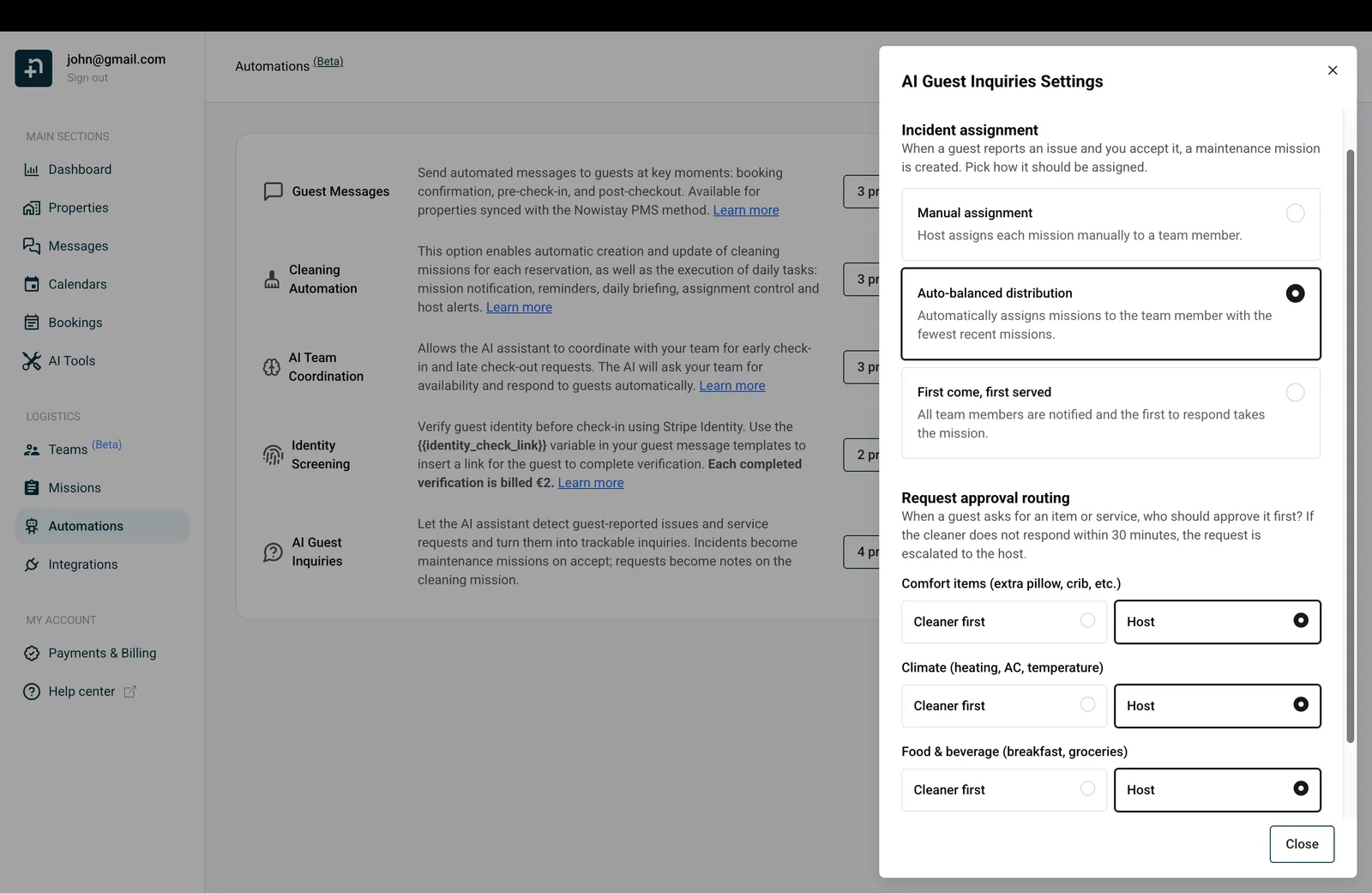
Click the gear icon at the end of the AI Guest Inquiries row to open the settings panel. Two sections appear.
Incident assignment
When you accept an incident reported by a guest, Nowistay creates a maintenance task. This setting decides who is auto-assigned to that task:
- Manual assignment: you assign each task yourself.
- Auto-balanced distribution (default): the task goes to the team member with the fewest open missions, so workload stays balanced.
- First come, first served: every member is notified, and whoever picks it up first owns it.
Request approval routing
When a guest asks for an item or service, who should approve the request first? Pick per category:
- Cleaner first: the cleaner assigned to the booking’s cleaning mission gets the accept/refuse notification with a 30-minute timeout. If they don’t respond, it escalates to you automatically.
- Host (default for all categories): you decide directly, no cleaner step.
The four categories are:
- Comfort items: extra pillow, crib, towels, toilet paper, coffee pods, kitchen towel, etc.
- Climate: heating, AC, temperature changes.
- Food & beverage: breakfast, welcome basket, drinks.
- Service: mid-stay cleaning, airport transfer, parking reservation, luggage storage, laundry/pressing.
By default everything routes to Host. Switch any category to Cleaner first if you want your cleaner to handle small comfort items directly without bothering you.
Step 3: What the assistant detects (with examples)
The assistant only fires when the guest’s message contains an explicit problem or request. Information questions, greetings, and thank-you notes are ignored.
Triggers an inquiry
- “The heater isn’t working in the bedroom.” → Incident / Heating & A/C
- “There’s a leak under the kitchen sink.” → Incident / Plumbing
- “Could we get an extra pillow and two towels?” → Request / Comfort item
- “There’s no more toilet paper.” → Request / Comfort item (a missing item is treated as an implicit request)
- “Could you arrange a breakfast for tomorrow?” → Request / Food & beverage
- “Can we check in at 12:30 instead of 3pm?” → Early check-in
- “I’ll arrive at 7pm, just so you know.” → Schedule change
Does NOT trigger an inquiry
- “Hi! We just arrived, the apartment is lovely!” → greeting / compliment, ignored.
- “Thank you so much for everything.” → thank-you, ignored.
- “What time is checkout?” → information question, the assistant answers from your knowledge base.
- “Where can I park the car?” → information question, no service request.
- “How does the thermostat work?” → information question, no climate request.
Step 4: Notification flow
Every inquiry is delivered through the right channel to the right recipient. Here’s exactly what happens.
Time changes (early check-in, late check-out, schedule change)
- The cleaner assigned to the booking gets a WhatsApp + email with Accept / Refuse buttons.
- You get an “awareness” email so you know the request is being handled.
- If the cleaner doesn’t respond within 30 minutes, you get a follow-up email and can decide yourself.
- When the inquiry is resolved (accepted or refused), the assistant writes a reply to the guest automatically in their language with the outcome.
- If the time is accepted, the booking is updated and the cleaning mission is rescheduled if needed.
Incidents
- You receive an email (and WhatsApp if the check-in is within 2 days) with the category, summary, and dates.
- You click Accept → a maintenance mission is created and assigned per your routing setting.
- You click Refuse → the inquiry is closed, no task is created.
- The assistant does not message the guest about the resolution. You handle the conversation yourself.
Requests routed to host (default)
- You get an email (and WhatsApp if check-in is within 2 days) with category, summary, and a link to view the request.
- Accepting adds a note to the cleaning task for that booking, so your cleaning team prepares what was requested before arrival.
- Refusing closes the inquiry with no side effect.
- If the request was added to the cleaning task, the assigned cleaner is notified by email so they can plan.
Requests routed to cleaner first
- The cleaner gets a WhatsApp + email with Accept / Refuse.
- You receive an awareness email at the same time so you’re informed.
- If the cleaner accepts, the request becomes a note on the cleaning task and you receive a confirmation email.
- If the cleaner refuses, you receive an email so you can take over and reply to the guest yourself.
- If the cleaner doesn’t respond within 30 minutes, the request escalates to you for direct decision.
Step 5: Review and act from the Incidents & Requests drawer
Open the drawer from the icon in the top-right of the Bookings page (the chat-bubble icon with a number badge). It lists every inquiry across your portfolio with three filters: property, type, and status.
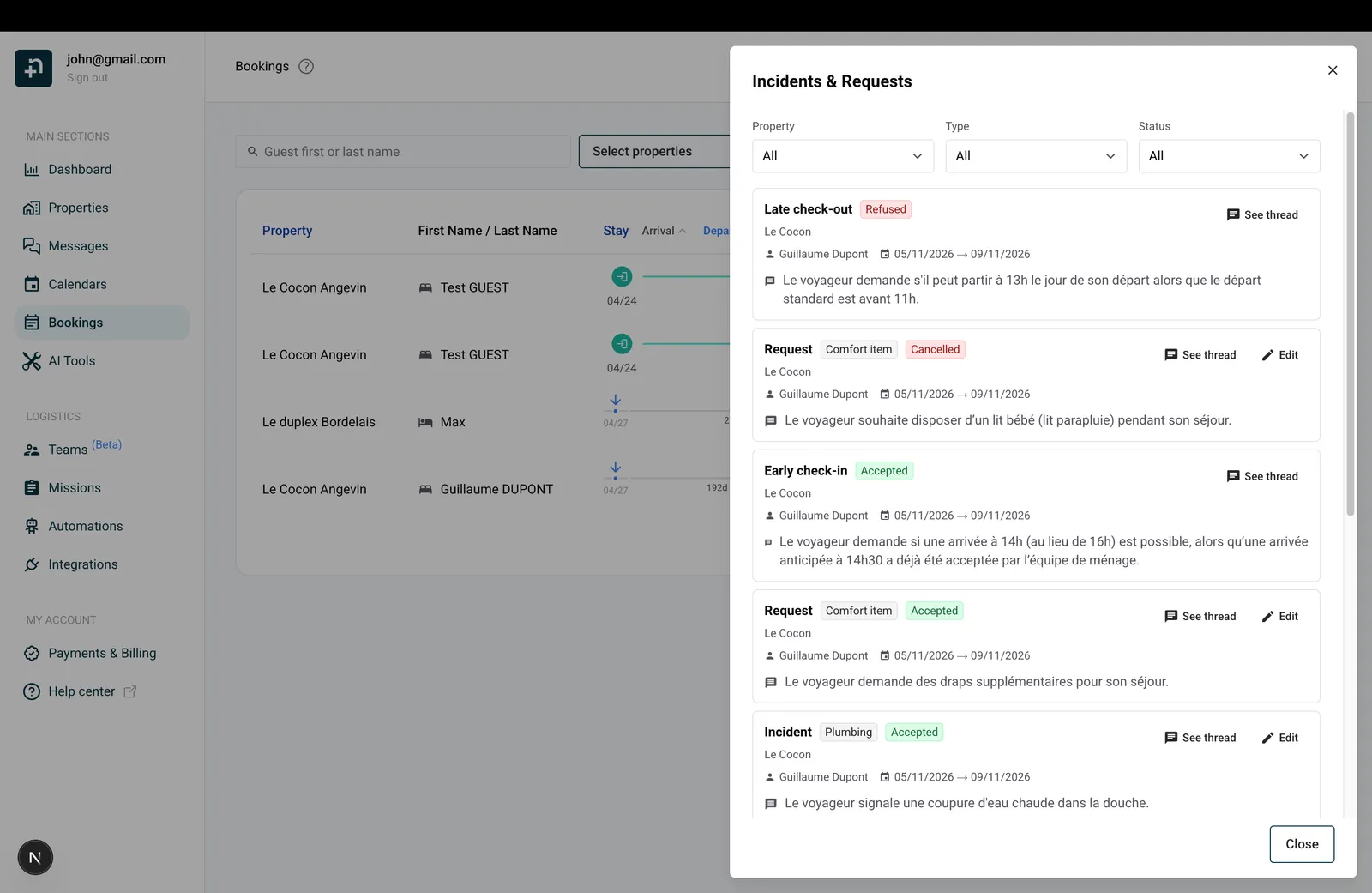
Each card shows:
- Type and category (Incident / Request / Early check-in / Late check-out / Schedule change).
- Status (Pending, Accepted, Refused, Timed out, Cancelled).
- Property, guest name, booking dates.
- The summary written by the AI assistant, or the note you typed for an inquiry you added yourself.
- Action buttons.
Three actions on a pending inquiry
- Mark as handled: closes the inquiry silently. No AI message to the guest, no maintenance task, no note added. Use this when you want to handle the conversation yourself.
- Refuse: declines the request. For time changes, the AI sends a polite refusal to the guest in their language. For incidents and requests, no message is sent.
- Accept: approves the request. The right side effect runs (booking update / maintenance task / cleaning note). For time changes, the AI sends a confirmation message to the guest.
Each button opens a confirmation modal explaining exactly what will happen so you can’t miss the consequences.
Other actions
- See thread: opens the guest’s conversation in a side drawer so you can read the original message and the AI’s reply before deciding. Inquiries you added yourself have no conversation behind them, so this action is not shown for them.
- Edit (incidents and requests only): if you think the AI miscategorised the inquiry (e.g. it filed a climate question as a request), you can change the category, or even change the type from Request to Incident, while the inquiry is still pending. The previous notifications are invalidated and fresh ones are sent to the right person.
Step 6: Add an inquiry yourself
Not every request goes through the assistant. A guest may call you, mention something at check-in, or write on a channel the AI does not manage. Instead of texting your cleaner or creating a maintenance task by hand, log it as an inquiry on the booking. Your team gets the same notification and the same follow-up as for an AI-detected one, and the booking’s history stays complete.
- Open the Bookings page and click the booking to open its details.
- Scroll to the Inquiries section and click the + button (Add an inquiry). The button appears on confirmed and pending bookings only.
- Pick the type: Request or Incident. Only these two types can be added by hand.
- Choose a category. Requests use the same four categories as above (Comfort item, Climate, Food & beverage, Service). Incidents use Plumbing, Electrical, Appliance, Heating / A/C, Structural, Safety, Cleanliness, or Other.
- Describe what the guest asked or reported in Details (up to 1,000 characters). Write it the way you would brief your team: the text is passed on as is.
- Click Create.
What happens next:
- The inquiry is saved directly as Accepted. You wrote it, so there is nothing to accept or refuse and no 30-minute timeout.
- Incident: a maintenance task is created and assigned according to your Incident assignment setting, exactly as if you had accepted an AI-detected incident.
- Request: the request is added to the cleaning task for that booking and the assigned cleaner is notified by email. The Cleaner first routing does not apply, since there is nothing to approve.
- The guest is not messaged. The note is internal, so if you want to confirm something to the guest, reply to them yourself.
- The entry is labelled “Added manually by the host” in the booking’s Inquiries section, and it also appears in the Incidents & Requests drawer with everything else.
Adding an inquiry requires the AI Channel Manager subscription, like the rest of the feature, but it does not depend on the AI Guest Inquiries automation being enabled for the property.
Statuses you’ll see
- Pending: inquiry just created, waiting for a decision.
- Accepted: you (or your cleaner) clicked Accept, or you added the inquiry yourself. The side effect ran.
- Refused: declined.
- Timed out: routed to a cleaner who didn’t respond in 30 minutes; escalated to you.
- Cancelled: either the AI or you marked it as handled (no side effect).
Tips and good practices
- Trust the badge. The number on the inquiries icon counts only inquiries that need your attention (Pending and Timed out). Aim for zero on a daily basis.
- Use “Mark as handled” when you reply manually. If you prefer to write to the guest yourself instead of letting the AI send the standard confirmation, mark the inquiry as handled before answering. This keeps your dashboard clean and avoids a duplicate AI message.
- Set comfort items to “Cleaner first” if your cleaner is responsive. Small things like extra towels or coffee pods are usually faster handled by the cleaner directly. You stay in the loop via the awareness email.
- Edit miscategorisations early. If the AI labels a climate question as a request, fix the category in the drawer while it’s pending. The accept/refuse logic uses the category, so getting it right matters.
- Log what you hear offline. If a guest mentions at check-in that the shower drains slowly, add an incident from the booking right away. Your maintenance team gets the same task as for an AI-detected one, and nothing depends on your memory.
- Combine with the AI assistant. The detection runs only when the AI assistant is active on the property. If you want the AI to answer guests but not detect inquiries, you can leave AI Guest Inquiries off, but most hosts find the two together to be the killer combo.
FAQ
Will the assistant message my guest about an incident or request?
No. Incidents and requests are silent on the guest side. The AI replies to the guest naturally as it always does, but no extra “ticket created” or “your request has been logged” line is added. The notification is internal only.
Can the AI send a guest message when I accept a time change?
Yes, that’s the design. For early check-in, late check-out, and schedule change, accepting or refusing automatically sends a confirmation to the guest in their language. If you’d rather write the reply yourself, click Mark as handled instead.
Can I add an inquiry the AI did not detect?
Yes. Open the booking, go to the Inquiries section and click Add an inquiry. Pick Request or Incident, choose a category, describe it, and it is saved as accepted with the same follow-up as an AI inquiry (maintenance task or cleaning note). It works on confirmed and pending bookings and requires the AI Channel Manager subscription. See Step 6 for the details.
What if my cleaner doesn’t use WhatsApp or email?
You’ll see Pending inquiries timing out and escalating to you. Either keep routing to Host, or update your cleaner’s contact preferences in the Teams page.
What happens if there’s no cleaning mission yet for the booking?
Routing to “Cleaner first” falls back to you automatically. When the cleaning mission is later created (automatically or by hand), any accepted requests are backfilled as notes on the new mission, so nothing is lost.
Can I see old inquiries that are already resolved?
Yes. Open the drawer and switch the Status filter from “Unresolved” to “All” or to a specific status. Resolved inquiries stay in the history forever.
How do I know which category an AI-detected request belongs to?
The drawer shows the category as a tag next to the type. If you disagree with the AI’s call, click Edit on the row and change it.
