
Pay your team per mission and receive their invoices
Updated
Most cleaners and contractors are paid per mission and send you one invoice a month. Nowistay keeps the count for both sides: you set what a mission is paid, each member sees their month on their team dashboard and sends you their invoice from there, and you check it against the list of their missions before validating it.
Nothing changes for your team until you set an amount: without one, no amount shows on their missions and no Financials tab appears on their dashboard (owners keep their own).
How the amount of a mission is decided
Each mission gets one amount, excluding tax. Nowistay takes the first of these that applies:
- The amount typed on the mission. It always wins, for any type of mission (a deep cleaning, a repair, an urgent job). Typing 0 means the mission pays nothing.
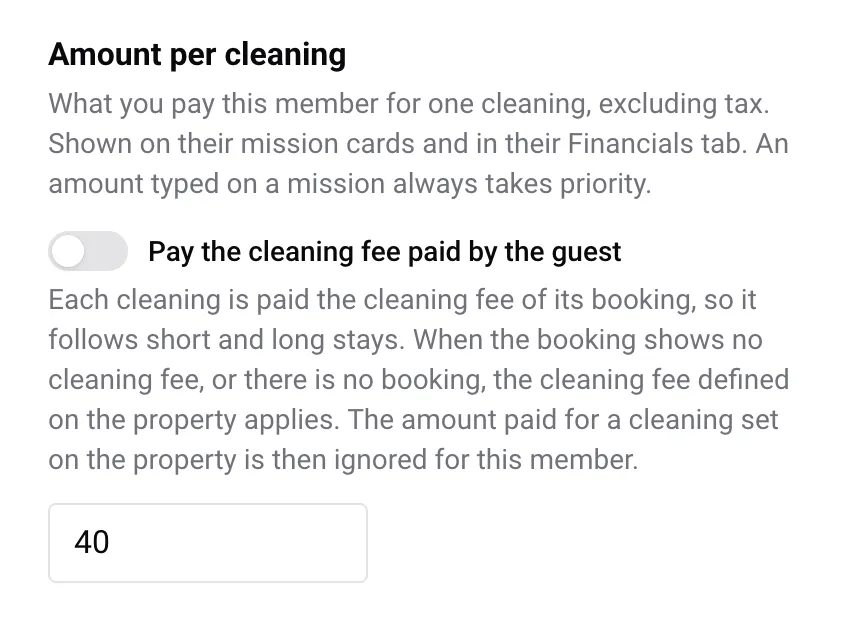
- The cleaning fee the guest paid, for a cleaning done by a member set to Pay the cleaning fee paid by the guest. Nowistay takes the cleaning fee of the cleaning’s booking, so short and long stays each pay their own fee. When the booking shows no cleaning fee (missing, 0, or no booking at all), the cleaning fee set on the property applies, with the short-stay fee for stays of 1 or 2 nights.
- The amount paid for one cleaning set on the property, for a cleaning, whoever does it.
- The member’s usual amount per cleaning, for a cleaning on a property without its own amount.
Rules 2 to 4 only apply to cleanings. A maintenance, urgent or custom mission counts only when you type an amount on it.
While a mission is not done, its amount follows your settings: change a price or give the mission to someone else, and the amount follows. When the mission is completed, its amount is fixed and only changes if you edit it by hand.
Set the amounts
On a team member, for cleaners:
- Go to Teams and click the gear icon (Settings) next to the member.
- In Amount per cleaning, either type their usual amount, or turn on Pay the cleaning fee paid by the guest.
- Click Save.
On a property, when a cleaning of that property is paid the same whoever does it: go to Properties, click the More actions button (three dots) on the property’s card, then Property infos, and fill in Amount paid for one cleaning (excl. tax). Only you, the account holder, can set it.
On a mission, for a one-off price or any mission other than a cleaning: open the mission from Missions and fill in Amount paid to the team member (excl. tax). Leave it empty to let the rules above decide.
What your team member sees
Once logged in on their dashboard, the member sees:
- Their amount on each of their mission cards. The amount shows only to the logged-in member, never to someone who simply has the link. A card with a member amount never shows the guest cleaning fee instead.
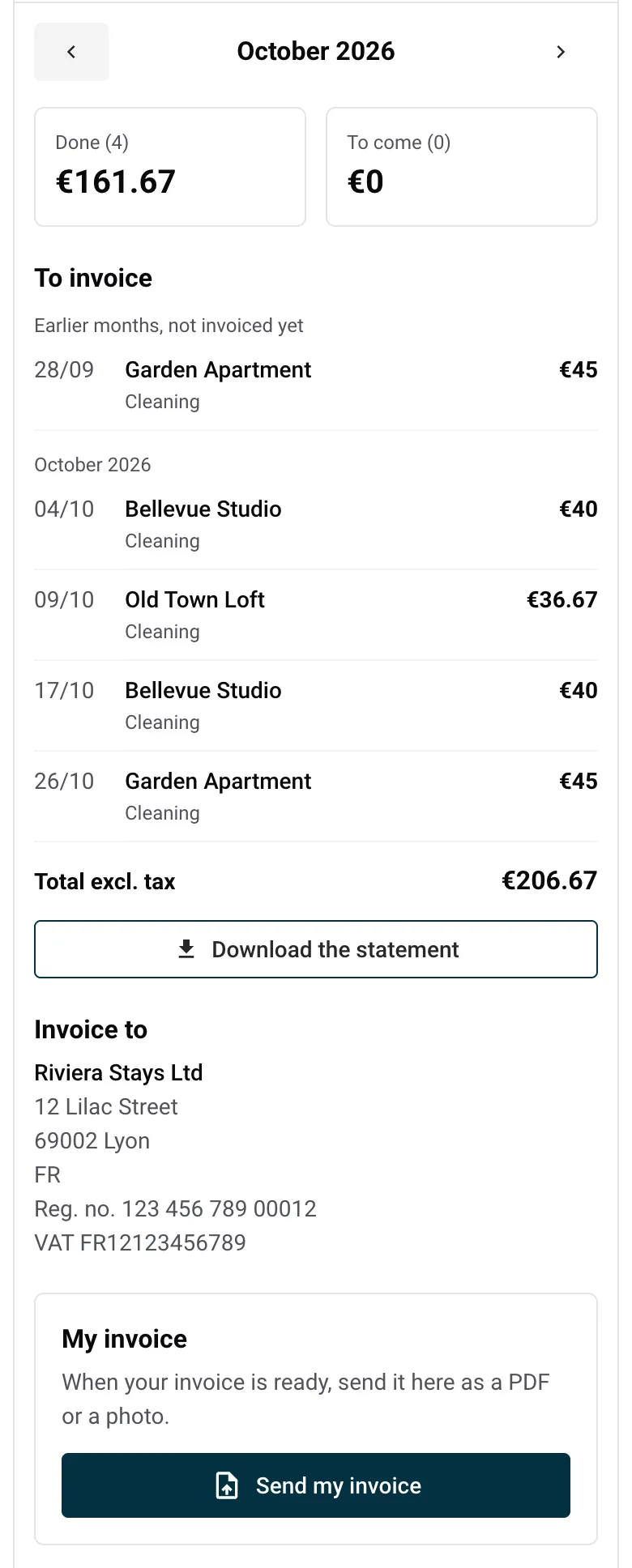
- A Financials tab with their month: the total done and the total to come, then the list of missions done with their amount.
Before logging in, the tab shows no amount, mission or invoice, only a Log in button.
The Financials tab appears for any role (cleaning, maintenance, urgency and others) as soon as an amount exists for that member: their usual amount, the guest cleaning fee switch, an amount on one of their properties, or an amount on a mission they hold. A member who is also a property owner sees their property’s revenue in the same tab, below their own month.
How your team member sends you their invoice
A month is invoiced once it is over: November’s invoice can be sent from 1 December.
- On their dashboard, the member opens Financials and goes back to the month just ended (during the month, the tab shows Invoice the previous month).
- Under To invoice, they check the missions of the month and, under Earlier months, not invoiced yet, missions of past months that were never invoiced. They click Download the statement to get the list as a PDF, ready to copy into their own invoice.
- Invoice to shows your name, address and tax numbers, as recorded in Account > Invoicing details.
- Under My invoice, they click Send my invoice and pick a PDF or a photo of their invoice (10 MB maximum).
You get a Team member invoice received alert. Until you validate it, the member can still Replace my invoice.
Nowistay does not write the invoice: each member writes their own and sends it here. The statement is only the list of missions to invoice.
Check and validate an invoice
- Open Missions and click Team month (receipt icon) at the top of the page, or tap the alert.
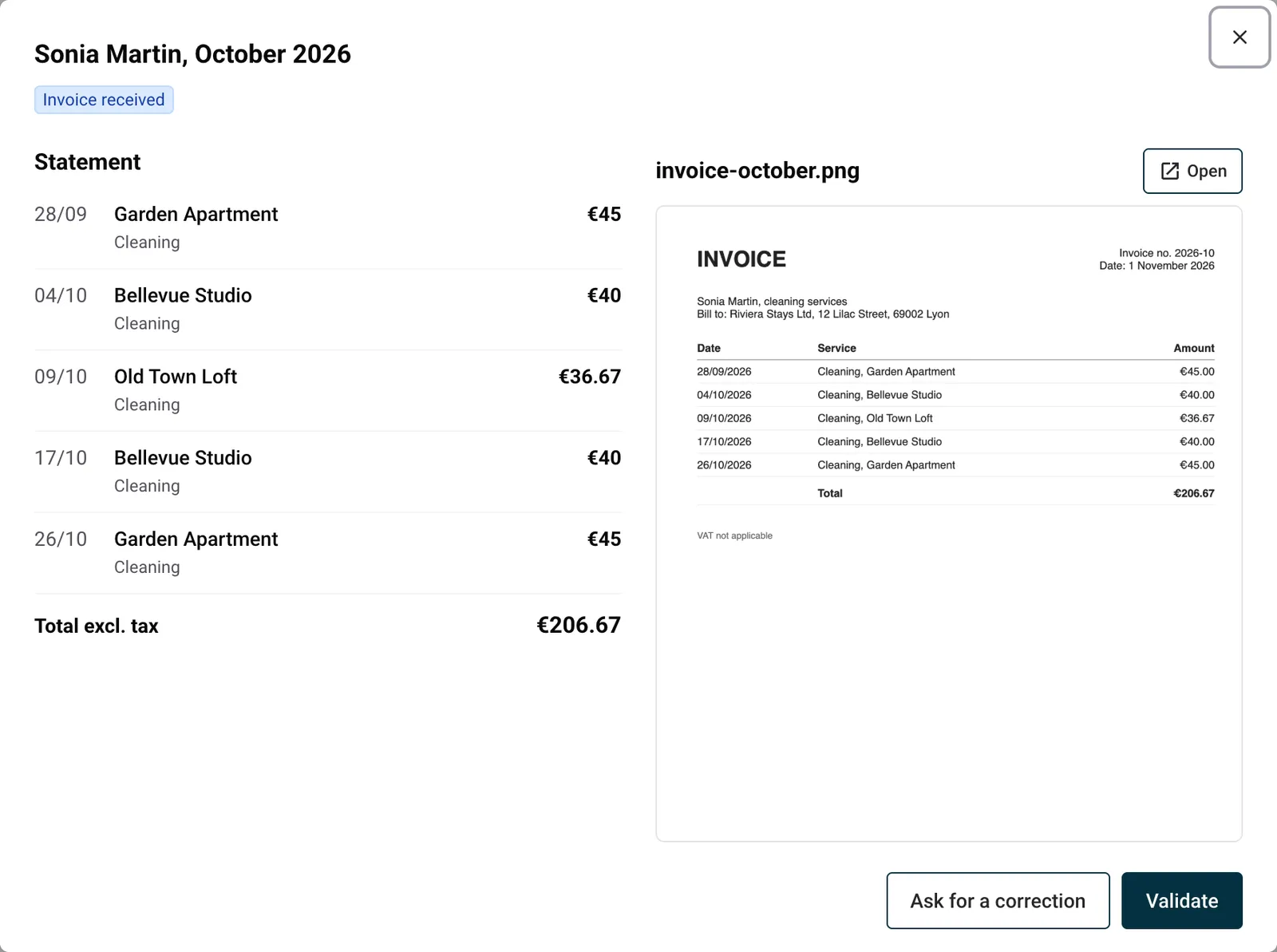
- Each member has a row with the missions done and to come, their amount, and the status of their invoice: Invoice received, Invoice validated, Correction requested or No invoice sent.
- Click Check. The invoice opens next to its Statement: the missions and their amounts.
- Click Validate, or Ask for a correction, write what is wrong (for example “the cleaning of the 12th is missing”) and click Send.
The member is told either way. After a correction request, they send a new file for the same month.
If an amount changed after the member sent their invoice, the check says so and shows the total then and now. Validating applies to the statement as you see it.
Once an invoice is validated, its missions are locked: their amount, status and assignee no longer change and they can’t be deleted. A mission done in an earlier month and counted after its month was validated moves to the next statement, under Earlier months, not invoiced yet.
Hide the Financials tab from a member
If you handle invoices on your side, open the member’s Settings and turn off Show the Financials tab. The member no longer sees the tab, whatever their role, owners included, and you keep the amounts, the Team month and the statements. The amounts on their mission cards stay visible to them when logged in.
Good to know
- A team member who works in your app can’t pay themselves. A member with access to your Nowistay app can’t set the amount of a mission they hold or validate their own invoice. If they type an amount on a mission and then take it, the amount they typed is dropped and the usual rules apply. The amount per cleaning of a property is yours alone to set.
- A member with missions done but not invoiced can’t be deleted while active. Deactivate them first (Active switch in their settings), then delete them.
- Bookings removed, missions kept. If a booking is deleted (for example after you switch channel manager and the bookings are re-imported), its completed cleanings that carry an amount stay, so nothing owed disappears.
- Invoices stay private. The files your team sends are only shown to you, to the members you gave the team section of your app, and to the member who sent them.
- ChatGPT, Claude and the API. Through ChatGPT or Claude and the public API, a mission shows its final amount, the one the rules above decide, and you can set an amount on a mission. A locked mission refuses a new amount, status or assignee there too.
Guides for hosts: read the blog.
Ready to Put Your Rental on Autopilot?