When managing a short-term rental (Airbnb, Booking, etc.), one of your most critical responsibilities is handling your team: cleaning, maintenance, urgency, and day-to-day operations. Very quickly, this can turn into a real headache.
You need to make sure a cleaner is available for every booking, that they clearly understand what needs to be done, and that the job is properly completed. Once the task is finished, you still have to ensure nothing was forgotten and that any issue discovered is reported.
A guest leaves the property dirty, a hole appears in a wall, bed linen is missing, or there's no toilet paper left. You know how it goes. One small oversight is all it takes for the next guest to leave a bad review and a low rating.
That's why having a perfectly organized workflow and flawless operational management is essential. With Nowistay, you can automate this entire process to make sure no task (mission) or check is ever forgotten, while still keeping full visibility and control over your operations.
How to enable task automation
Here are the steps to enable team and task automation:
If needed, from the bookings section, click the "Create Missing Cleaning Missions" button. It will create all cleaning missions for past bookings that don't have one.
Add the checklists your team must go through for each task type.
Once that's done, here's what will happen for cleaning tasks:
For every new booking, a cleaning task will be automatically created and assigned to the cleaning team.
If the cleaning team has only one person, they will be automatically assigned to the cleaning task and will receive an email/WhatsApp notification.
If the cleaning team is composed of several people, the behavior depends on the assignment mode you have configured (see below).
Once the task is assigned, the person receives a morning brief for the day of the task summarizing the mission. It indicates the scheduled date, the number of expected guests, etc. They can indicate that they started the task by clicking a button in the WhatsApp or email message.
The evening before, at 6 pm (property time), they also receive a next-day brief with the mission time and the next arrival, and by email the accepted guest requests to prepare, such as a baby bed or extra linen.
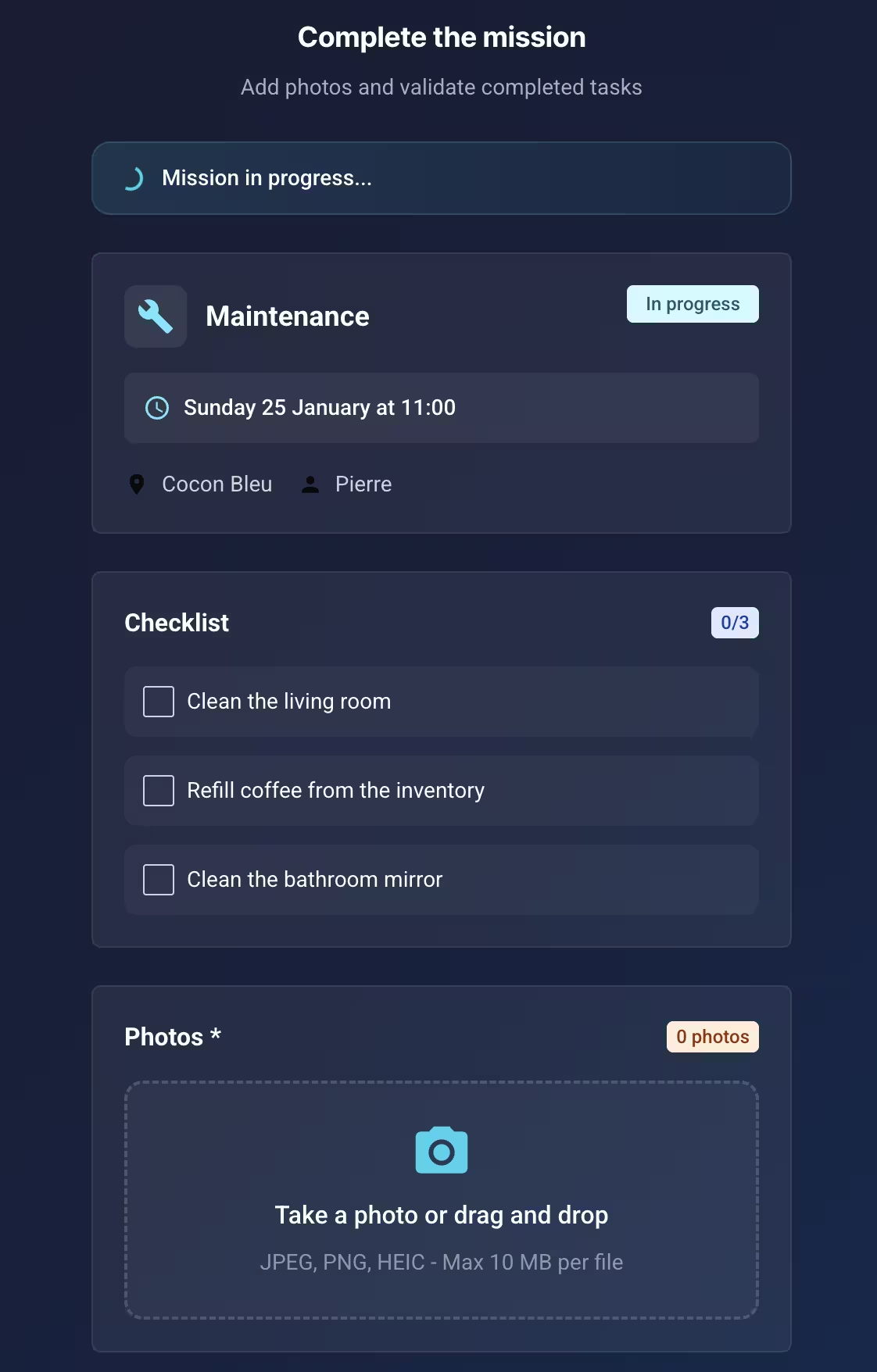
When the task is completed, they fill in a form that walks them through the cleaning checklist you defined, take photos, and add a comment if necessary. Then they click "Finish task". The task is marked as completed.
After completion, you receive an email/WhatsApp confirmation with a link to view the task report (photos, etc.).
Of course, you can add, modify, assign, or cancel tasks at any time from the "Tasks" section.
You can create tasks of several types:
Cleaning: linked to a booking, created automatically when automation is enabled.
Maintenance: for repair and upkeep tasks.
Urgency: for urgent issues requiring immediate attention.
Custom: for any other type of task.
Assigned team members will be notified and, as explained above for cleaning, they will receive the next-day brief the evening before, then the morning brief, and can submit a report at the end of the task.
The only difference between cleaning tasks and the others is that cleaning tasks must be linked to a booking, and their creation can be automated by enabling automation from the "Automation" section. Other task types can be linked to a booking, but this is optional.
Team member roles and shared calendar access
Each team member can be assigned one or more roles that determine what they can do and what they can see. Nowistay supports six roles:
Cleaning: for your housekeeping staff. Cleaning missions are automatically assigned to members with this role.
Maintenance: for repair and upkeep. Maintenance missions go to members with this role.
Urgency: for urgent guest-reported issues (water leaks, lockouts). Urgency missions are routed to these members.
Manager: for a team lead or property manager who needs an overview of all operations.
Check-in: for someone who handles guest arrivals and needs to know about every booking.
Owner: for the property owner who wants full visibility on their property's bookings and a financial snapshot.
An important distinction is how each role affects shared calendar visibility. Every team member gets a personal shared calendar link they can access without logging in. What they see on that calendar depends on their role:
Cleaning, Maintenance, and Urgency roles only see bookings that are linked to their assigned missions. This keeps things focused: a cleaner sees only the bookings they need to prepare for, not the full calendar.
Check-in, Owner, and Manager roles see all bookings for their linked properties. This gives them a complete picture of the property's schedule, which is essential for coordinating arrivals, managing availability, or simply keeping an eye on operations.
A team member can have multiple roles at once. For example, a person can be both Cleaning and Check-in, which means they will receive cleaning missions and have full calendar visibility.
For owners specifically, the shared dashboard also shows a Financials tab with revenue, occupancy and channel breakdown. See Share the team dashboard.
Assignment mode: how tasks are distributed to your team
When a property has multiple team members with the same role (e.g. two cleaners), Nowistay needs to know how to distribute tasks among them. You can configure this from the Automations page by clicking the settings icon next to the Cleaning Automation.
Four assignment modes are available:
Manual assignment: every automatically generated task is assigned to you, the host (status: Pending Host). You are then responsible for manually assigning each task to a specific team member. This gives you full control over who does what.
Auto-balanced distribution: Nowistay automatically assigns each new task to the team member who has had the fewest recent missions. This ensures a fair and even workload distribution across your entire cleaning team, without any manual intervention. If one member has completed 5 missions and another only 2, the next mission will go to the one with 2.
First come, first served: all eligible team members receive a notification (email and/or WhatsApp) and the first person to accept takes the task. This is ideal when your team members have flexible schedules and you want them to self-organize.
Main cleaner with backups: you choose one main cleaner for each property. They receive every cleaning task for that property whenever they are available. On their days off, the task goes automatically to another eligible cleaner linked to the property (the one with the fewest recent missions), and you receive an email letting you know a backup was used.
Setting up a main cleaner for each property
When you select Main cleaner with backups, a Main cleaner by property section appears in the same settings panel. Use the property search to find each property, then pick its main cleaner from the list of eligible cleaners: active team members with the Cleaning role who are linked to that property. Every other eligible cleaner linked to the property automatically acts as a backup. You can save a partial setup and complete it later.
A few things to know about this mode:
It is available for the Cleaning automation only. Urgency tasks keep the three standard modes.
If a property has no valid main cleaner yet (none chosen, or the chosen person became inactive, lost the Cleaning role, or was unlinked from the property), its cleaning tasks are assigned to you (Pending Host) and you are notified so you can assign them manually.
If the main cleaner is off and no backup is available that day, the task is also assigned to you.
If the main cleaner or a backup cancels or refuses a task, the task comes back to you for manual assignment instead of being offered to the rest of the team.
Unlike the other modes, a property with a single cleaner is not assigned automatically until you choose that person as the main cleaner.
The dispatcher also respects each member's days off: a member on a configured off-day is skipped for new assignments. See availability settings.
Assignment modes apply to tasks generated automatically from bookings. When you create a task yourself from the task drawer, it stays under your control: either assign it directly to a specific team member, or pick "Automatic", in which case the task is kept on your side (Pending Host) until you assign it from the Tasks section.
In the three standard modes, if a property has only one team member with the required role, they are always automatically assigned regardless of the mode selected.
Ready to Put Your Rental on Autopilot?
Join 300+ property managers who save hours every week with AI-powered guest communication.