On Nowistay you can manage the tasks assigned to your teams. But it can quickly become tedious if you have to create a cleaning task every time a new booking is made for one of your properties.
By enabling automation, the main tasks (“missions”) will be created and managed automatically.
How to enable the automation of cleaning tasks (missions)
Then, on the “Cleaning Automation” line, click the list in the “Active properties” column. Choose the properties for which you want to enable automation. Only properties subscribed to the “AI Channel Manager” plan will work. You can tell because properties marked “(inactive)” will not work (even though you can still select them).
Click the “Save” button.
That’s it!
How does the automation of cleaning tasks work?
From now on, here’s what will happen while you enjoy your coffee:
If only one person is assigned to cleaning for that property, they will be automatically assigned and will receive a confirmation message (email and/or WhatsApp).
If several team members are assigned to cleaning for that property, the behavior depends on the assignment mode you have configured (see the section below).
Once a member is assigned, they receive a confirmation notification. That notification also includes a button to cancel if they can no longer fulfill the task.
If a member cancels and only one member remains in the team, they are automatically assigned and notified.
If multiple members remain, the system re-applies the configured assignment mode.
If all members decline or cancel, you are notified so you can take the necessary steps and reassign the task from the “Missions” section.
After a task is assigned, here’s what happens next:
The evening before the task, at 6 pm (property time), the assigned member receives a next-day brief with the mission time and the next arrival. Its email also lists the accepted guest requests to prepare, such as a baby bed or extra linen.
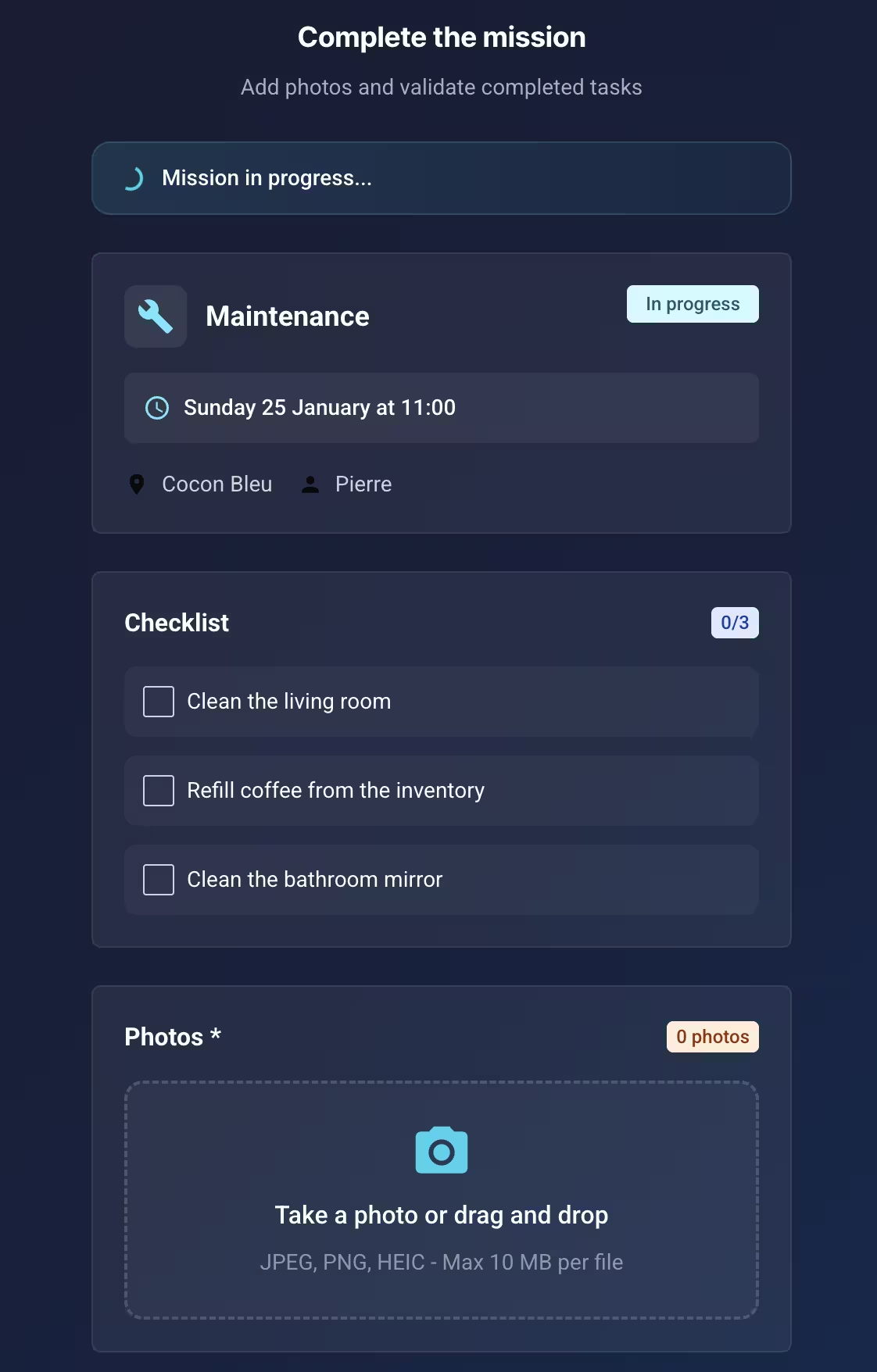
On the day of the task, the assigned member receives a briefing. The briefing includes a button that the member uses to start the task when they begin work.
The member can then complete the planned checklist (see how checklists work), add photos (mandatory), and optionally leave a comment before finishing the task.
When the task is completed, you receive a confirmation with the task duration and a link to view the intervention report (including the completed checklist, photos, etc.).
Assignment mode: choosing how tasks are distributed
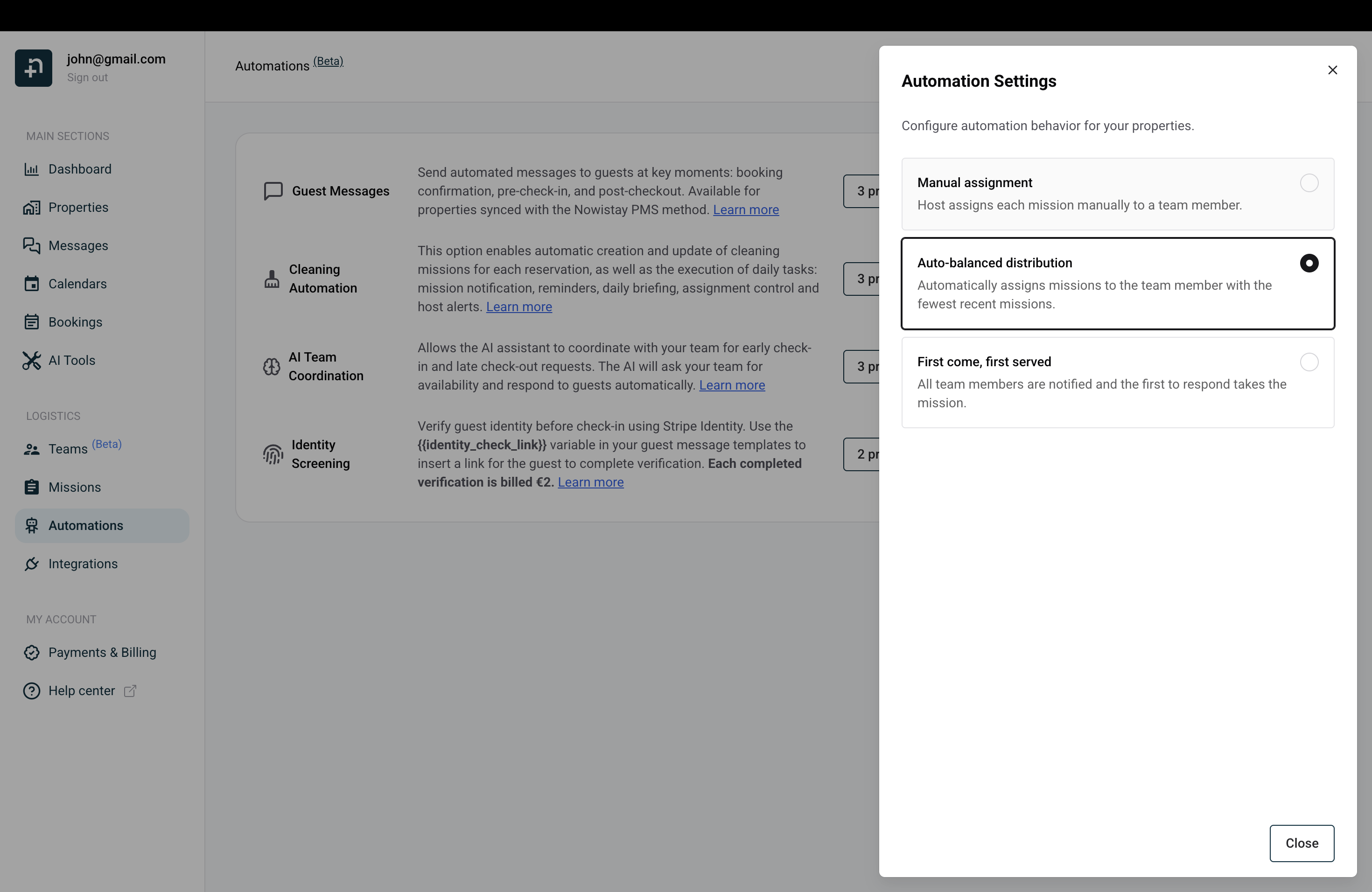
When a property has multiple team members with the same role (e.g., two cleaners), you can choose how Nowistay distributes tasks among them. To configure this, go to the Automations page and click the settings icon next to the Cleaning Automation.
Three modes are available:
Manual assignment: every automatically generated task is assigned to you, the host (status: Pending Host). You then manually assign each task to a specific team member. This gives you full control over who does what.
Auto-balanced distribution: Nowistay automatically assigns each new task to the team member with the fewest recent missions. This ensures a fair and even workload distribution. If one member has had 5 missions and another only 2, the next one goes to the one with 2.
First come, first served: all eligible team members receive a notification (email and/or WhatsApp) and the first person to accept takes the task. This is ideal when your team members have flexible schedules and you want them to self-organize.
When creating a task manually, you can also select “Automatic” in the assignee field to let the system apply the configured assignment mode instead of picking a specific person.
Other automations and reminders
Beyond task creation and assignment, other automations may also be triggered:
A morning reminder is sent to members of a task who are still awaiting confirmation that someone will take it.
A reminder to you as host or manager: if the day before a booking, no one has yet confirmed taking the cleaning task.
A reminder to you as host or manager: if a booking has no cleaning task associated with it.
Automations work for all types of tasks. The only difference is that cleaning tasks are the only ones created automatically for each booking. Other tasks (maintenance, emergency, etc.) must be created manually but still benefit from automatic tracking, mission reports, and team notifications.