How to connect ChatGPT, Claude, or Gemini to Nowistay (MCP)
Nowistay is compatible with the Model Context Protocol (MCP), the open standard that lets AI assistants like ChatGPT, Claude, and Gemini connect directly to your property management tools. Once connected, you can talk to your favorite AI assistant and ask it to read your bookings, update your calendar, manage your welcome guide, create cleaning missions, and much more — all without leaving the conversation.
This guide walks you through the setup for each platform, step by step.
Prerequisites
Before you begin, make sure you meet these two requirements:
Your properties must be connected via Nowistay PMS — only properties using Nowistay as their channel manager are accessible through the MCP integration. Properties connected through other channel managers (Beds24, Smoobu, Lodgify) are not available via MCP.
You need an active AI Channel Manager subscription — the MCP integration is part of the AI co-host feature. If you don't have an active subscription, you'll see an error when trying to authenticate.
You can check both requirements from your Integrations page in the Nowistay app.
Setup with ChatGPT
Nowistay is an official ChatGPT app. You add it straight from the Apps directory and connect your account.
Open ChatGPT on the web and click Plugins in the left sidebar.
Type "Nowistay" in the search bar, then select the Nowistay app from the results.
On the Nowistay app page, click Connect.
In the "Add Nowistay to ChatGPT" window, click Sign in with Nowistay.
You are taken to Nowistay's secure "Review this assistant connection" screen. Check the requested permissions, then click Approve access.
ChatGPT confirms "Nowistay is now connected." Click Start chat to begin.
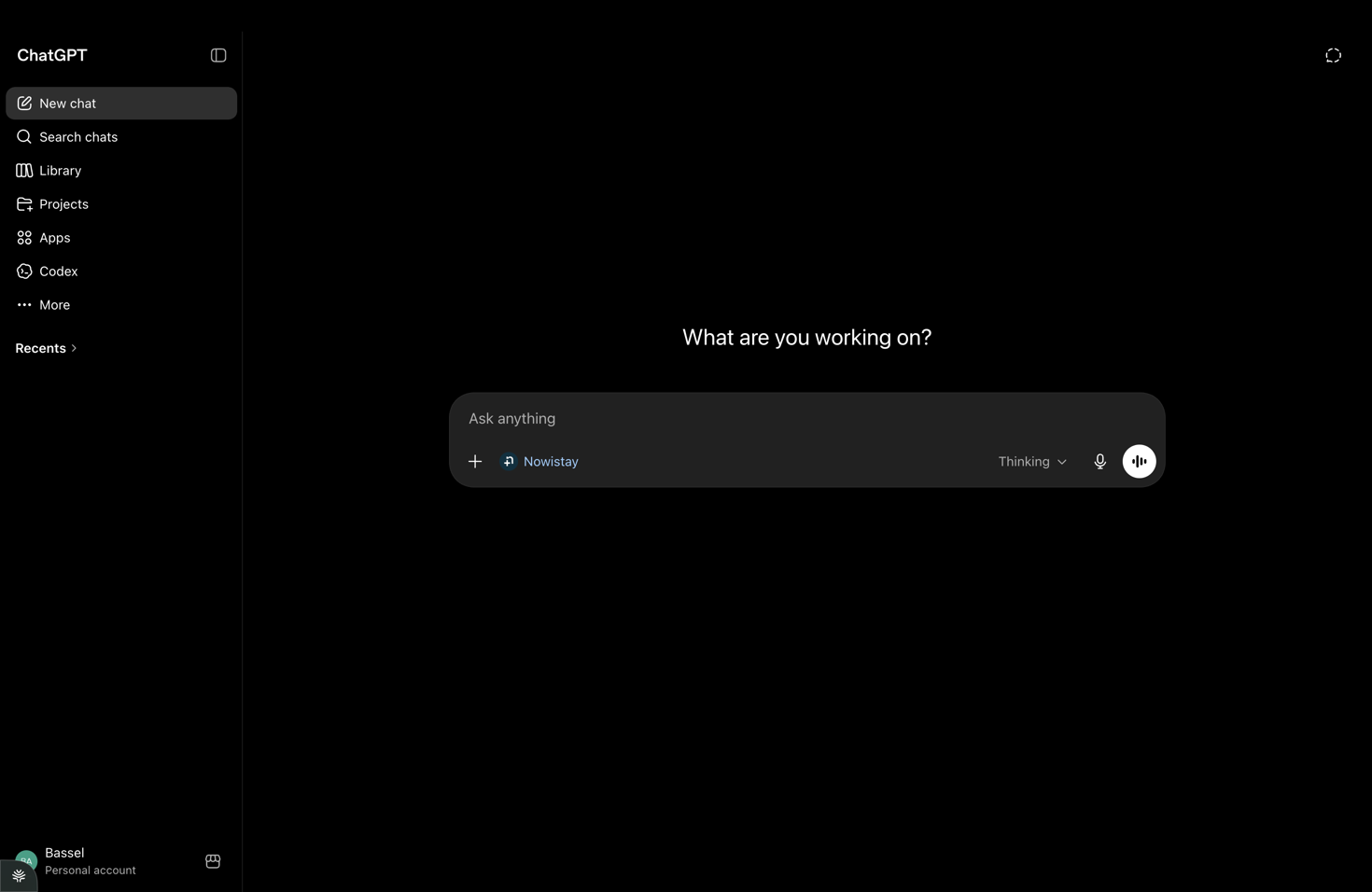
In any new chat, select Nowistay from the prompt bar, then ask about your bookings, prices, calendar, guest messages, missions, or welcome guide.
Note: The Apps feature and the actions available depend on your ChatGPT plan. Every write action shows you a preview and asks for an explicit confirmation before anything changes in your account.
Setup with Claude (web or desktop app)
If you use the Claude app on the web or desktop, you can add Nowistay as a connector:
Open Claude on the web (claude.ai) or on the desktop app.
Go to Settings > Connectors.
Click Add a custom connector and paste the server URL: https://api.nowistay.com/mcp
Sign in to Nowistay and approve access when prompted.
Start a new chat and you'll see the Nowistay tools available.
Setup with Claude Code (terminal)
If you use Claude Code in the terminal, the setup is a single command:
Open your terminal and run the following command: claude mcp add --transport http nowistay https://api.nowistay.com/mcp
Open Claude Code and type /mcp to verify the server is listed.
Click Authenticate, sign in to Nowistay, then approve access.
You're ready — ask Claude to check your bookings, update your calendar, send guest messages, or edit your welcome guide.
Setup with other AI assistants
Any AI assistant that supports the MCP protocol with HTTP transport and OAuth authentication can connect to Nowistay. This includes tools like Google Gemini, Cursor, Windsurf, and more as they add MCP support.
The principle is always the same:
Find the MCP or connector settings in your AI tool.
Add a new server with the URL: https://api.nowistay.com/mcp
Choose OAuth as the authentication method.
Sign in to Nowistay and approve access.
What the connection can do
The permissions shown during connection cover only the Nowistay features available to your eligible properties. Depending on the permissions you approve, your assistant can:
Create or update direct bookings, with or without a payment link.
Read guest profiles and create a new profile when needed.
Review the paid extras catalog and, when explicitly requested, extras purchased for a booking. Catalog configuration remains in Automations > Upsells.
Read, create, update, and copy private property questions and answers.
Read and improve welcome guides, create pages, preserve structured blocks, and add optimized images.
Prepare calendar, property, mission, message, booking, guide, and knowledge-base changes for your approval.
If new capabilities do not appear on an older connection, disconnect and reconnect Nowistay so you can review and approve the latest permissions, then start a new chat.
How authentication works
When you connect an AI assistant for the first time, you'll be redirected to the Nowistay login page. After signing in, you'll see an authorization screen showing:
The name of the application requesting access (e.g., "ChatGPT" or "Claude").
Your Nowistay account information.
The permissions the app is requesting — reading bookings, updating the calendar, managing missions, etc.
Click "Approve" to grant access. The connection is secure: your password is never shared with the AI assistant, and you can revoke access at any time.
Privacy and control
Nowistay applies data minimization to every request. The assistant receives only the operational information needed for the task and only for eligible properties on your account.
Guest contact details are omitted by default and returned only when you explicitly ask for them for a relevant task.
Postal addresses, private notes, internal account identifiers, access tokens, and technical synchronization details are not exposed through the connector.
Never enter payment card details, government identification numbers, health or biometric information, passwords, access tokens, or unrelated personal information in a connector request.
Actions that change data are prepared first and require your explicit confirmation before they are applied or sent.
Traffic is encrypted with HTTPS/TLS. Your Nowistay password is never shared with the AI provider, and you can revoke the connection whenever you want.
Troubleshooting
"Assistant subscription required" — make sure your AI Channel Manager subscription is active. Check your subscription settings.
"Property not found" — the property must be connected via Nowistay PMS. Properties using other channel managers are not available through MCP.
The Nowistay app doesn’t appear in ChatGPT — search for "Nowistay" in the Apps directory. If it still doesn’t show, make sure you are on the latest version of ChatGPT, as the Apps feature is rolling out gradually.
Menu names look different — menu labels may vary slightly depending on the app version and your plan.
New tools or permissions are missing — disconnect Nowistay from your AI assistant, reconnect it, approve the updated permissions, and start a new chat.
Ready to Put Your Rental on Autopilot?
Join 300+ property managers who save hours every week with AI-powered guest communication.