How to close one booking platform without blocking the others
To stop selling on a single platform, such as Booking.com, while Airbnb, Vrbo, Expedia and your direct bookings stay open, add a Close Out rule in that platform's Channel settings. The platform shows no availability on the nights you choose, and the reservations it already sent you keep syncing normally.
When to use a Close Out rule
You are leaving a platform but must honor the reservations already made there. Close it now, then disconnect it once the last guest has checked out.
You want to keep a period for other channels, for example the summer for Airbnb and direct bookings only.
You need to pause a platform while you fix its listing, its prices or its policies.
Close Out rule or blocked dates in the calendar?
Blocking dates in the calendar closes them on every platform at the same time. A Close Out rule is the way to close one platform and leave the others open.
On Booking.com, the rule closes the whole room, so additional rate plans created in the extranet are closed too. The Block OTA channels option of the calendar is sent only to the rate plan synced with Nowistay, and additional plans do not always follow it (see why Booking.com can differ from Nowistay).
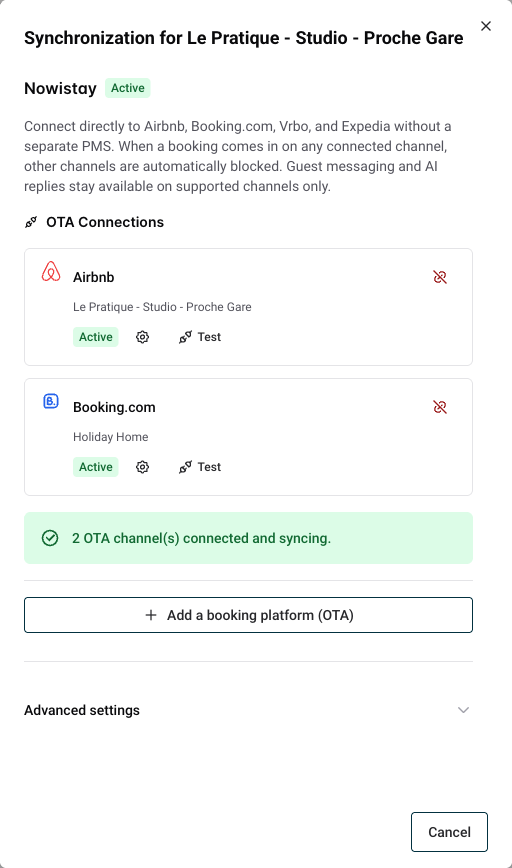
Click the … menu on the property card and select Synchronization.
Find the platform you want to close, for example Booking.com, and click its Channel settings button (the gear icon).
2. Create the Close Out rule
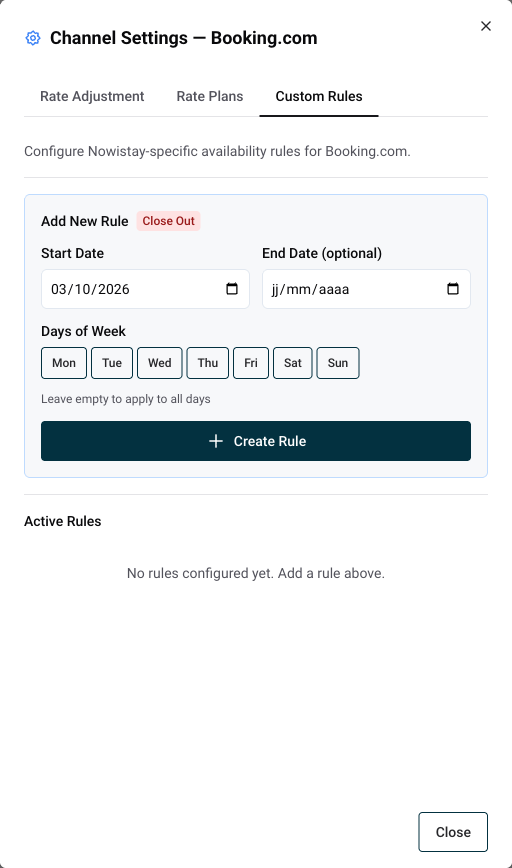
Open the Custom Rules tab. The Add New Rule form creates a Close Out rule.
In Start Date, choose the first night to close. It is today by default, which closes the platform right away.
In End Date (optional), choose the last night to close. Leave it empty to close the platform with no end date.
Leave Days of Week empty to close every night, or select days to close only those days of the week.
Click Create Rule.
The dates are stay dates: they say which nights are closed, not how long the rule lasts. A rule from today with no end date closes every future night. A rule from July 1 to August 31 closes only those nights, and guests can still book September on that platform.
The rule appears under Active Rules with its dates (an open-ended rule shows ∞), and the platform is updated within a few seconds.
What happens once the rule is active
The platform shows no availability on the closed nights, for every rate of the listing.
Your other platforms and your direct bookings are not affected.
Reservations already received from that platform stay synced: modifications, cancellations and guest messages keep arriving in Nowistay.
Calendar updates do not reopen the platform. Even when a night becomes free again after a cancellation, it stays closed on that platform until you delete the rule.
A rule with no end date also covers the new dates added as your calendar moves forward.
Your prices, minimum stays and the price adjustment of the platform are kept, so everything is ready when you reopen.
How to reopen the platform
Open the same Custom Rules tab and click the trash icon next to the Close Out rule. The nights reopen within a few seconds, with your current calendar availability and prices.
Example: leaving Booking.com while honoring existing reservations
Create a Close Out rule on Booking.com starting today, with no end date. No new Booking.com reservation can come in, while Airbnb and your direct bookings keep selling every free night.
Keep the Booking.com connection active until your last Booking.com guest has checked out, so their reservations stay synced.
Then open Synchronization again and click the Disconnect icon on the Booking.com line. Past bookings stay visible in Nowistay.
If you no longer want the listing online, deactivate it on the Booking.com side.
A rule applies to one property and one platform. If you manage several properties on the same platform, add a rule on each of them.
Ready to Put Your Rental on Autopilot?
Join 300+ property managers who save hours every week with AI-powered guest communication.