
How to edit the welcome guide?
Updated
Once your guide is created (see How to create the welcome guide with AI), you can change it at any time, in two ways:
- In the guide editor: open the guide with the Guidebook button on the property card, and change the text, pages, images, videos and extras yourself. Everything is explained below.
- With ChatGPT or Claude connected to Nowistay: say what you want in a sentence, and the assistant writes the content for you, looking up on the web what it needs. See Edit your guide with ChatGPT or Claude.
Format your digital welcome book
The AI assistant automatically applies a clean and structured layout. But you can edit it at any time to match your needs.
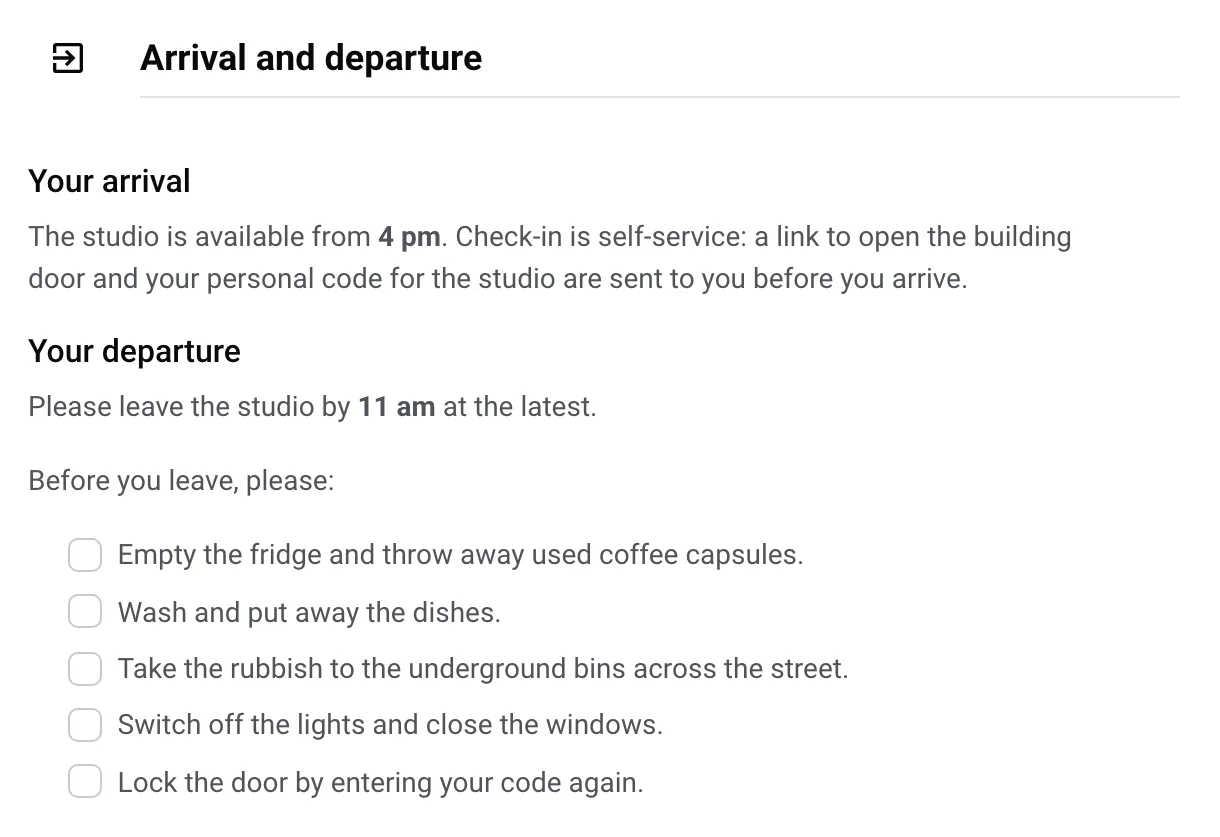
Watch this short tutorial to master content formatting:
Your changes are saved automatically
There is no save button. Nowistay saves a few seconds after you stop typing, and the indicator at the top left switches from Unsaved data to Saved. If you try to leave before that, Nowistay warns you first.
If the same guide was changed in another window (or recreated by the wizard) while you were editing, a This guide was changed elsewhere message appears: click Reload guide to continue from the latest version.
How to edit the Home page
Home is always the first page and cannot be moved or deleted. Write a short welcome message there (150 characters maximum). Guests see it at the top of the guide, under “Welcome to” and the name of your property, with the property photo and your initials.
How to add a YouTube video
-
Copy the video or Short URL (e.g., via the “Share” button)
-
Open the desired page in your guide
-
Paste the URL. The video will embed automatically!
Important: The video must be public or unlisted. Private videos won’t display in your guide. All the details are in How to add a video to the welcome guide.
Clarifications on adding images and videos
The AI co-host cannot interpret the content of images and videos. Therefore, you must always describe things with text.
Describe the image or video in its caption or in a dedicated paragraph.
How to create a new Page
- Click Page in the toolbar under the list of pages (tooltip + Add a page)
- A new page appears right after the page you are on. You can set its title, icon, and content.
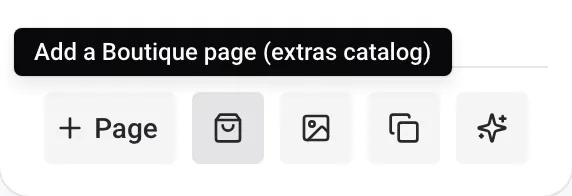
The toolbar holds, from left to right: Page, Add a Boutique page (extras catalog), Images library, Copy from an existing guide and Guide creation assistant.
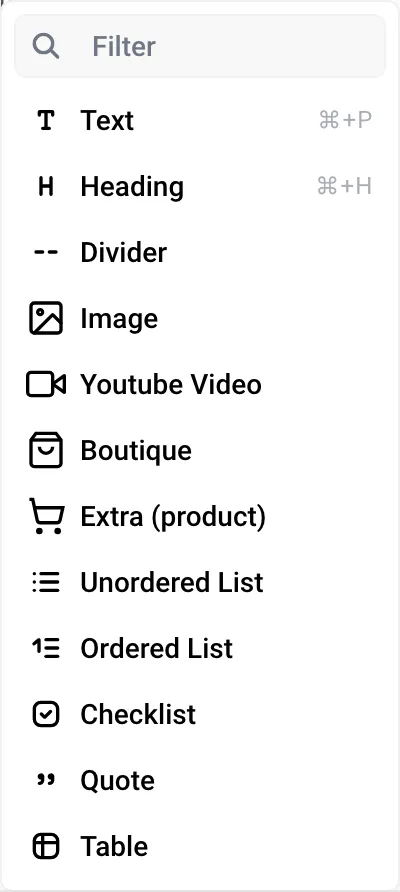
Use the editor to insert, with the + button at the left of a line:
- Text and Heading
- Table
- Ordered List and Unordered List
- Checklist
- Quote
- Divider
- Image
- Youtube Video
- Boutique and Extra (product) (see below)
Select some text to make it bold or italic, or to add a link. A line that contains only a web address (a restaurant, a map, a ticket page) turns into a preview card with its title and picture when you click elsewhere. Links you write in the guide are also links your AI co-host is allowed to send to guests.
How to add an image and use the library
You can add an image anywhere in the guide by clicking ”+” and choosing Image in the editor. This opens your Images library for you to choose an image or upload a new one with Add an image (JPEG, PNG, GIF or WebP, 10 MB maximum). You can also paste an image straight into the page.
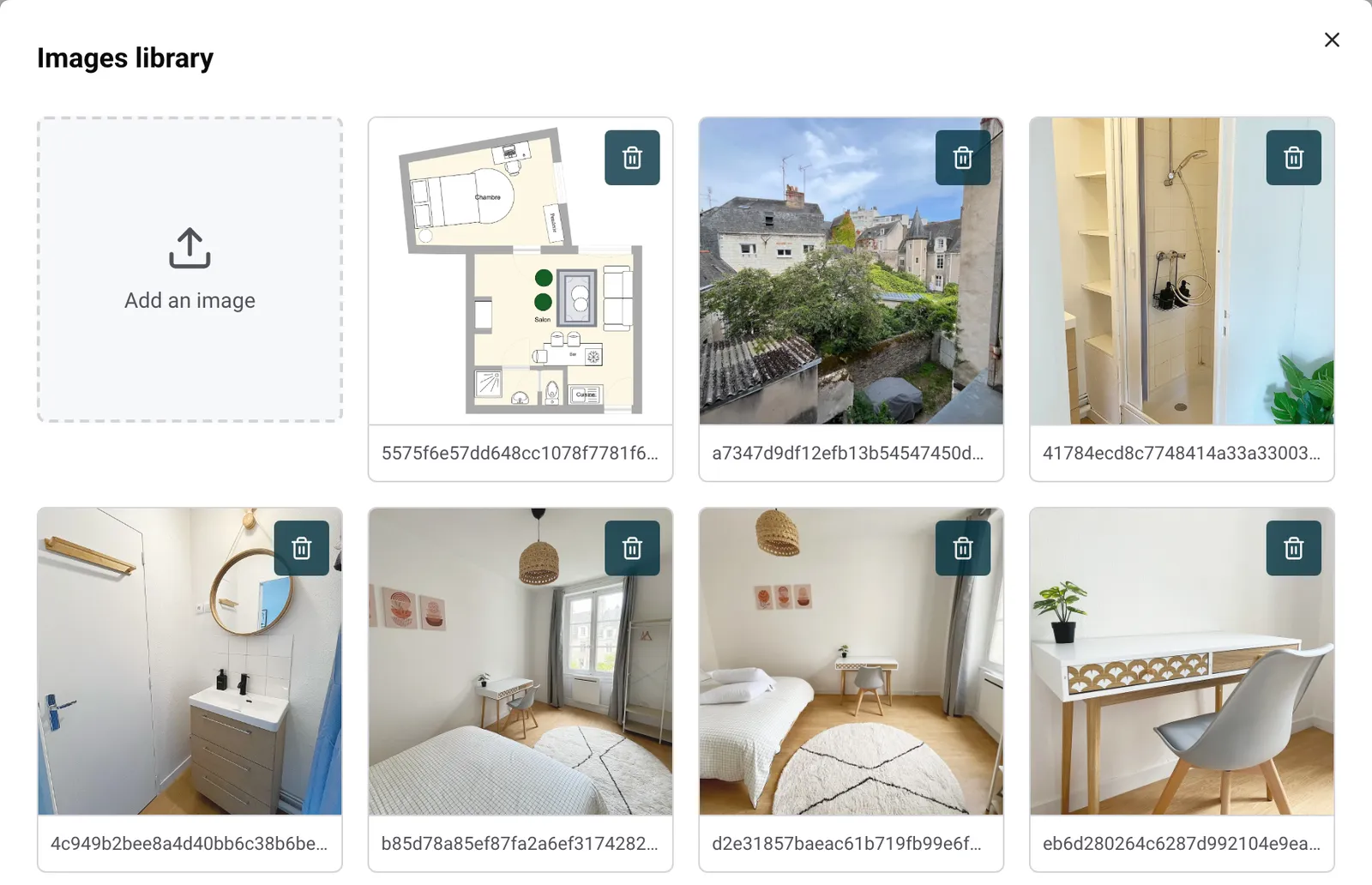
Each property has one library. It holds the images you uploaded, every image used in the guide, and the photos the wizard imported from your Airbnb listing and your documents. Open it from the toolbar icon to sort through it: deleting an image there also removes it from every page that uses it, after a confirmation. The same library is used when you attach photos to your automated guest messages.
How to show your extras in the guide
If you sell extras (early check-in, late checkout, breakfast…), the guide can display them with a purchase button:
- The Add a Boutique page (extras catalog) icon creates a Boutique page that lists all your extras.
- The Extra (product) block shows one extra inside any page, for example the late checkout on your departure page.
Guests only see them once your extras are set up. Everything is explained in How to sell paid extras.
How to manage pages
Click the ”…” next to a page to:
- Move it with Up or Down
- Delete it (Warning: This action is permanent and cannot be undone)
- Import content from another language: the page’s title and content in the language you are editing are replaced by that language’s version
- Run an Automatic translation of this page only (see How to translate the welcome book)
A red dot before a page means it is not translated yet into some of the guide’s languages: hover over it to see which ones.
Edit your guide with ChatGPT or Claude
Once Nowistay is connected to ChatGPT or Claude, you can ask the assistant to write in your guide: add a page, complete a section, rewrite instructions. It reads your guide and your property’s details in Nowistay, looks up on the web what it is missing (addresses, opening hours, the official manual of a device), and writes the content with headings, lists, links and photos. It shows you each change before applying it: nothing changes in your guide until you approve.
Before you start
- Connect Nowistay to ChatGPT or Claude: How to connect ChatGPT, Claude, or Gemini to Nowistay. It works for the properties that have the AI Channel Manager plan and are connected through Nowistay PMS.
- The guide must already exist: the assistant adds and edits pages, but it can’t create a guide or delete a page.
- Check that web search is turned on in your assistant, so it can look things up.
- In ChatGPT, select Nowistay in the prompt bar of a new chat.
Example 1: a restaurants page, with photos
Write, for example:
Complete the “Restaurants” page of the welcome guide of “Seaside Studio” (create it after the “Things to do” page if there is none). Find 5 well-rated restaurants within a 10-minute walk of the property: one for breakfast, two for lunch, two for dinner. Check that each one is still open. For each restaurant, write its name as a heading, the type of food, the walking time, the price range and one sentence on what to order, with a link to its website or its map. Add one photo per restaurant, taken from its own website.
The assistant then:
- Reads the property’s address and the pages already in the guide, so the new content fits in and repeats nothing.
- Searches the web, picks the restaurants and prepares the page.
- Shows you the page before saving it. Ask for changes (“replace the second one with a pizzeria”, “shorter descriptions”), then approve.
Then open the guide in Nowistay and read the page. Restaurants close and change their hours, so look over the page every season (the assistant can do it for you: “check that the restaurants on my Restaurants page are still open”).
About the photos: the assistant can add a photo when it finds a direct public link to the image, for example on the restaurant’s website. When it can’t, it tells you, and you add the photo yourself in two clicks (see How to add an image and use the library). Only use photos you have the right to reuse.
Example 2: washing machine instructions from a photo
The washing machine is one of the devices guests ask about most: a brand they don’t know, symbols instead of words, a manual in another language. Send the assistant a photo, and it writes the instructions for you.
- Take two photos: the control panel (dial, buttons, display) and the label with the brand and model, often inside the door or on the back of the machine.
- Attach them to a new chat and write, for example:
Here are photos of the washing machine at “Seaside Studio”. Identify the brand and the exact model, find the official user manual on the manufacturer’s website, and add simple instructions for guests in a “Washing machine” section of the “Equipment” page: where to put the detergent, which program to choose for everyday laundry and for delicates, which buttons to press and in what order, how long a cycle takes, and how to open the door at the end. Name the buttons and symbols exactly as they appear on the photo. Short numbered steps. Don’t change the rest of the page.
- The assistant reads the model on the photo and finds the manufacturer’s instructions by itself: you don’t need to look for the manual. It turns them into a few simple steps that match the buttons of your machine, then shows you the updated page before saving it.
- Try the steps once on the machine: a program name can differ from one version to another.
Tip: add the photo of the control panel to the page yourself, with a caption naming the program to use. Guests compare it with the machine, and your AI co-host reads the caption.
The same request works for the dishwasher, the oven, the coffee machine, the thermostat, the TV or the hot tub.
Good to know
- Read each change before approving it: the assistant can get a detail wrong, such as opening hours or the name of a program.
- New content is written in the guide’s main language. Then translate the page with Automatic translation in its ”…” menu: How to translate the welcome book.
- Anyone with the link can read the guide. Keep codes and other private details out of it: see Keep private information out of the guide.
- Your guide already exists as a PDF? The assistant can copy it in page by page, or add what it brings to your current guide: How to import your existing PDF welcome guide into Nowistay.
- More request ideas: What you can do with the Nowistay ChatGPT and Claude integration.
When does the AI co-host use your changes?
Your AI co-host reads the guide in its main language. After you edit it, the AI takes your changes into account about an hour after your last change. The voice assistant reads the latest version straight away.
When your guide is ready, share it with your guests.
Guides for hosts: read the blog.
Ready to Put Your Rental on Autopilot?