Nowistay lets you bring your existing reservations into the platform from a CSV file. It is the fastest way to load your booking history, or to move reservations from another tool or from VRBO, without adding them one by one. You match your file’s columns to Nowistay’s fields, preview the result, then import. If anything looks wrong, you can undo an import at any time.
Before you begin
You can import bookings into any property that is connected to Nowistay PMS and has an active AI Channel Manager subscription. If a property does not appear in the import window, it is not eligible yet.
- Your file must be a CSV. The separator (comma, semicolon, tab or pipe) is detected automatically.
- Your CSV can use any column names, in any order. Nothing needs to match Nowistay in advance (even if it’s preferred).
- Each file can hold up to 5,000 bookings and weigh up to 5 MB.
Step 1: Open the importer and upload your file
- Go to Bookings in the left menu.
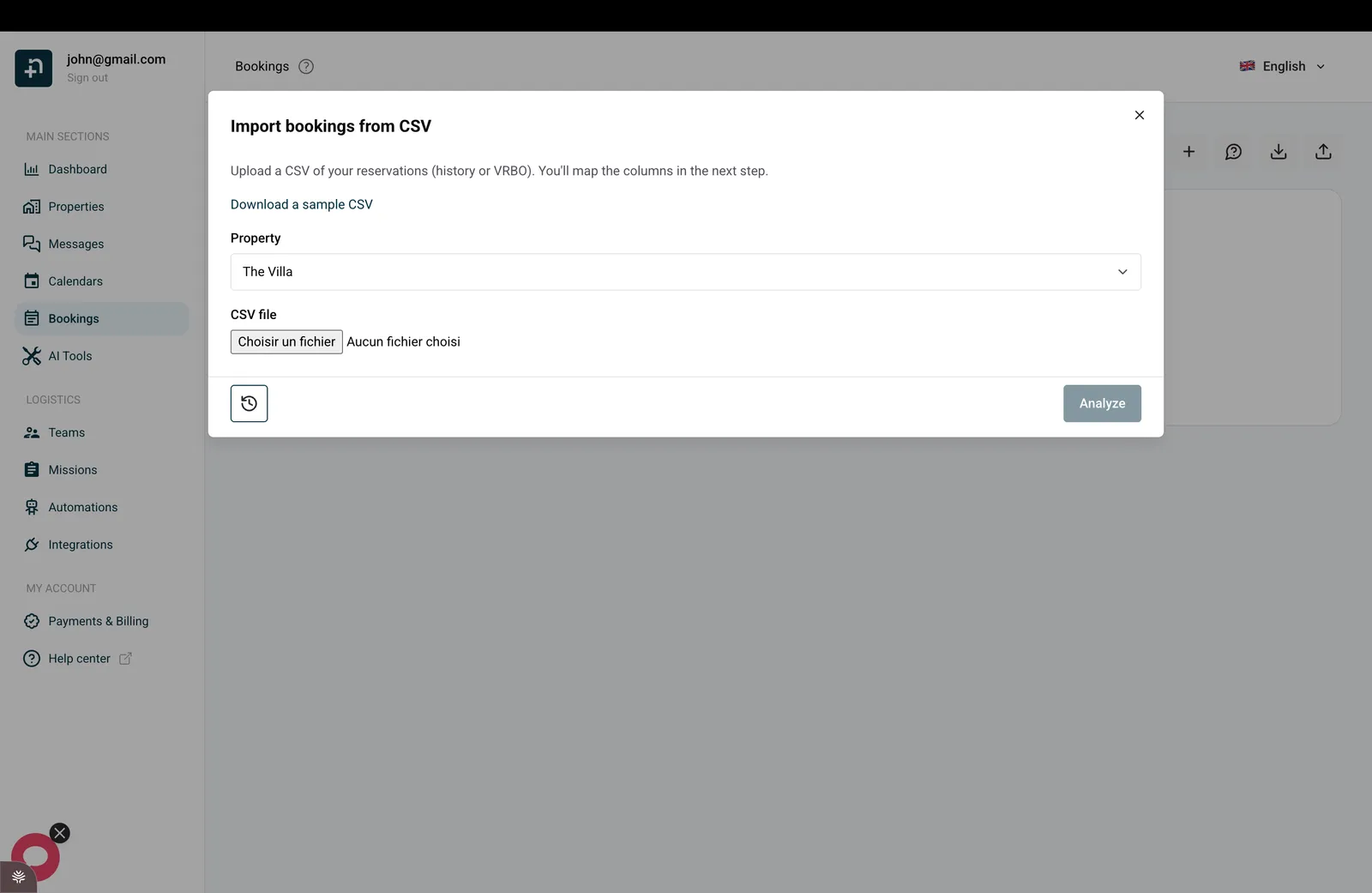
- Click the … button at the top right, then Import as CSV, to open Import bookings from CSV.
- Choose the Property the bookings belong to.
- Optional: click Download a sample CSV to get a ready-made template that shows the layout Nowistay expects. You can fill it in or just use it as a reference.
- Click Choose file and select your CSV.
- Click Analyze.
Step 2: Match your columns
After the analysis, Nowistay shows how many reservations it found and lets you match each Nowistay field to your file. For every field you pick a Source:
- From column: take the value from one of your CSV columns. Nowistay pre-fills the obvious matches, so you only adjust what is needed.
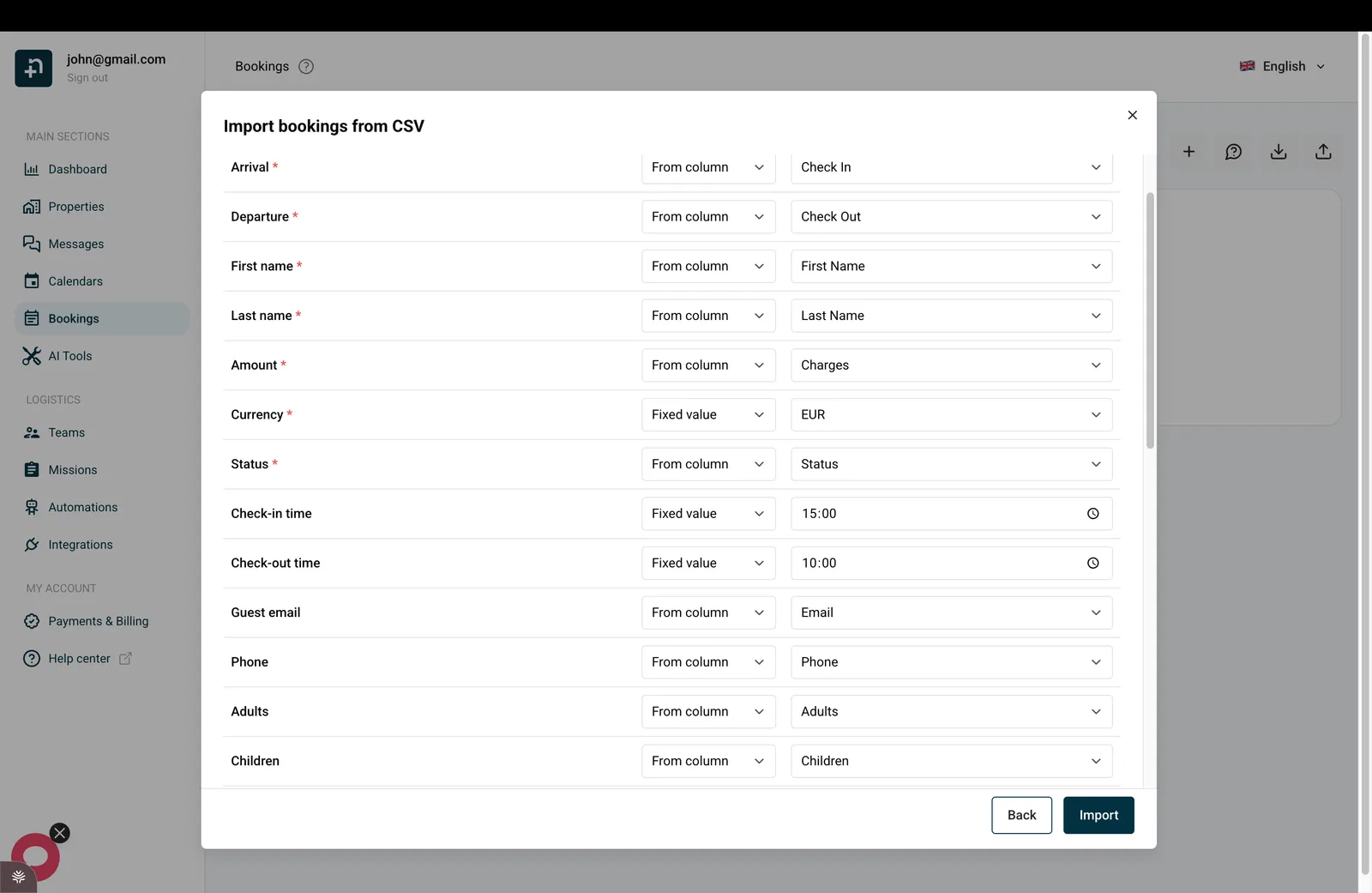
- Fixed value: use the same value for every booking. This is handy for things like currency or check-in time when your file does not include them.
- Ignore: skip this field, nothing is imported for it.
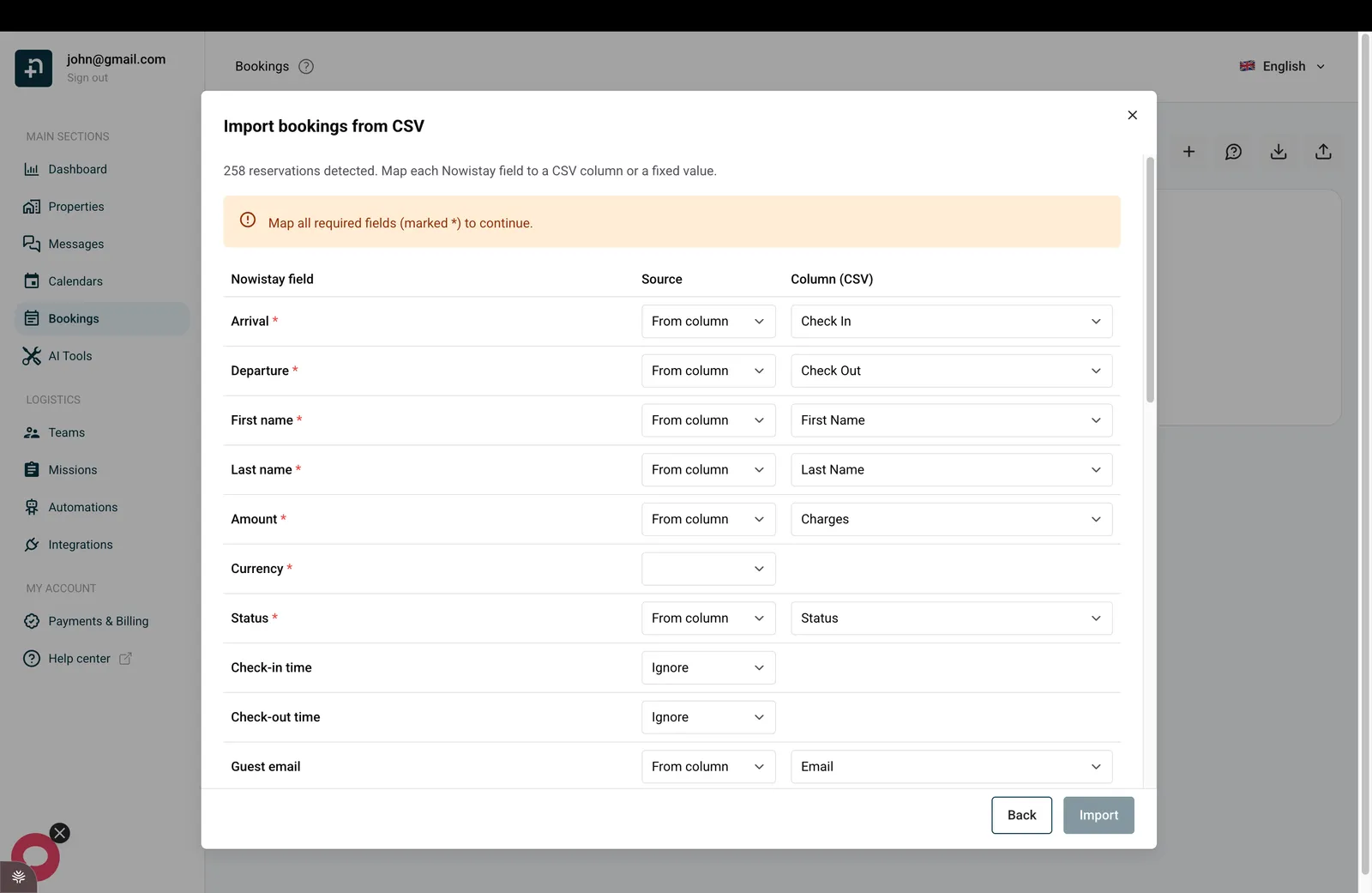
Fields marked with a red star (*) are required. You cannot start the import until all of them are matched. The required fields are Arrival, Departure, First name, Last name, Amount, Currency and Status.
What each column accepts
You do not need to reformat your file first. Nowistay reads the most common formats automatically. Here is what each field expects.
Dates: Arrival and Departure
- Almost any common format works: 2026-09-10, 10/09/2026, 10-09-2026, or even 10 Sep 2026.
- The format is detected automatically from your file. When a date could be read two ways (for example 03/04/2026), Nowistay reads it as day first (day/month/year).
- Departure must be after arrival.
Amounts: Amount, Nightly rate, Commission, Cleaning fee, Tourist tax
- Numbers only. Both the 1,234.56 and the 1 234,56 styles are understood, and currency symbols are removed automatically.
- Amount is the total paid for the stay. You can leave it empty only for cancelled bookings.
Currency
- A 3-letter code such as EUR, USD or GBP, or a symbol such as €, $ or £.
Status
From the fixed-value list you can choose one of three statuses:
- Confirmed
- Pending
- Cancelled
If you map status from a column instead, Nowistay also understands common wording: words like “new”, “booked” or “paid” become Confirmed, “request” or “enquiry” become Pending, and “refunded” or “declined” become Cancelled. An empty status is treated as Confirmed.
Check-in time and Check-out time
- Use the HH:MM format, for example 15:00. If your file has no times, set a fixed value (such as 15:00 for check-in and 10:00 for check-out).
Guest details
- Guest email: a valid email address.
- Phone: any phone number.
- Adults and Children: whole numbers.
- Reservation number: the booking reference from your previous tool. It helps Nowistay recognise duplicates.
- Language: a 2-letter code (en, fr, es, de, it, nl, pt) or the language name (English, Français, and so on).
Address
- Address, City and Postal code: free text.
- Country: a 2-letter code (FR), a 3-letter code (FRA), or the country name (France).
Step 3: Check the preview and import
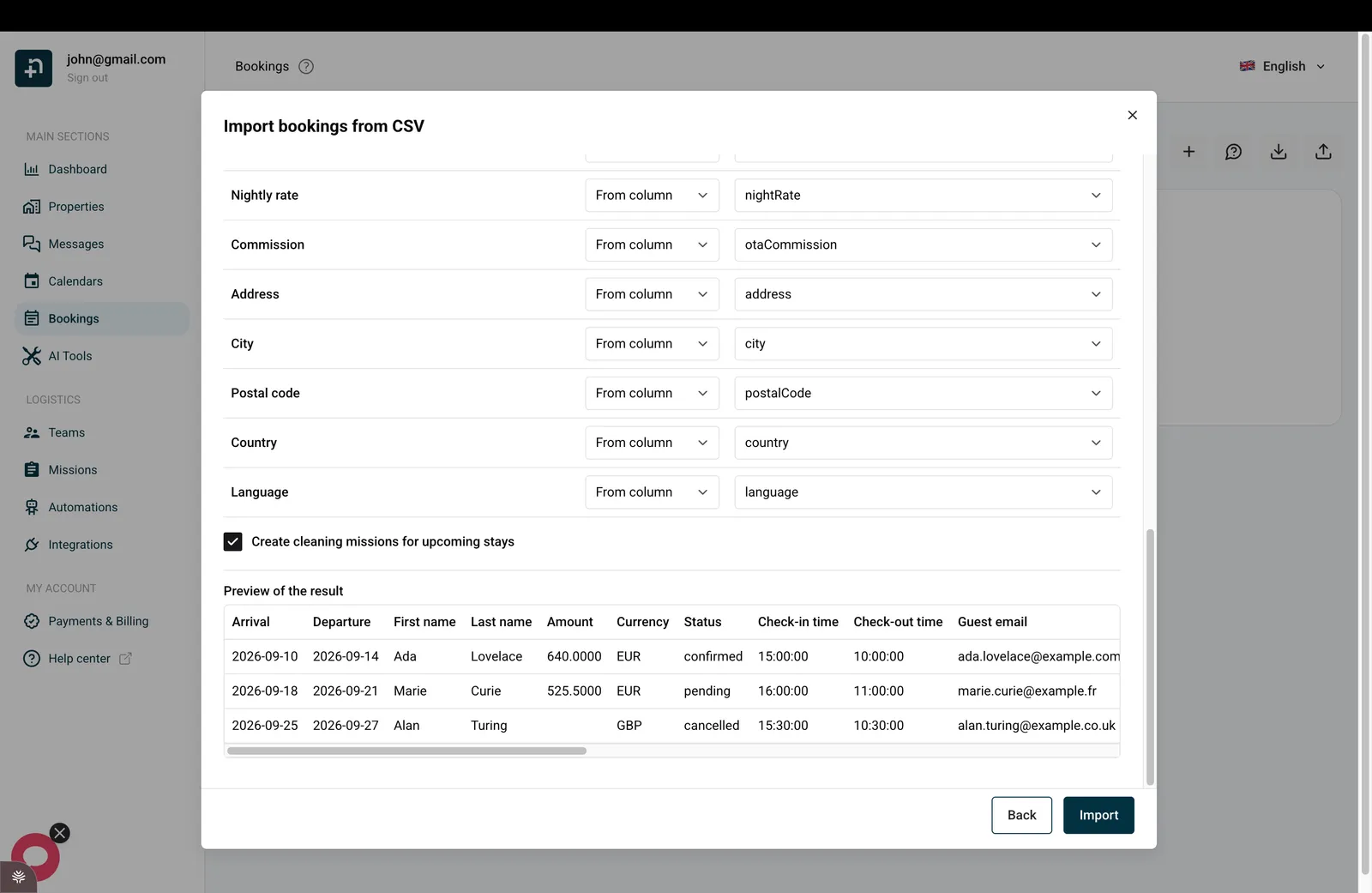
- Scroll down to Preview of the result to see exactly how your first bookings will be created, with every value already converted. This is the moment to catch a wrong column before importing.
- Leave Create cleaning missions for upcoming stays ticked if you want Nowistay to schedule a cleaning for each future confirmed stay. Past stays and cancelled bookings never get a mission.
- When everything looks right, click Import, then Confirm import. Use Back (or Review again) if you still need to adjust your column matching.
What happens after the import
- Imported bookings are added as direct bookings and block those nights on all your connected channels. They do not trigger channel commissions, and guests do not receive a booking confirmation. Your check-in and check-out messages are scheduled for upcoming stays, like for any other booking.
- Nowistay automatically skips rows that would create a duplicate (a booking with the same reservation number, or the same dates and the same guest), and confirmed stays that overlap a booking you already have. The result tells you how many were created and how many were skipped, so you never end up with double bookings.
See past imports and undo one
Every import is saved so you can review it or undo it.
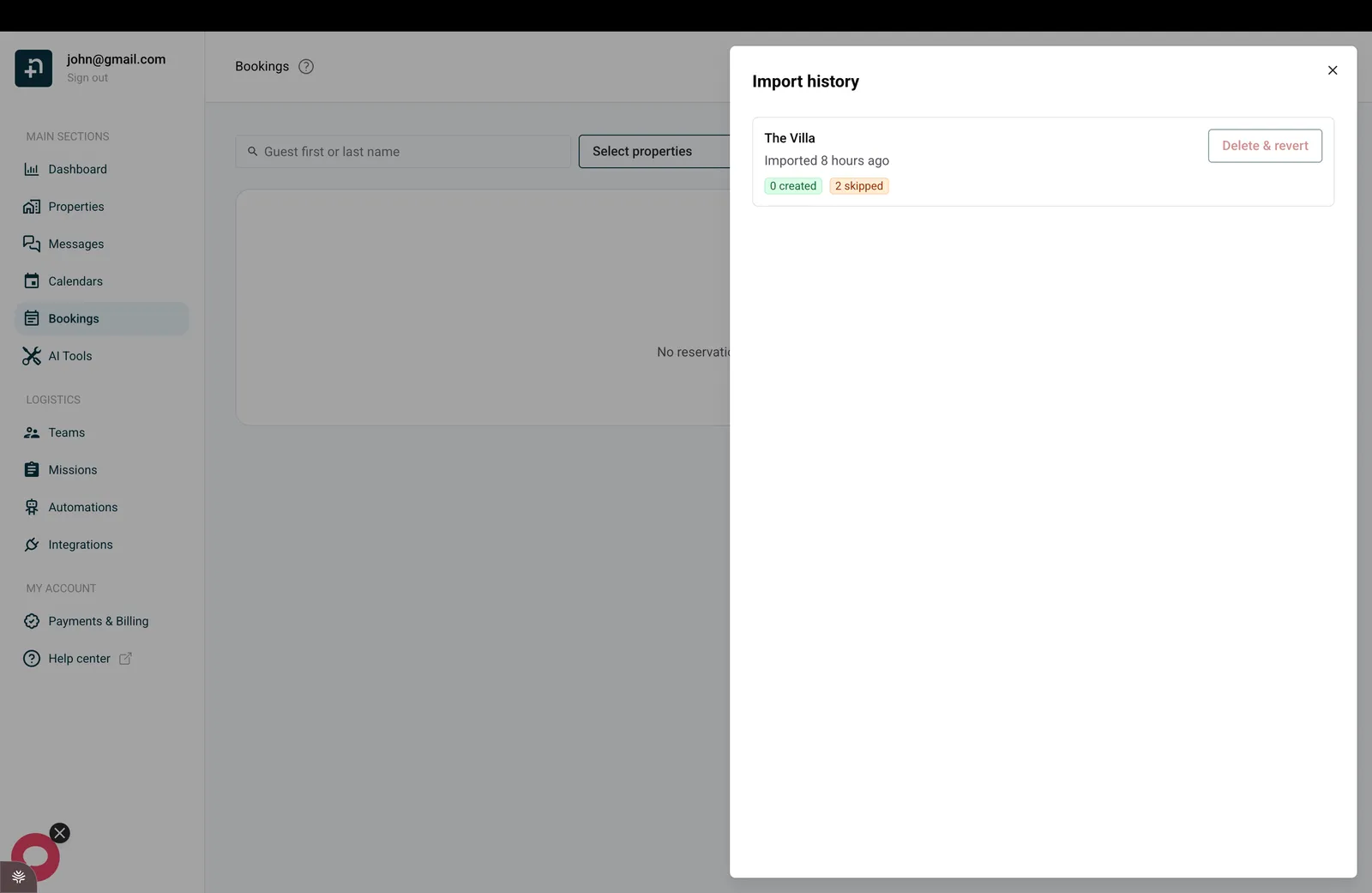
- Open the importer and click the history icon (bottom-left) to open Import history.
- Each entry shows the property, when it ran, and how many bookings were created and skipped.
- To undo an import, click Delete & revert. This permanently deletes the bookings that this import created and frees those dates on your calendar. It cannot be undone, so use it when an import was a mistake.
Good to know
- You can run several imports for the same property. Duplicates are filtered out automatically, so re-importing the same file is safe.
- If a few rows could not be read (a wrong date, or a missing required value), they are reported as failed in the result and the rest still import normally.
