Updated
A promo code gives your guests a discount when they book on your booking widget or your Nowistay website. You choose a percentage or a fixed amount, the properties it works on, and if you want, the days it can be used and how many times. It’s a simple way to thank a returning guest, run an open-house offer or reward guests who follow you on social media.
Promo codes only apply to direct bookings. They have no effect on Airbnb, Booking.com or your other channels.
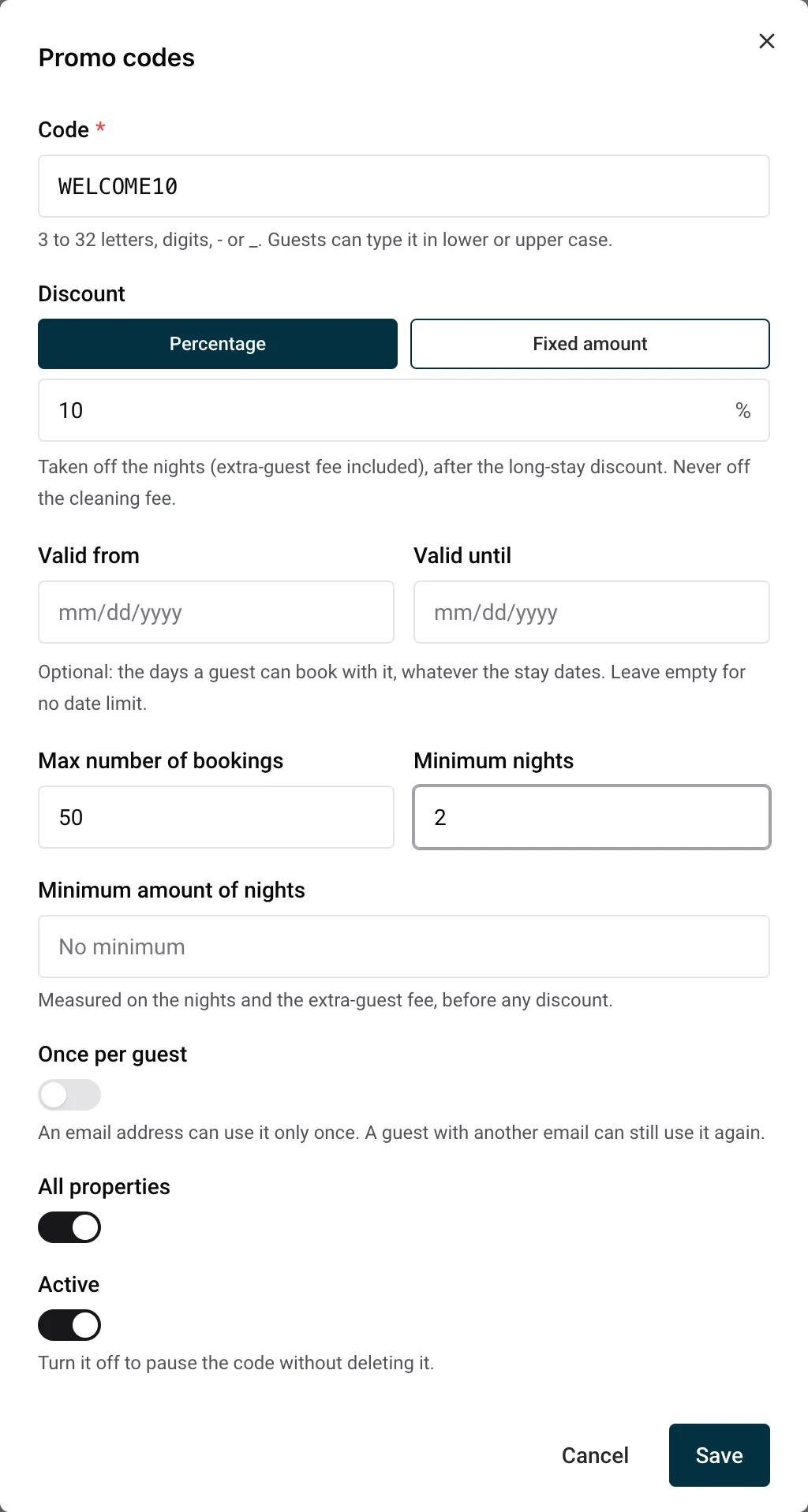
- or _, for example WELCOME10. Guests can type it in lower or upper case. Each code is unique in your account.A fixed amount or a minimum amount needs properties in a single currency. If your properties use different currencies, choose the properties in one currency, or create one code per currency.
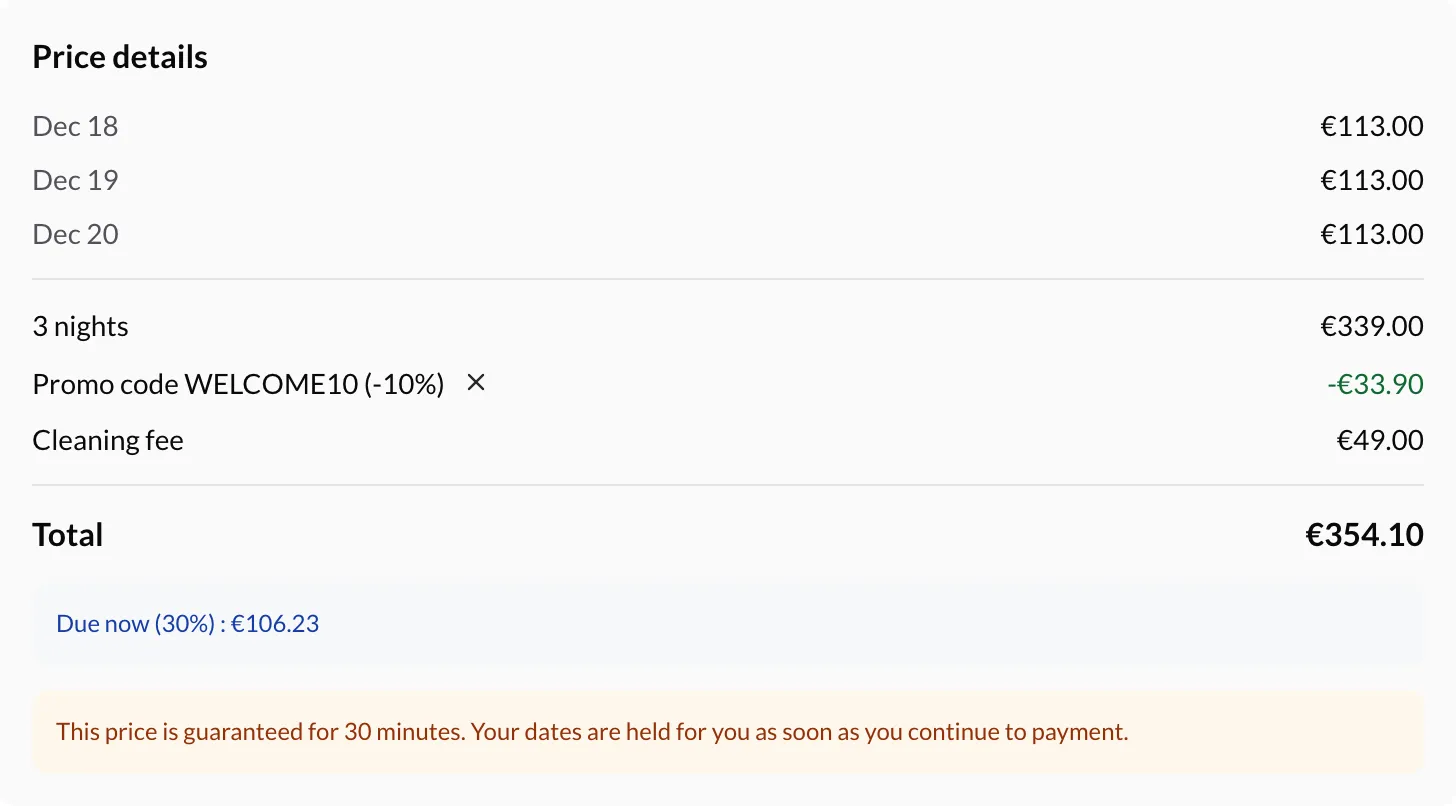
The code takes its discount off the price of the nights, extra-guest fee included, after the length-of-stay discount. It never reduces the cleaning fee.
Example: 7 nights at €100, a 10% discount from 7 nights and a 10% code:
When a property has a promo code that can be used today, the price summary of the booking widget shows Have a promo code?. The guest types the code and clicks Apply.
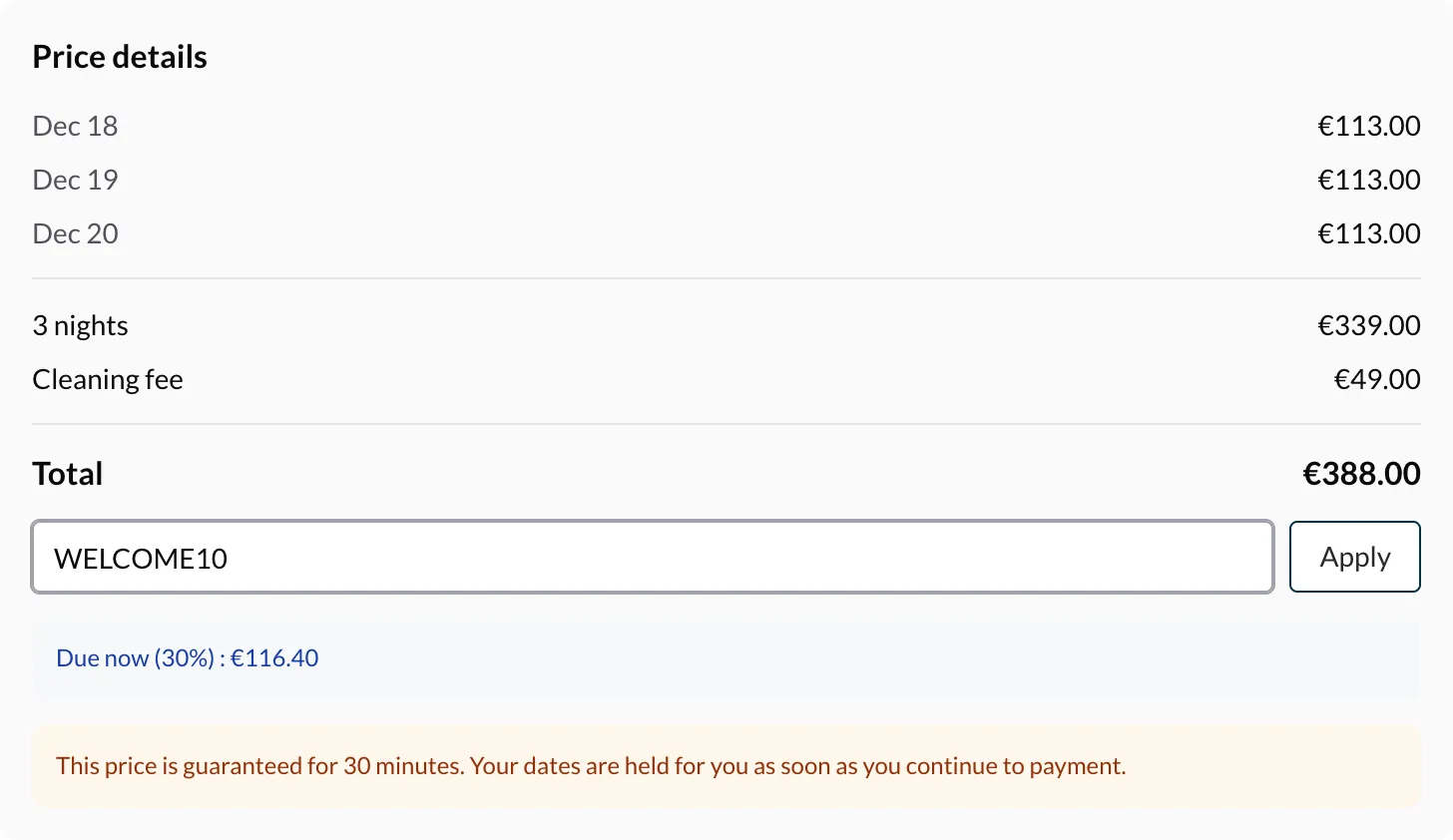
The code then appears as its own line in the price summary, with the discount, and the total updates. The guest can remove it with the cross next to it.
If no promo code is active for the property on that day, the field doesn’t appear, so guests aren’t sent looking for a code that doesn’t exist.
When a code doesn’t apply, the guest sees why and the price stays without it:
| Message | Why |
|---|---|
| This code isn’t valid. | The code doesn’t exist, is paused, or doesn’t work for this property |
| This code isn’t valid yet. | The booking is made before the Valid from date |
| This code has expired. | The booking is made after the Valid until date |
| This code needs a stay of at least 3 nights. | The stay is shorter than Minimum nights |
| This code needs at least €300.00 of nights. | The nights cost less than Minimum amount of nights |
| This code has been fully used. | Max number of bookings is reached |
| This code was already used with this email. | Once per guest is on and this email already booked with it |
A code checked again at payment may no longer apply, for example if you paused it or its last use was just taken by another guest. The guest then sees the message, the code is removed and the price without it shows before they pay. They can still book.
After several wrong codes in a short time, the widget stops checking codes for a while (Too many codes tried. Please try again later.). Booking without a code keeps working.
A link can carry the code: add ?promo= and the code to the address of the page, and the code is already filled in and applied when the guest reaches the price.
https://traveler.nowistay.com/en/book/<your token>?promo=WELCOME10?promo=WELCOME10, for example https://your-site.com/en?promo=WELCOME10.?promo=WELCOME10. If you pasted the embed code before promo codes existed, copy it again so the widget receives the code.Promo links fit newsletters, social media posts or a message to your past guests.
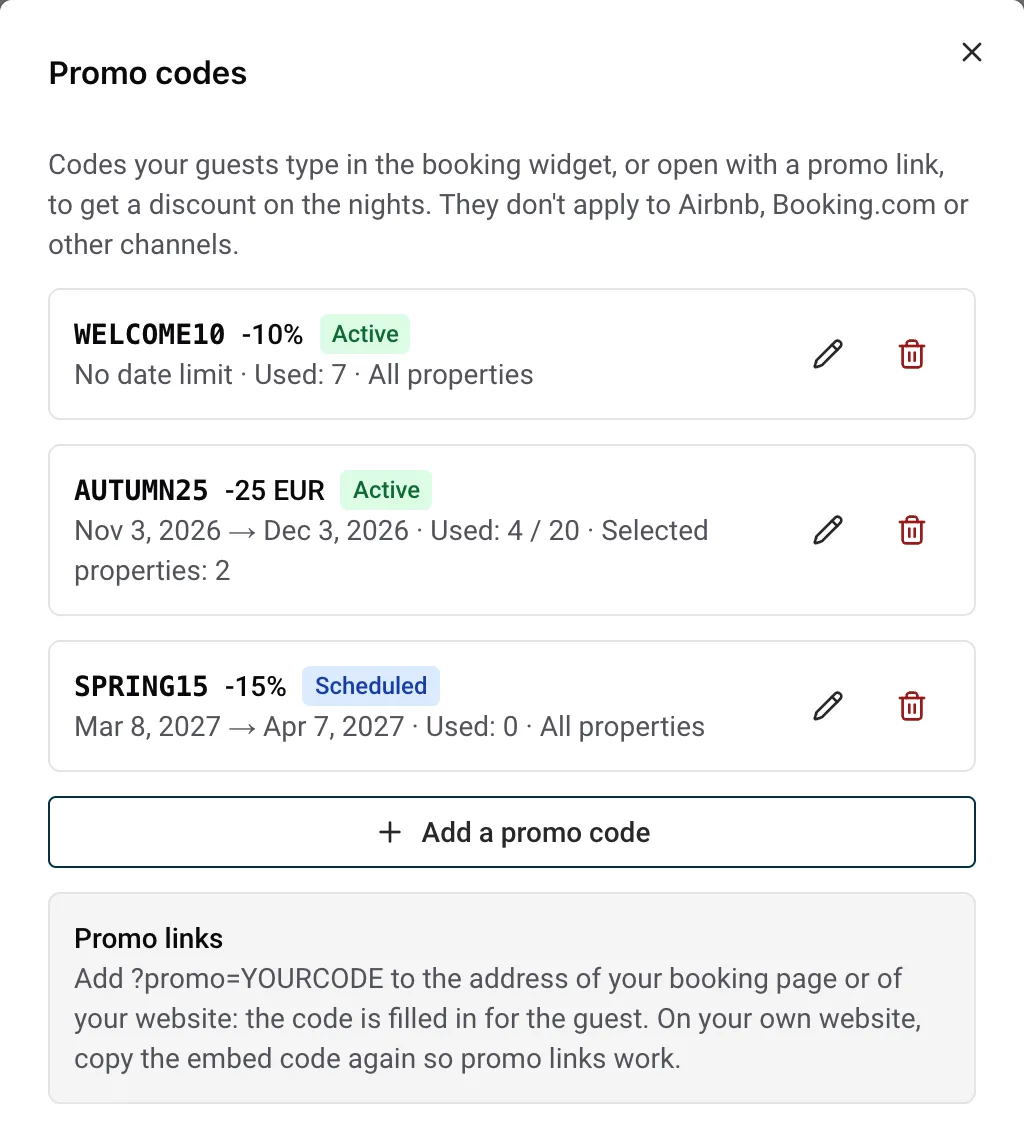
The Promo codes list shows each code with its discount, its dates, how many bookings used it (Used: 4 / 20 when a maximum is set) and its properties. A badge gives its status: Active, Paused, Scheduled (its first day hasn’t come yet), Expired or No property (the properties it worked on were deleted).
How uses are counted:
On each booking made with a code:
Changing a code (its discount, dates or limits) applies to new bookings: bookings already made keep their price. A guest who is already on the payment step keeps the price they were shown for 30 minutes. Deleting a code stops it at once; bookings made with it keep their price and the code name.
Guides for hosts: read the blog.
Ready to Put Your Rental on Autopilot?
