The Security Deposit automation lets you collect a security deposit from each guest before they arrive, in the way that suits each property. Two collection methods are available: save the card only (the default: no money is held, and you charge the card only if there is damage) or charge the deposit upfront (the guest pays the full amount, and Nowistay refunds it automatically after checkout, minus anything you retain for damage).
You configure it once per property, drop a link into your guest message templates, and gate your check-in instructions so they only go out once the guest has saved their card.
Three things must be in place on each property you want to enable the deposit on:
If any of these is missing, the deposit settings will tell you exactly what to fix on the property card.
Open the Automations page from the side menu and find the Security Deposit row.
.png)
Click the property selector on the right of the row and pick the properties you want to enable the deposit on. Only properties that meet the prerequisites above will be selectable.
Once you have selected your properties, click the gear icon on the right of the Security Deposit row to open Security Deposit Settings. Each property gets its own block where you set three values:
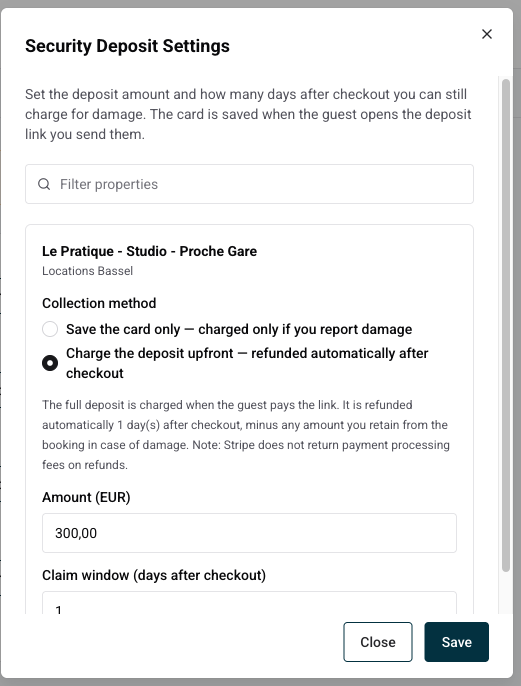
Click Save. From now on, every new booking on these properties gets its own secure card link, ready to share with the guest.
The deposit link is delivered to the guest through your Guest Messages templates. Open any template (typically your check-in instructions or a dedicated pre-arrival message) and insert the dynamic variable {{deposit_payment_link}} wherever you want the link to appear.
Here is a simple example of a check-in instructions email:
Hi {{guest_first_name}},
Your check-in for {{property_name}} is on {{arrival_date}} from {{check_in_time}}.
Before we share your access code, please register your card for the refundable security deposit here: {{deposit_payment_link}}
Once that's done, we'll send you everything you need to enter the apartment.
See you soon!
The variable resolves to a unique link per booking. With the default method, the guest opens the link, securely saves their card with Stripe, and the booking is automatically marked as paid in Nowistay. No money is taken at this point. With the upfront method, the guest pays the deposit on that same link instead, and receives a confirmation email that explains how the deposit works, when it will be refunded, and includes a link to follow its status at any time.
The link is active as soon as the booking is confirmed, so you can send this message whenever it suits your check-in flow. There is no minimum delay to respect: the moment you send the message is what triggers the guest to save their card.
To make sure your access codes never go out before the guest has saved their card, add a condition to the message template that contains the sensitive instructions. In the template editor, scroll to Booking info conditions and click Add condition:

The message will now only be sent automatically once the deposit is paid. If the guest hasn't saved their card before the scheduled time, the message is held back.
Duplicate your check-in template and turn the second copy into a reminder. Set the condition to:
In the body, drop the {{deposit_payment_link}} variable again and remind the guest that their access code will be shared as soon as they save their card. This way every booking gets either the instructions or a friendly nudge, never both.
Open any booking from the Bookings page. Below the booking summary you will see a SECURITY DEPOSIT section with everything you need to know about the deposit at a glance:

Three actions are available next to the section:
Because the guest's card is saved and not charged upfront, you decide if and how much to take. There are two ways to do it.
Open the booking, go to the SECURITY DEPOSIT section and click Charge deposit. Enter the amount you want to take, up to the deposit amount, add an optional reason, then confirm. Nowistay charges the guest's saved card and the status changes to Charged. If the card is declined or needs extra verification, you are notified and the deposit stays ready so you can try again.
This is the recommended method: everything stays in sync inside Nowistay, and the amount and reason are kept on the booking.
You can also charge the card directly from your own Stripe Dashboard. When the guest registers their card, it is saved as a customer on your connected Stripe account. Open Customers in Stripe, find the customer for that guest, and create a payment on their saved card for the amount you need.
Two things to keep in mind with this method: the charge will not show up on the deposit in Nowistay, so the booking will still show the card as on file, and the saved card is removed once the claim window closes, so charge before the window ends. When in doubt, use the in-app button instead.
With the Charge the deposit upfront method, the guest pays the full deposit when they open the link, and the money back is automatic: Nowistay refunds the deposit to the guest's card on the scheduled date, the number of days after checkout you configured, without you doing anything.
If something happened during the stay, open the booking, go to the SECURITY DEPOSIT section and click Adjust refund. Enter the amount to retain, up to the deposit amount, add an optional reason, and save. The dialog shows exactly what the guest will get back. Nothing is charged at that moment: the retention is simply deducted from the automatic refund when it runs. You can adjust it or clear it (set it to 0) as many times as you need until the refund is sent.
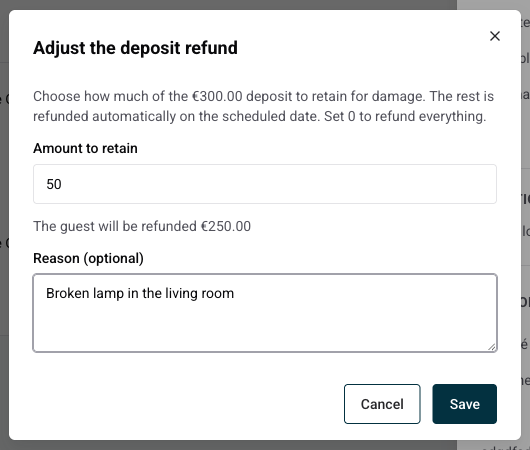
The guest pays on the same secure page they would otherwise use to save their card, and that page always shows where the deposit stands: paid, refunded, or settled with the refunded and retained amounts. The guest receives an email when they pay, explaining that the deposit is refunded automatically after the stay, and another when it is settled, both with a link to that page. Refunds typically appear on their statement within 5 to 10 business days.
Nowistay keeps both sides informed by email at the key moments of the deposit. Here is exactly who receives what, and when:
