The AI Pricing page lists all your properties in one table. For each one, you set a few prices once, then review the proposal AI Pricing prepares and apply it in one click. This guide covers Suggestions mode, the default: nothing changes in your calendar until you apply. To understand how prices are calculated, see how AI Pricing sets your prices. To let it apply changes every morning, see Automatic mode.
Click AI Pricing in the left menu, just below Calendars. With many properties, use Search a property... to find one quickly.
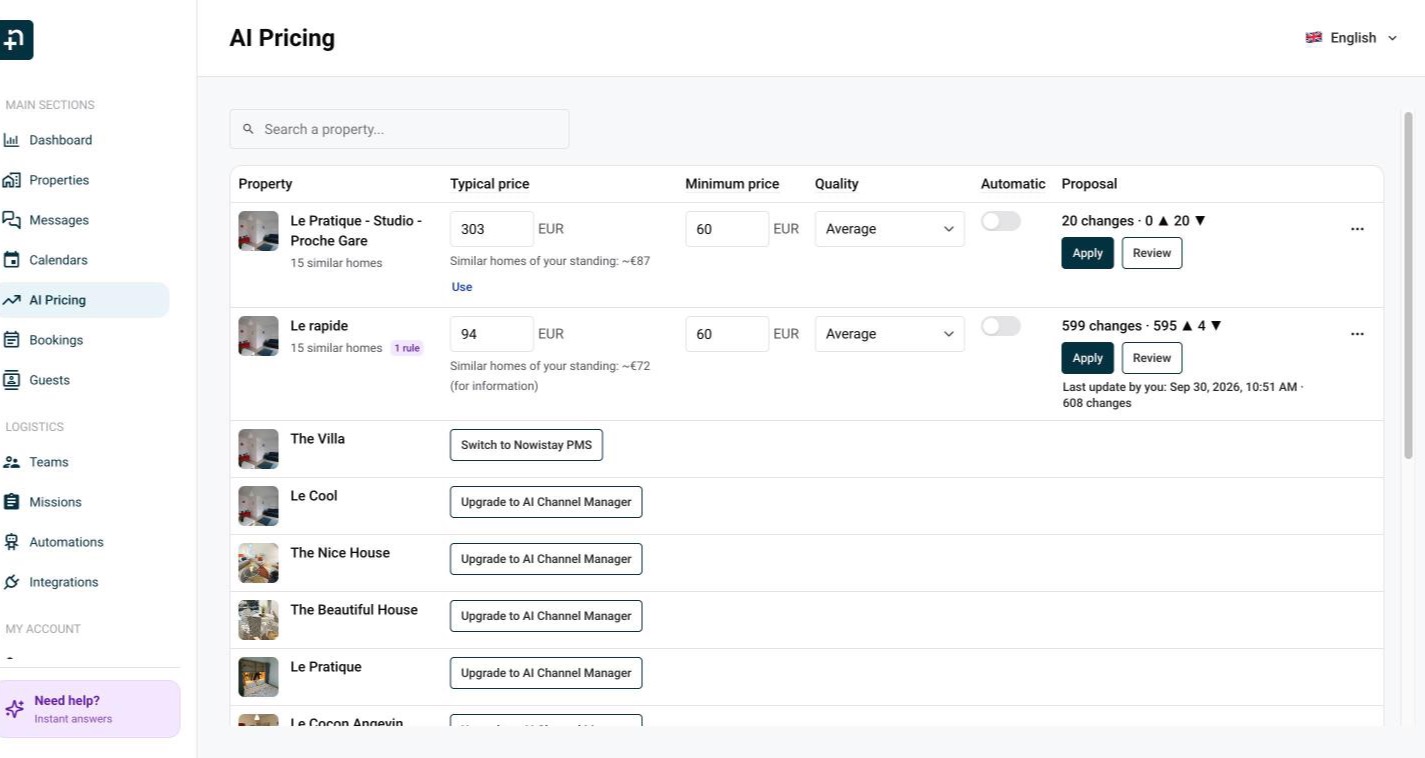
Each value is saved as soon as you change it, and the proposal is recalculated right after.
Under the property name, you see how many similar homes are followed, Limited data when there are too few, and a badge with the number of rules when you wrote instructions.
Click Review to open the property's proposal.
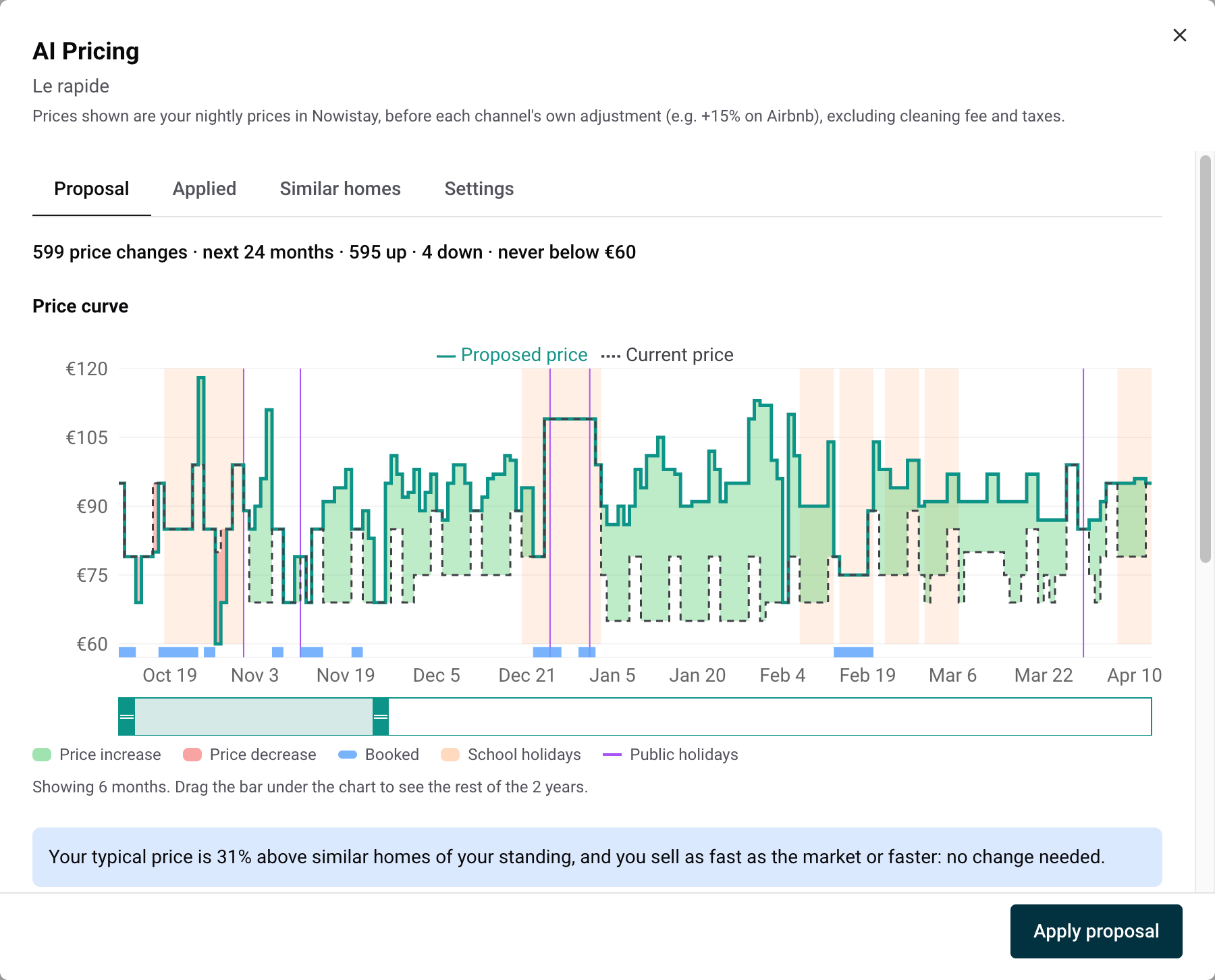
Click Review nights to see every change, grouped into runs of nights that move the same way for the same reason. Each run shows its dates, the current and proposed price, and its reasons. Why? details how much each factor moved the price. Big change marks a change of 20% or more, and Priced by you marks nights you set yourself in the calendar.
To leave some nights as they are, switch on Keep my price on their run. They keep their current price and are not proposed again for 14 days, unless the market moves by 10% or more.
Minimum-stay changes appear as Minimum stay: 2 → 1 night. AI Pricing only proposes to shorten the minimum stay, for orphan nights and for nights still free at the last minute. It never proposes to raise it.
Click Apply proposal in the proposal, or Apply in the table. The new prices and minimum stays are written to your calendar and sent to all your channels at once, and the row shows Live: with the number of changes applied. A night that changed in the meantime (a new booking, a price you edited) is skipped and stays as it is. If the proposal was recalculated since you opened it, you are asked to review it again before applying.
On the Calendars page, a small ▲ or ▼ marks the nights with a suggestion. Open a night: the panel shows AI Pricing suggests with the price and a Review button that opens the proposal. A price you change in the calendar is yours: it shows as Priced by you, and Automatic mode will not change it. See how to manage your prices from the calendar.
The Applied tab of the proposal lists every update with its date, its number of changes, and Applied by you or Applied automatically. Click See the changes to list each night with its old and new value.
Click Undo, or choose Undo last changes in the row's … menu, to restore the previous prices on your calendar and channels. You can undo an update for 14 days. A night that changed since (a new booking, a price you edited) is not restored. Undone nights then count as priced by you, so Automatic mode leaves them alone, and the proposal comes back so you can review it.
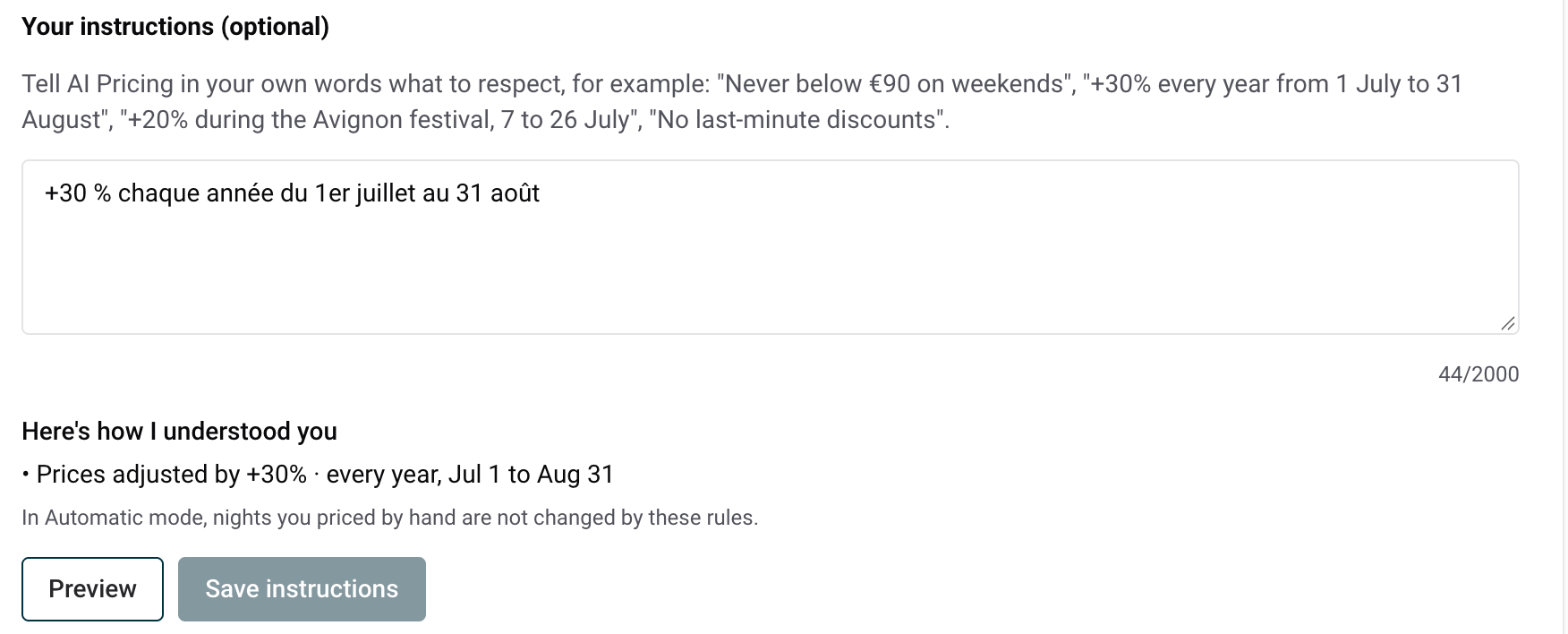
Choose Instructions in the row's … menu (the section is also at the bottom of the proposal). Under Your instructions (optional), write what AI Pricing must respect, in your own words and in your own language. For example:
Click Preview. Under Here's how I understood you, each rule is listed exactly as it will be applied. What I can't apply lists what was unclear or not supported, and Please confirm these dates flags dates that had to be guessed. When it is right, click Save instructions.
AI Pricing understands minimum and maximum prices, fixed prices for given dates, percentage changes by dates, weekdays or days before arrival, no last-minute or orphan-night discounts, never lowering or never raising your prices, and a strategy (fill more nights, balance, or keep prices high). Good to know:
Choose Turn off AI Pricing for this property in the row's … menu. Suggestions stop and automatic updates are switched off; prices already applied stay as they are. Click Turn on in the Proposal column to start again.
AI Pricing sends a push notification when your first proposal is ready, a summary every Monday, and rare alerts when demand jumps on the coming nights or a night soon is still free (2 per week at most). Change them under AI Pricing in your notification settings: see how to manage your notifications.
