AI Pricing Automatic mode: prices updated every morning
In Automatic mode, AI Pricing applies its proposal to your calendar and channels every morning at 07:00 (property time), so your prices follow the market without you opening the app. It keeps strict rules: nights you priced yourself stay yours, prices move step by step, and every update can be undone. Automatic is opt-in, property by property.
On the AI Pricing page, check the property's Typical price and Minimum price. If the row says Confirm your typical price, click Confirm first: Automatic needs a typical price you confirmed.
Switch on Automatic on the property's row.
Read the confirmation and click Turn on Automatic.
To turn it on for several properties at once, use the AI Pricing · automatic price updates card on the Automations page. Both places show the same state.
What happens every morning
At 07:00 in the property's time zone, AI Pricing recalculates the proposal and applies it, with these rules:
Price changes of at least €3 and 4% are applied. Smaller differences are ignored.
Prices move step by step: one morning raises a price by 30% at most, or lowers it by 20% at most. A bigger change continues on the following mornings.
A night that was just changed rests for 7 days before it changes again, unless its price needs to move by 10% or more. Your prices do not jump every day for small market moves.
Minimum stays are shortened according to the Settings tab (see below). They are never raised.
Your minimum price and your instructions apply exactly as in Suggestions mode.
Scheduled adjustments
When the 7-day rest holds a change back, the Proposal column shows the number of scheduled adjustments, applied by a given date at the latest, and the proposal shows the same message with an Apply now button. You have nothing to do: Automatic applies them by that date. Click Apply now if you want them live straight away.
What Automatic never changes
Nights you priced yourself. A price you set in the calendar stays as you set it. These nights show Priced by you, with a lock in the calendar.
Nights you undid. Undoing an update marks those nights as priced by you.
Booked and closed nights. Only free nights are priced.
Properties with limited data. When too few similar homes nearby can be used, the row shows Automatic paused: limited data, and nothing is applied automatically until enough data is back. You can still review and apply the proposal yourself.
To let AI Pricing manage the nights you priced yourself again, open the Applied tab of the property and click Let AI Pricing manage all my prices.
Minimum stays in Automatic mode
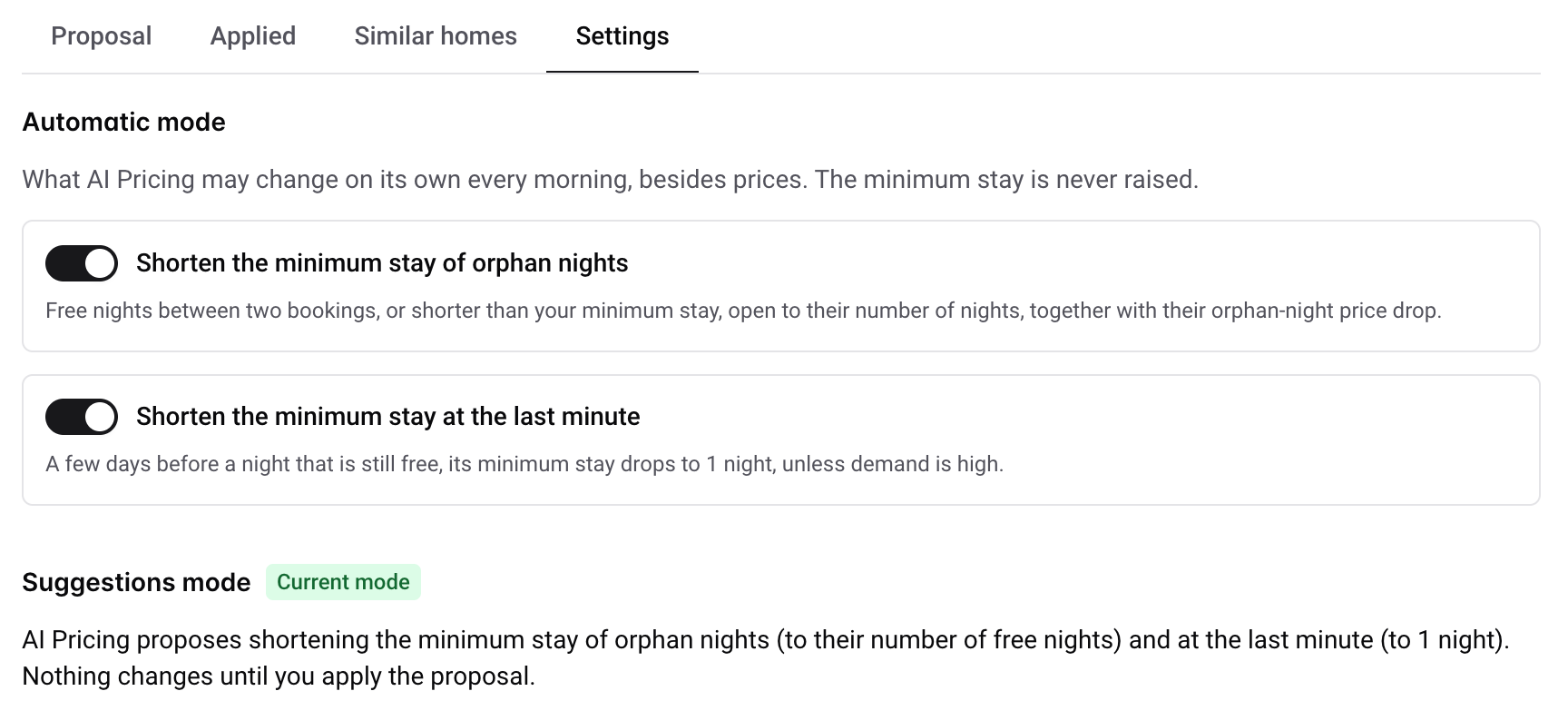
In the property's Settings tab, under Automatic mode, two switches decide what AI Pricing may change besides prices. Both are on by default:
Shorten the minimum stay of orphan nights: free nights between two bookings, or shorter than your minimum stay, open to their number of nights, together with their lower orphan-night price.
Shorten the minimum stay at the last minute: a few days before a night that is still free, its minimum stay drops to 1 night, unless demand is high.
The minimum stay is never raised, and never changed on nights you priced yourself. In Suggestions mode, these changes are proposed and wait for you to apply them.
Follow what Automatic did
The Proposal column shows Last automatic update with its date and number of changes. Click it to see the details.
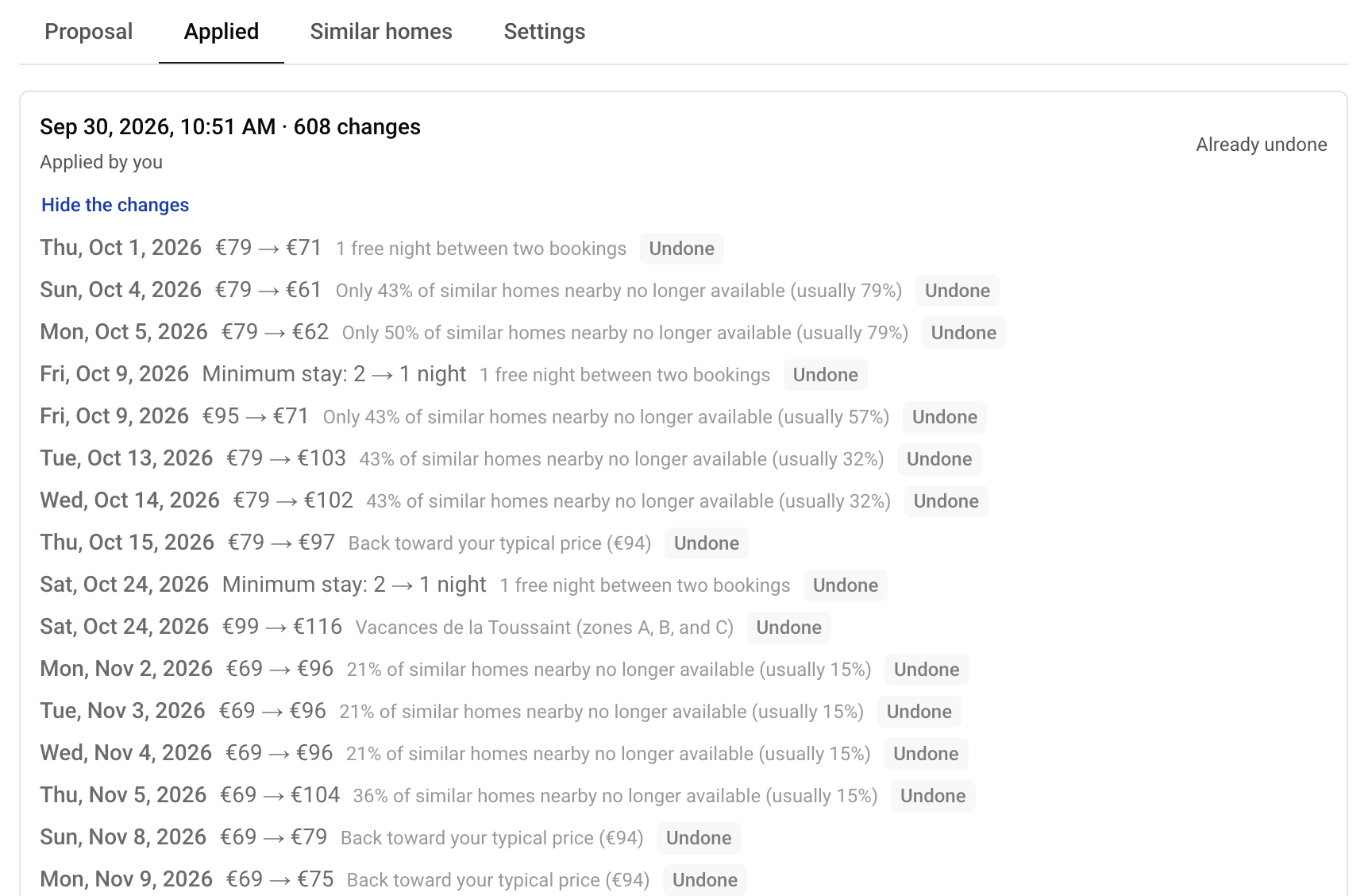
The Applied tab lists every morning update, marked Applied automatically. See the changes lists each night with its date, its old and new price or minimum stay, and the reason.
Every Monday, a push notification sums up the suggestions to review and the automatic updates of the week.
Undo an automatic update
In the Applied tab, click Undo next to the update and confirm. The previous prices are restored on your calendar and channels, and Automatic mode won't change these nights again, since they now count as priced by you. You can undo an update for 14 days; after that, it shows Can no longer be undone.
Turn Automatic off
Switch off Automatic on the property's row. The property goes back to Suggestions mode: AI Pricing keeps proposing, and nothing changes until you apply. Prices already applied stay as they are.
A property in Automatic mode cannot be connected to PriceLabs at the same time: switch it back to Suggestions first.