Configure team member settings: availability and language

All help ressources
>
Configure team member settings: availability and language

Once a team member is added, a few extra settings make the difference between automations that work cleanly and ones you have to fix manually every week. The two most important are availability (when the member is off) and language (what they read on the dashboard and in notifications). You can also change their assigned properties or revoke their access at any time from the same panel.

Where to find a member's settings

Go to the Teams section and click the team member's name. The settings panel opens with everything you can adjust for that person.
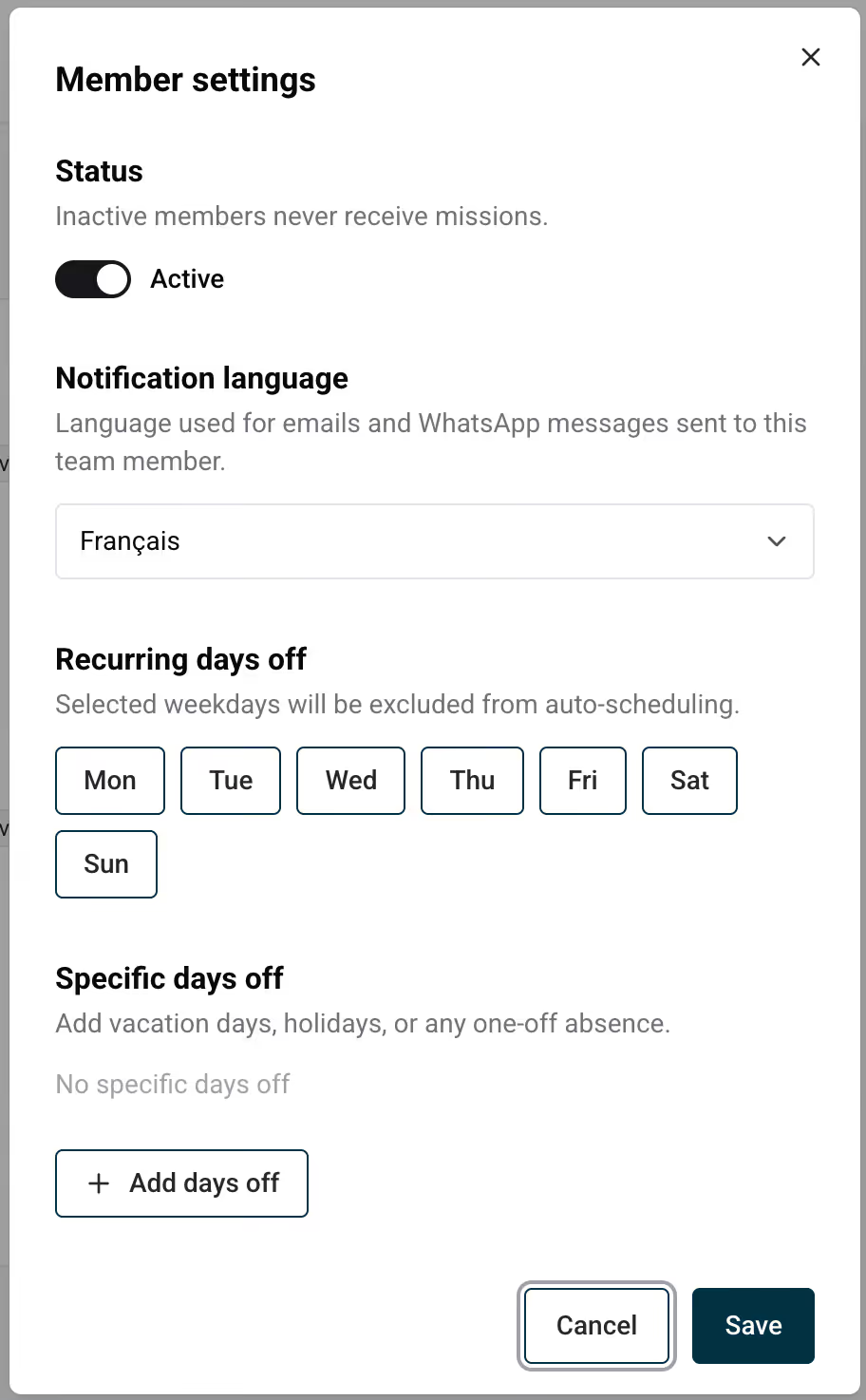
Team member settings panel β€” availability, language, active toggle

Set days off so automations skip closed days

The availability section tells Nowistay when this member is not available to take missions. The AI dispatcher reads it before assigning anything β€” your cleaner won't get a Monday cleaning if Monday is their day off.

You can configure:

  • Weekly off-days β€” e.g. every Sunday for a cleaner who never works weekends.
  • Specific dates or date ranges β€” e.g. 1 – 15 August for a summer holiday, or 24 – 26 December.
  • Recurring vacations β€” block out school holidays for a cleaning agency that scales down at certain periods.

Important: existing assigned missions are not retroactively unassigned. Availability only affects new mission assignments going forward. To re-route a mission that's already on a member, drag it onto another member from the calendar.

Change the dashboard language

Each team member has their own language preference. By default, they inherit your account language.

The language preference controls:

  • The shared dashboard interface (Calendar, Financials, Dashboard, mission and inquiry cards).
  • Mission card labels (e.g. "Cleaning", "Maintenance", scheduled time, countdown).
  • The email and WhatsApp notifications the member receives from Nowistay (briefings, reminders, confirmations, urgency alerts).

Override per member when, for example, a cleaner only reads Spanish and the rest of your team works in French. Available languages: English, French, Spanish.

Activate or deactivate access

The Active toggle controls whether the member can still see their dashboard and receive notifications. Switching to inactive:

  • Revokes the member's share link immediately β€” opening it shows an "access not available" message.
  • Stops new automated missions from being dispatched to them.
  • Keeps their history so you can reactivate later without re-creating them.

Use this whenever a member leaves temporarily (parental leave, end of season, change of agency) instead of deleting them.

Update assigned properties and notification channel

From the same panel you can also:

  • Change which properties this member sees and can take missions on (multi-select).
  • Change the communication channel for notifications: email, WhatsApp, or both.
  • Toggle "Show cleaning fee on mission cards" for this member.

How these settings interact with automations

When you set up mission automations, the dispatcher picks an eligible member by combining three things:

  • Role match β€” a cleaning automation only considers members with the Cleaning role.
  • Property match β€” the member must be assigned to the property the booking is on.
  • Availability β€” the member's off-days must not include the mission day.

If no member matches, the host gets a notification to assign manually.

Next steps

With availability and language set, you're ready to share each member's personal dashboard.

β†’ Continue with Share the team dashboard with your team.

Ready to Put Your Rental on Autopilot?

Join 300+ property managers who save hours every week with AI-powered guest communication.